OpenClaw
OpenClaw is a personal AI assistant that is designed to run on your local device. It connects directly to the messaging apps like Discord and Slack, and allows you to interact with it right in the app.
It acts as an "always-on" operator that can execute real tasks, such as searching and sending documents, managing calendars, or browsing webpages.
Learning objectives
By the end of this guide, you are able to:
- Install and initialize the OpenClaw environment.
- Integrate OpenClaw with Discord.
- Optional: Enable the web search capability using Brave Search.
- Manage skills and plug-ins.
- Optional: Grant OpenClaw access to local files.
- Optional: Enable the sandbox for secure code execution.
Prerequisites
Local model: Ensure Ollama or another model provider is installed and running.
Model provider
This tutorial uses Ollama as the model provider. If you are using a different provider or a local proxy, see the OpenClaw documentation on custom providers for configuration details.
Discord account: Required to create the bot application.
Discord server: A server where you have permissions to add bots.
(Optional) Brave search API key: Required for the agent to search the web for real-time information.
TIP
You can obtain a free API key from the Brave Search API. The free tier of the "Data for Search" plan is usually sufficient for personal use.
Upgrade notes
If you are upgrading an existing OpenClaw installation, review the version-specific changes and troubleshooting steps before proceeding. For more information, see Upgrade OpenClaw.
Install OpenClaw
From the Olares Market, search for "OpenClaw".
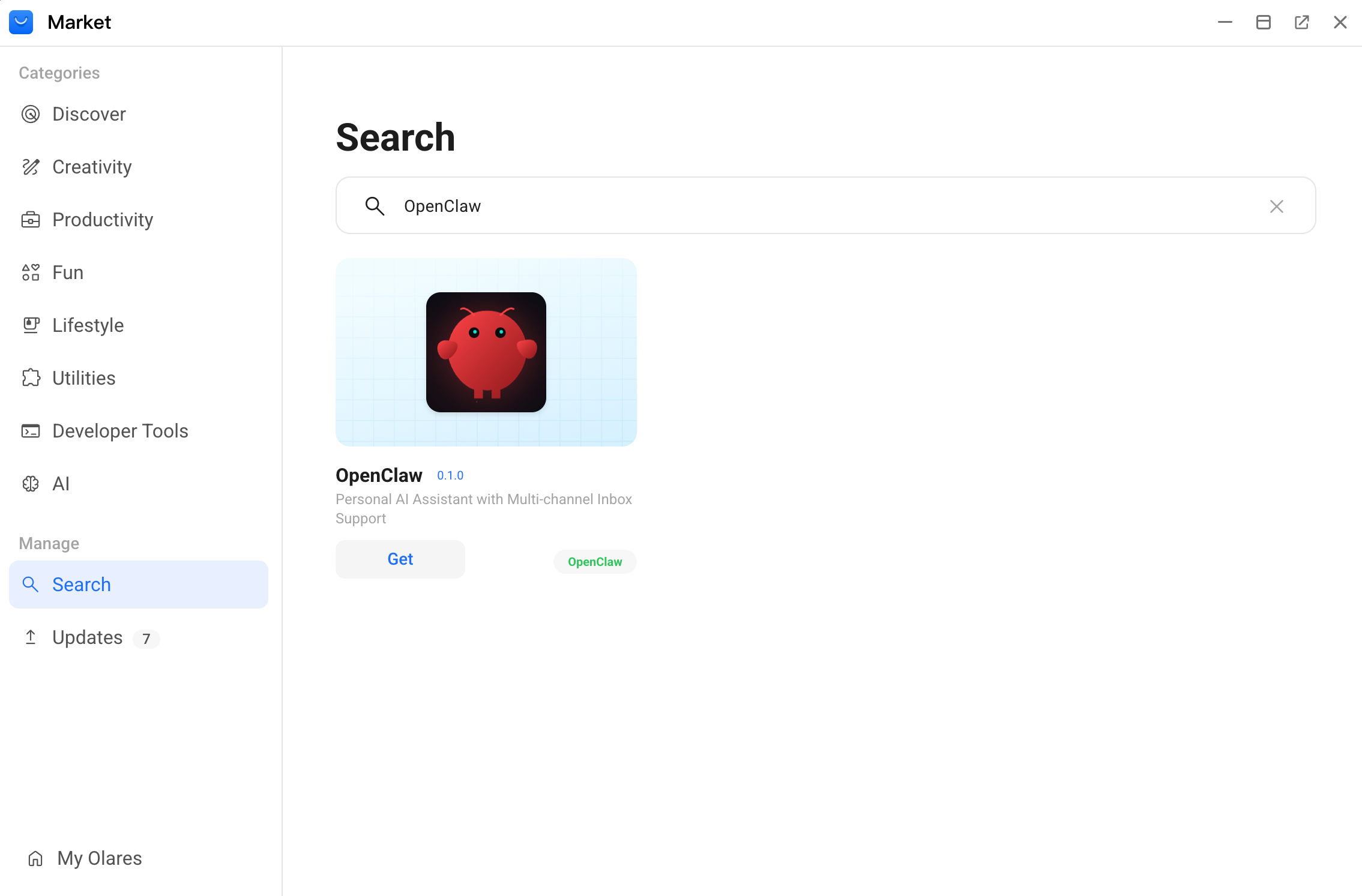
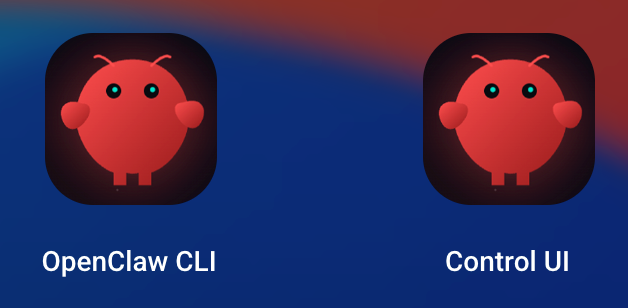
Click Get, and then click Install. When the installation finishes, two shortcuts appear in the Launchpad:
- OpenClaw CLI: The command line interface
- Control UI: The graphical dashboard
Run multiple OpenClaw agents
Olares supports app cloning. If you want to run multiple independent AI agents for different tasks, you can clone the OpenClaw app. For more information, see Clone applications.
Initialize OpenClaw
Run a quick setup for the agent.
Step 1: Install your model
Install a tool-capable model, such as glm-4.7-flash, qwen3.5:35b, and gpt-oss:20b. This tutorial uses qwen3.5:35b.
TIP
OpenClaw requires a large "context window" (that is the AI's short-term memory) to handle complex tasks without forgetting your previous instructions. If you are using local models, it is recommended to select a model that natively supports a context window of at least 64K tokens.
Step 2: Verify model accessibility
Before configuring OpenClaw, verify that your model is accessible and responsive via the API.
Open the OpenClaw CLI app from the Launchpad.
Enter the following command to verify your API address and retrieve the list of available models. Ensure you replaced
{Your-Model-API}with the exact API endpoint you copied in Step 1.bashcurl {Your-Model-API}/api/tagsFor example,
bashcurl https://ab694c1c.laresprime.olares.com/api/tagsThe terminal returns the details of available models, indicating the API is reachable. For example,
text{"models":[{"details":{"families":["qwen35moe"],"family":"qwen35moe","format":"gguf","parameter_size":"34.7B","parent_model":"","quantization_level":"Q8_0"},"digest":"ff81134b3a699cbc79d3a9e9ee439335fdcd6f43f4d296f31bf46986fa83e01a","model":"qwen3.5:35b-a3b-ud-q4_K_L","modified_at":"2026-03-24T09:59:18.969770729Z","name":"qwen3.5:35b-a3b-ud-q4_K_L","size":20205634377}]}Enter the following command to force the model to load into memory and test its response speed. Ensure you replaced
{Your-Model-API}and{Your-Model-Name}with the exact details you copied in Step 1.Why do this before onboarding?
Ollama unloads models from memory after 5 minutes of inactivity by default. Reloading large models takes time and can cause the onboarding verification in the next step to time out and fail. This command "wakes" the model to ensure a smooth setup.
bashcurl {Your-Model-API}/api/generate -d '{ "model": "{Your-Model-Name}", "prompt": "say hello world", "stream": false }'For example,
bashcurl https://ab694c1c.laresprime.olares.com/api/generate -d '{ "model": "qwen3.5:35b-a3b-ud-q4_K_L", "prompt": "say hello world", "stream": false }'The terminal returns a successful response containing
Hello World!, indicating your model is ready to use. For example,text{"model":"qwen3.5:35b-a3b-ud-q4_K_L","created_at":"2026-03-24T11:40:21.619815369Z","response":"Hello World","done":true,"done_reason":"stop","context":[248045,846,198,35571,23066,1814,593,26003,248046,198,248045,74455,198,248068,271,248069,271,9419,4196],"total_duration":47302041704,"load_duration":41637938018,"prompt_eval_count":13,"prompt_eval_duration":4645064174,"eval_count":7,"eval_duration":961633505}
Step 3: Run onboarding wizard
Set up OpenClaw using the step-by-step interactive wizard, or bypass the prompts using direct commands.
Step 4: Pair device
Connect the Control UI to the OpenClaw CLI to use the graphical dashboard.
Step 5: Configure context window
OpenClaw requires a large "context window" (that is the AI's short-term memory) to handle complex tasks without forgetting your previous instructions.
Open the Files app, and then go to Data > clawdbot > config.
Double-click the
openclaw.jsonfile to open it.Click edit_square in the upper-right corner to enter the edit mode.
Find the
modelssection and locate the configuration block for your model.Update the
contextWindowvalue to at least 65536 (64K). If your hardware VRAM permits, it is highly recommended to increase it to 204800 (200K).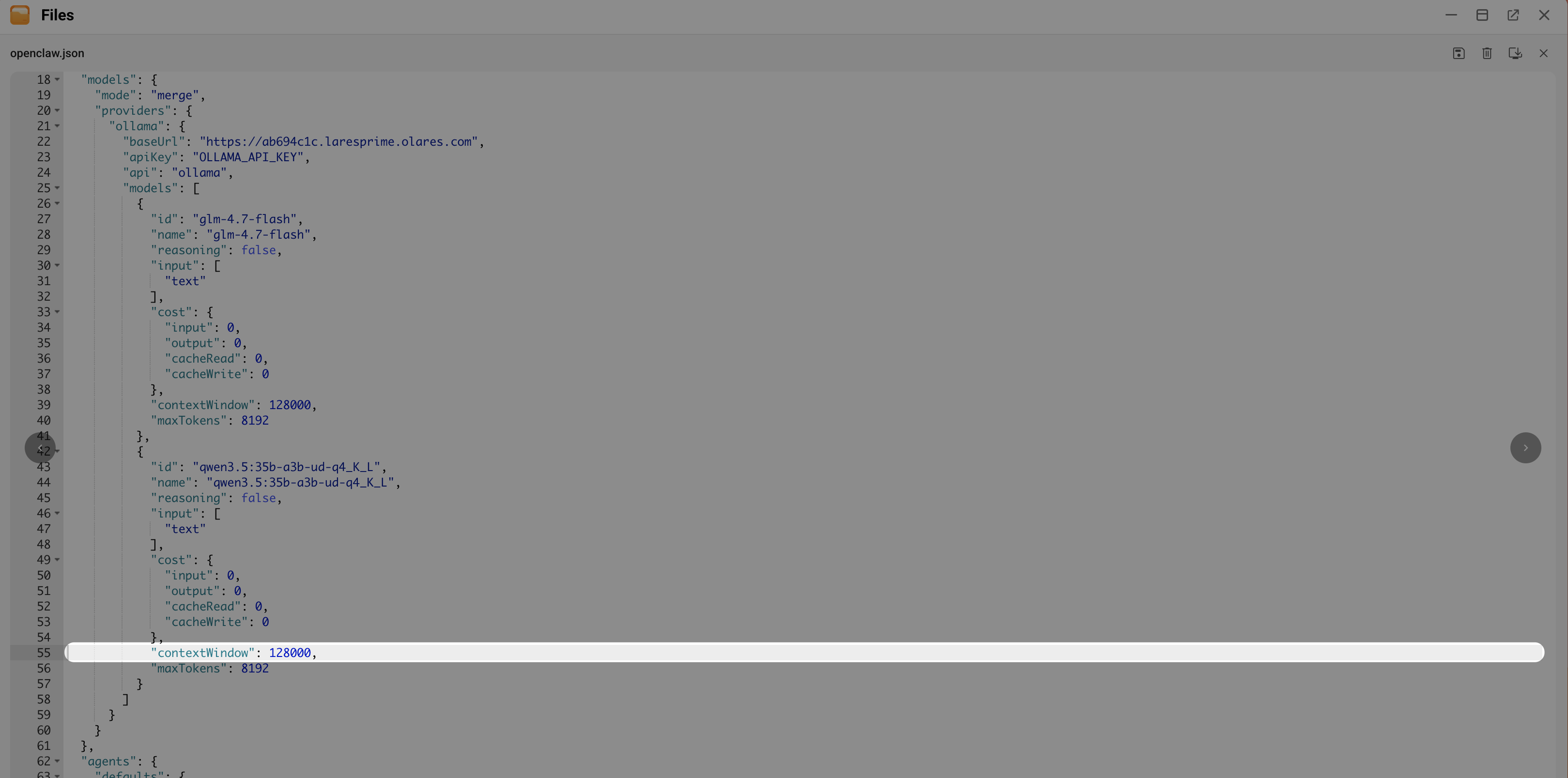
Click save in the upper-right corner.
Restart OpenClaw for the changes to take effect.
Step 6: Personalize OpenClaw
To make your OpenClaw bot more personalized, it is highly recommended to complete the persona setup process.
This process establishes the agent's identity, behavioral boundaries, and long-term memory through persona files. These files keep your agent's behavior consistent across all platforms and channels.
In the Control UI, select Chat from the left sidebar.
Ensure that neurology at the upper-right corner is enabled. This allows you to watch the agent think and edit persona files in real time.
Type and send the following message to start:
textWake up please!The agent responds and starts interviewing you. You can establish rules, personality traits, and preferences. For example,
text- Call me Bella. I like simple language without technical jargon and concise bulleted answers. - You are John, a witty assistant who uses emojis. - Never access my calendar without asking first, and never execute any financial operations.As you chat with the agent, look for the Tool output messages. These indicate the agent is successfully writing your preferences to its core persona files, such as
IDENTITY.md,USER.md, andSOUL.md. You can expand each tool output to view the details.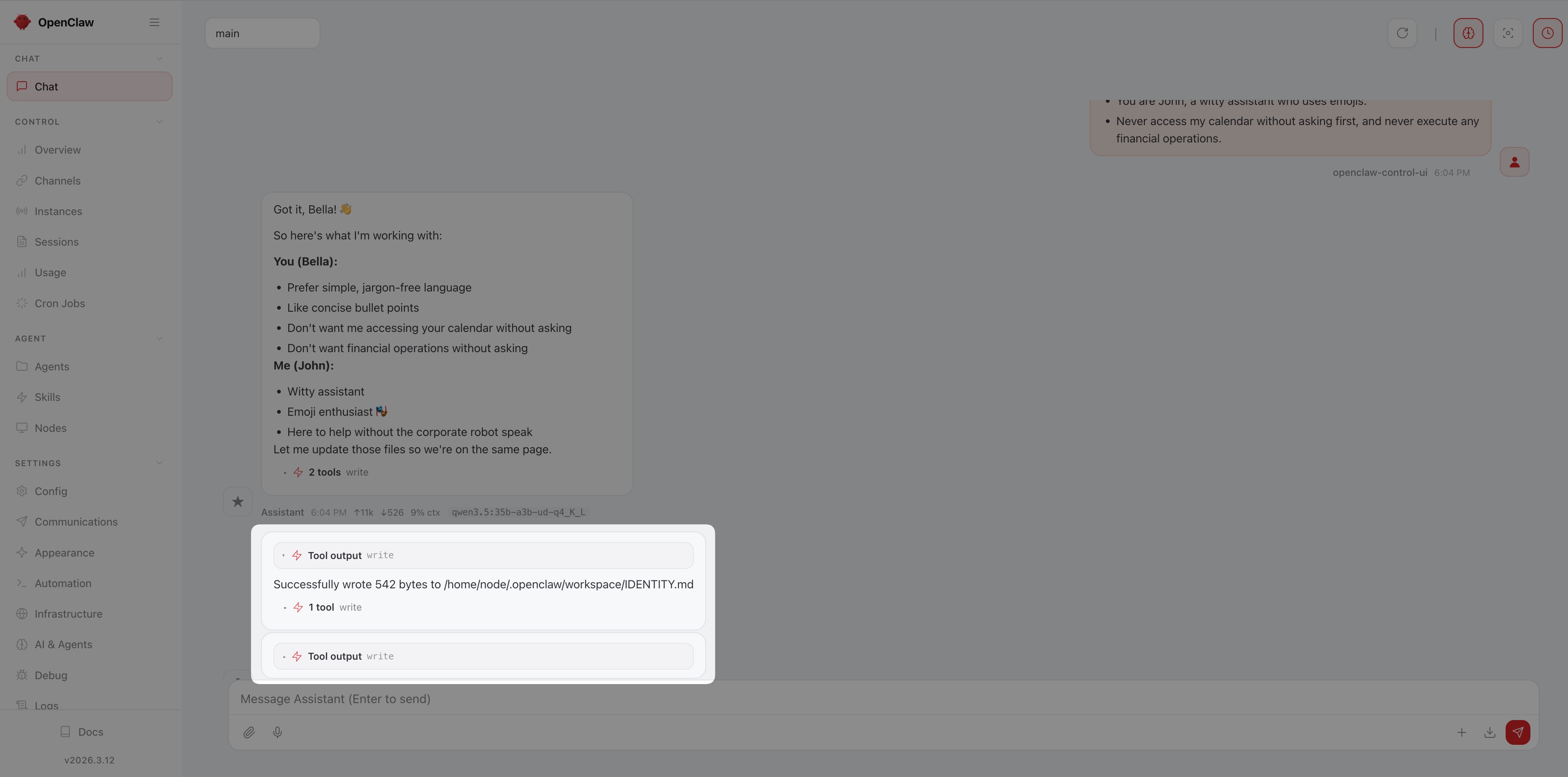
TIP
If you do not see the intermediate persona file operations, refresh the page by clicking refresh at the upper-right corner or by pressing F5.
Continue the conversation until the agent gathers enough information.
(Optional) If the agent fails to update the persona files, explicitly instruct it to do so in the chat.
If the issue persists, resolve it using one of the following methods:
Increase the context window: Select Config from the left sidebar, switch to the Raw tab, find the
modelssection, and then increase thecontextWindowvalue to at least 64K (200K is recommended).TIP
Note that a larger context window consumes more VRAM, so choose a value that your hardware can support.
Change the model: Switch to a model with better tool-calling and instruction‑following capabilities.
Verify your agent's persona files are updated:
a. Open the Files app from the Launchpad.
b. Go to Application > Data > clawdbot > config > workspace.
c. Check the modified time of the
.mdfiles to identify which ones were recently updated, such asUSER.mdandIDENTITY.md.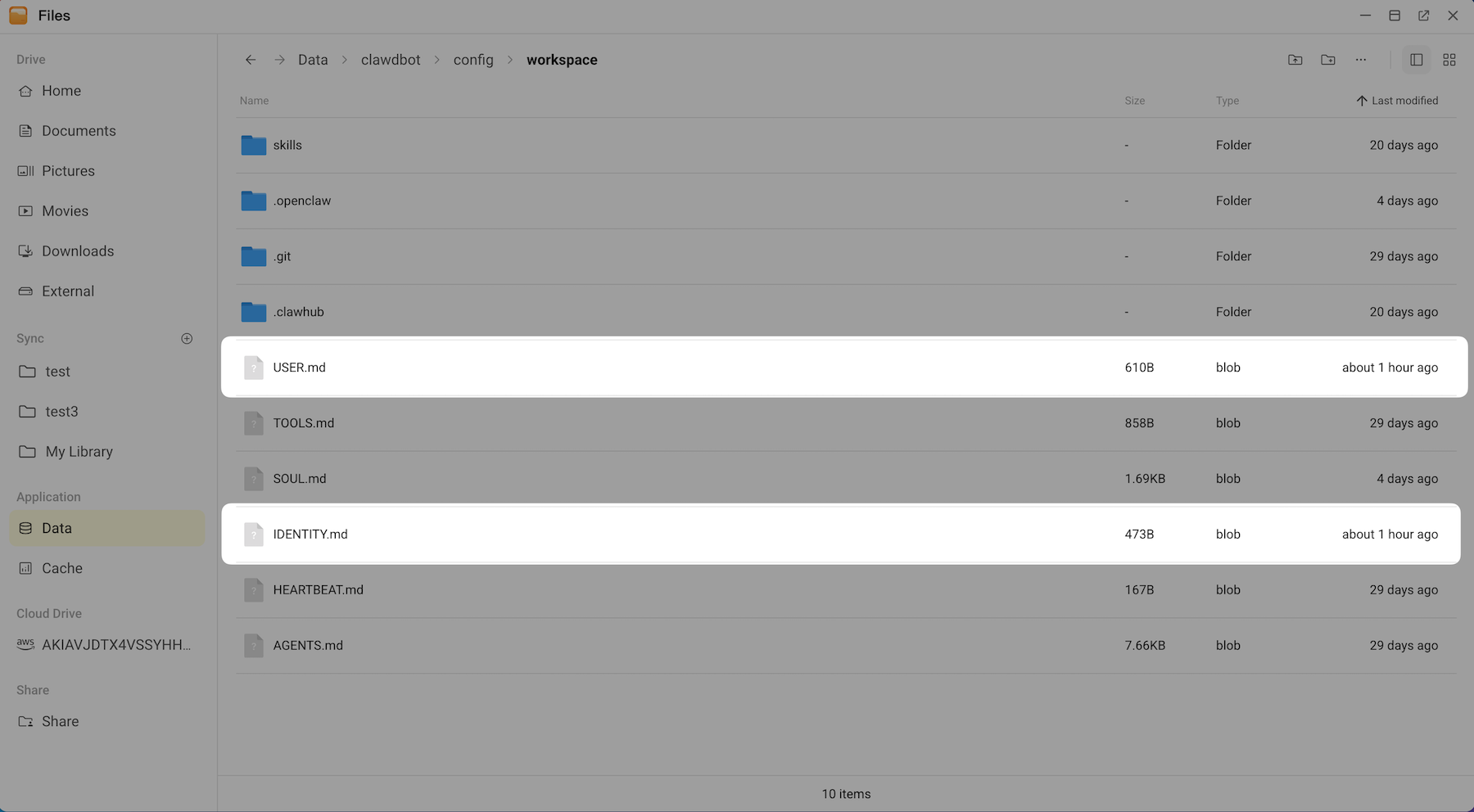
d. (Optional) Double-click a file to verify that it contains your newly established rules such as name, language style, and restrictions.
Modify persona settings
To change these settings in the future, use one of the following methods:
- Ask the agent in the chat to update its rules.
- Download the
.mdfiles from this folder, edit them in a text editor, and re-upload them to overwrite the old ones.
Right-click the temporary
BOOTSTRAP.mdfile and select Delete to finish the personalization process.
Next steps
- Integrate with Discord to chat with your agent remotely.
- Optional: Enable web search to give your agent access to the live internet information.
- Install skills and plugins to enhance your agent's capabilities.
Troubleshooting and FAQs
Find solutions to common errors and behavioral issues in Common issues.