Configure application access 5 min
Each app on Olares has an entrance that controls how users access it. You can configure the access policies for each entrance to match the app's sensitivity and your sharing needs.
Before you begin
Access policies have two settings:
- Authentication level: Defines when authentication is required.
- Authentication model: Defines how users authenticate.
The following table shows the available combinations and their access behavior:
| Authentication level | Authentication models | Access behavior |
|---|---|---|
| Private | System, One factor, Two factor | All users must authenticate before accessing the app. |
| Internal | System, One factor, Two factor | Users on LarePass VPN skip authentication. All other access requires authentication. |
| Public | None | Anyone can access the app without logging in. |
Set the access policy
Go to Settings > Applications.
Select the target application.
In the Entrances section, click the entrance you want to configure.
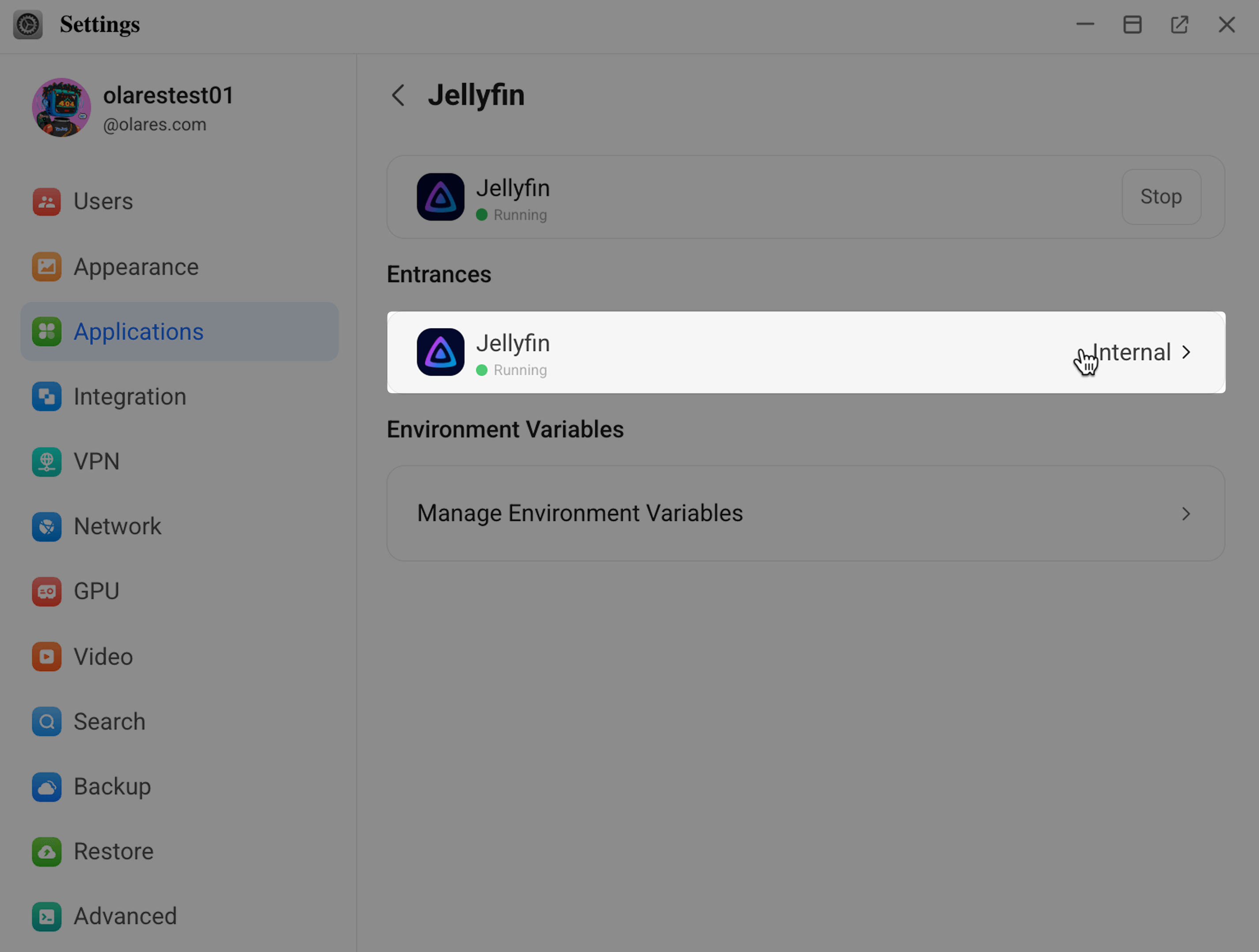
Under Access policy, select the Authentication level:
- Private for authenticated access only.
- Internal for VPN access without login.
- Public for access without login.
Select the Authentication model:
- System to follow the system-wide authentication settings.
- One factor or Two factor to apply authentication specifically to this app.
- None for no authentication.
WARNING
None is available only when the Authentication level is set to Public. This means anyone with the URL can access the app without logging in.
Click Confirm to save your changes.
Resources
- Entrance concept: Learn more about the technical background.
- Customize app domain: Learn how to use your own domain name to access your apps.