Add and manage users 5 min
On Olares One, you can create multiple user accounts to share the device securely. Each user has their own space, applications, and resource limits.
Before you begin
Determine the role to assign to the user based on the following permissions:
| Permission | Super admin | Admin | Members |
|---|---|---|---|
| Create users | Admin and Members | Members | — |
| Remove users | Admin and Members | Members | — |
| Resource access | Use all resources | Use allocated resources | Use allocated resources |
Prerequisites
Hardware
- Your Olares One has sufficient available CPU and memory resources.
User permissions
- You are logged in as Super admin or Admin.
Olares ID
- The new user has a valid Olares ID that is not already activated on another Olares device.
- The domain part of the new user's Olares ID matches the current domain.
Add a user
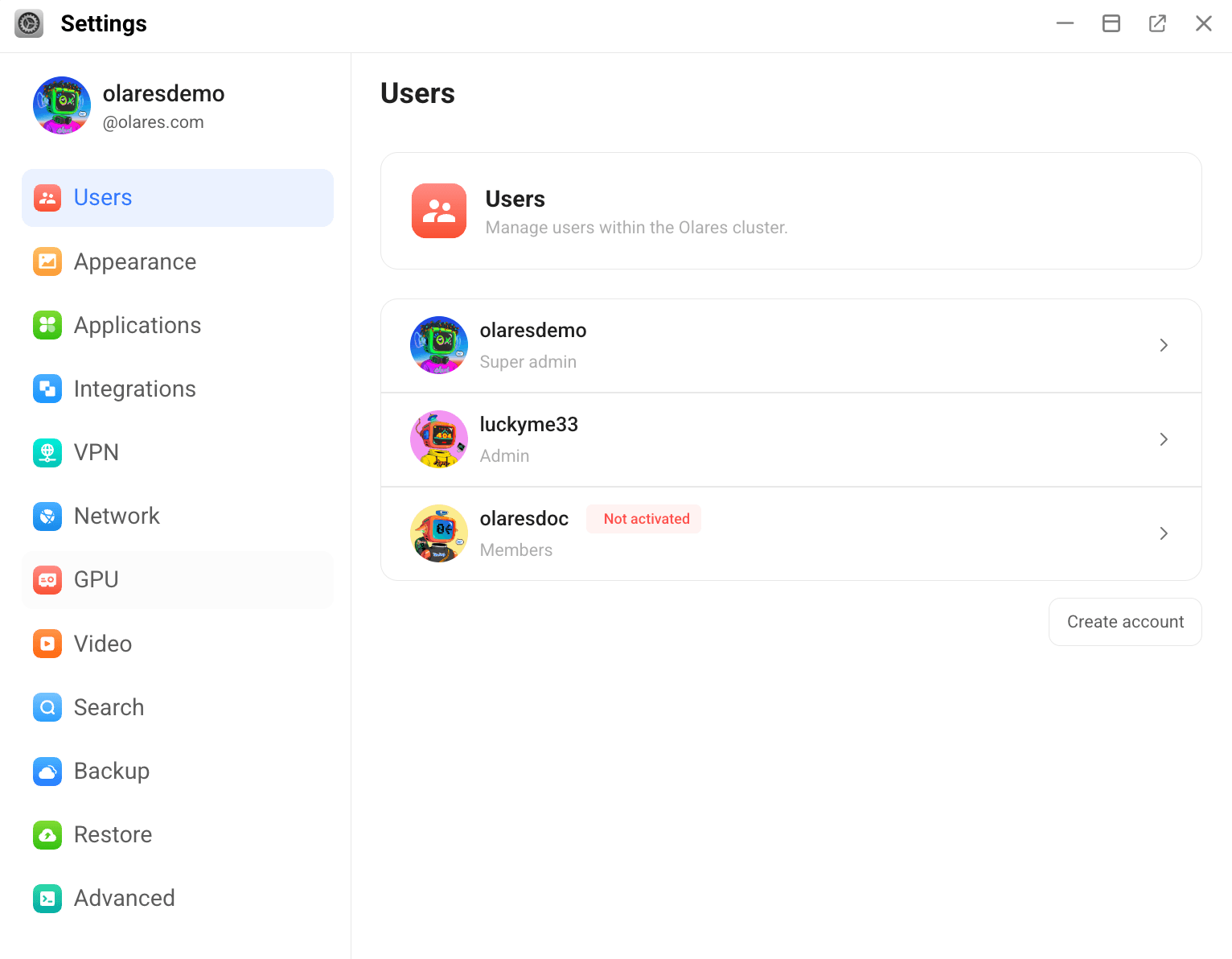
Go to Settings > Users.
Click Create account.
In the dialog, fill in the required information:
- Olares ID: Enter only the username (the part before
@). - Role: Choose Members or Admin.
- CPU: Allocate CPU cores. Minimum 1 core.
- Memory: Allocate memory. Minimum 3 GB.
- Olares ID: Enter only the username (the part before
Click Save.
Once the account is created, the system generates a temporary activation wizard URL and a one-time password.
Copy and share the activation credentials with the user.
Remote activation
The invited users can activate their access remotely. For full steps, see Join an Olares.
- To check the user's activation status, go to the Users page.
Manage existing users
After a user is created, you can view account details, adjust resource limits, reset the password, or remove the user.
Go to Settings > Users.
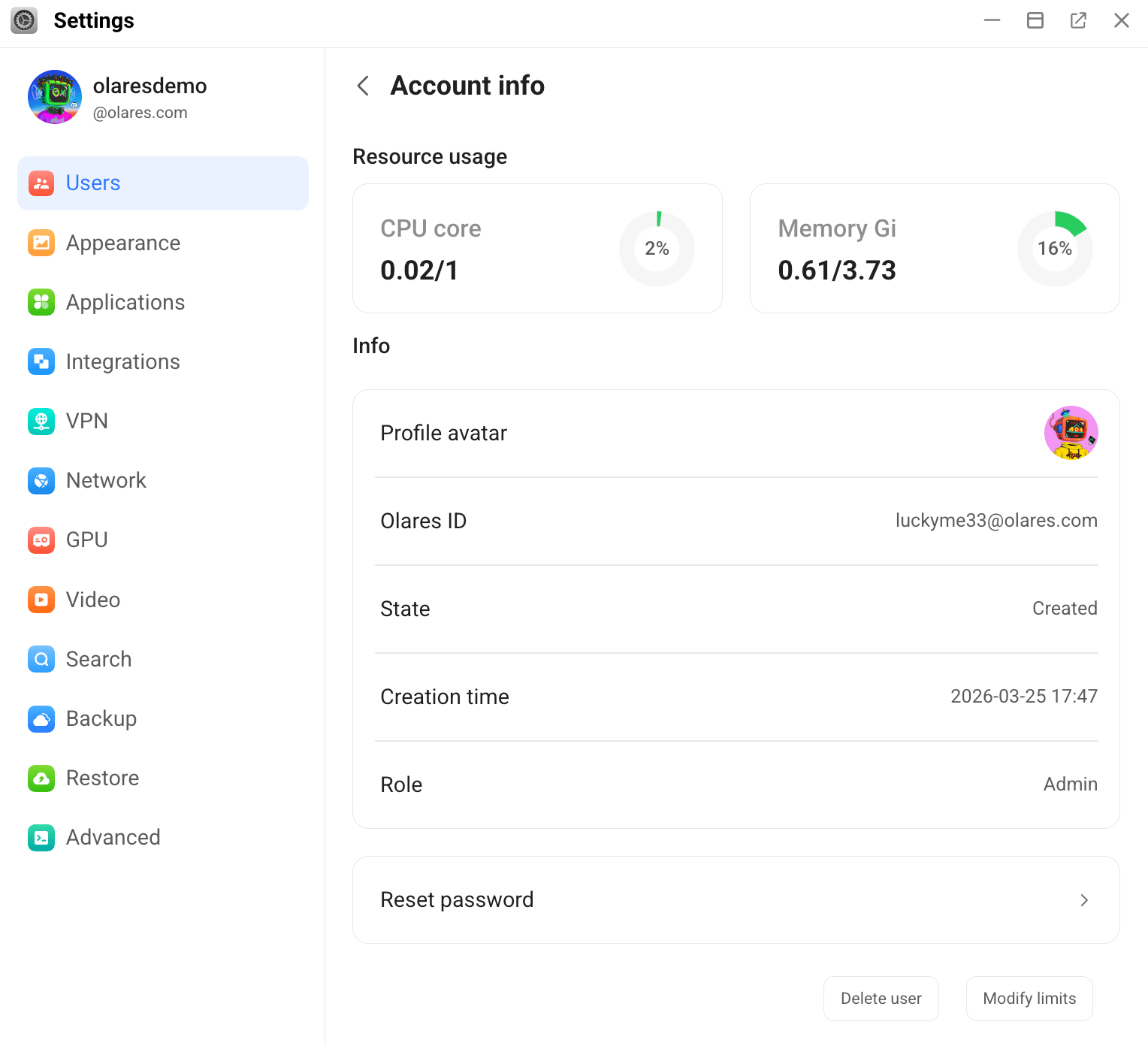
Select a user to open the Account info page.
To adjust resource limits, click Modify limits. Update the CPU or memory values, then click OK.
To reset the password, click Reset password, then share the generated password with the user.
Super admins can reset passwords for Admins and Members. Admins can reset passwords for Members.
To remove the user, click Delete user, then click OK to confirm.
Resources
- Roles and permissions: Learn more about roles and corresponding permissions in Olares.