Create AI-generated music with ACE-Step 1.5
ACE-Step 1.5 is an AI music generation app that turns your text, lyrics, and audio guidance into complete songs. On Olares, it runs in a ready-to-use workspace, so you can focus on creating music right away.
This guide covers everyday workflows for generating, editing, and managing your tracks.
Learning objectives
By the end of this tutorial, you will learn how to:
- Install and launch ACE-Step 1.5 on Olares.
- Understand the two-step generation workflow.
- Complete the end-to-end workflow from idea to finished track.
- Restyle an existing song with Cover.
- Fix a specific section of a track with Repaint.
- Review, save, and continue iterating from generated results.
Prerequisites
Before you begin, make sure:
- Olares is running on a device with an NVIDIA GPU.
- Your device has enough available storage for the initial model download.
- You have a stable network connection.
Install and launch ACE-Step 1.5
Open Market and search for "ACE-Step 1.5".
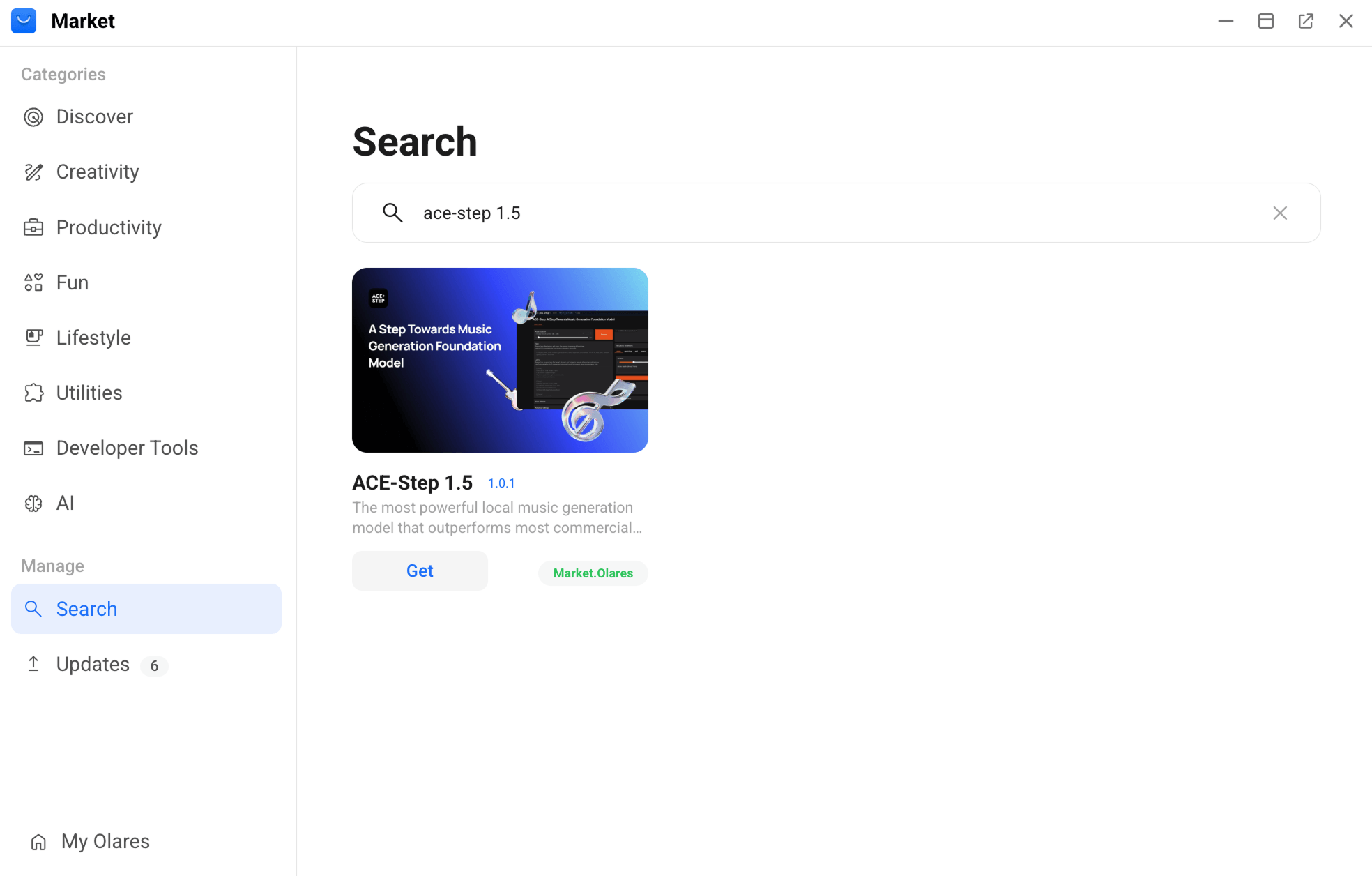
Click Get, then Install and wait for the installation to complete.
Open ACE-Step 1.5 and wait for the required models to download. This process may take some time depending on your network conditions.
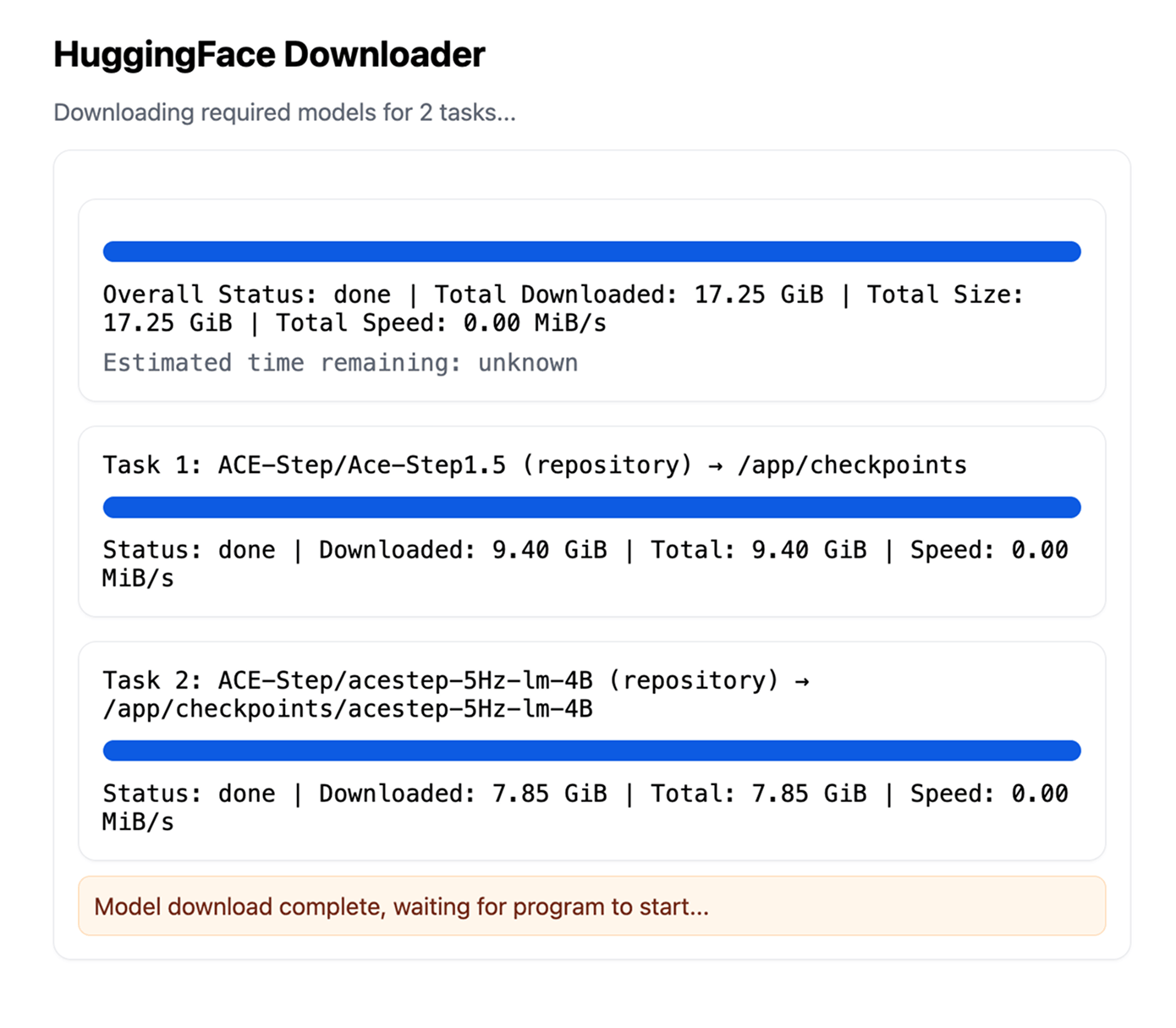
When the main workspace appears, ACE-Step 1.5 is ready to use.
Understand how ACE-Step 1.5 works
ACE-Step 1.5 usually works in two stages:
- You describe the musical idea.
- ACE-Step turns that idea into generation inputs, then into audio.
Before you start, use the table below as a quick guide to the main controls.
| Control | Use it for |
|---|---|
| Song Description | Start from a high-level idea in Simple mode. |
| Music Caption | Describe style, instruments, mood, vocals, and sonic direction. |
| Create Sample | Draft Music Caption, Lyrics, and related settings. |
| Generate Music | Generate the actual audio. |
| Reference Audio | Add style guidance without directly modifying a track. |
| Source Audio | Provide the track used by Cover or Repaint. |
| Audio Cover Strength | Control how closely Cover follows the original structure. |
Create and refine a track
This is the most common workflow for text2music.
Draft the idea.
a. In Task Type, select text2music.
b. In Generation Mode, select Simple.
c. Enter a high-level idea in the Song Description.
For example:
textupbeat pop rock with electric guitars, driving drums, and catchy synth hooksd. Click Create Sample.
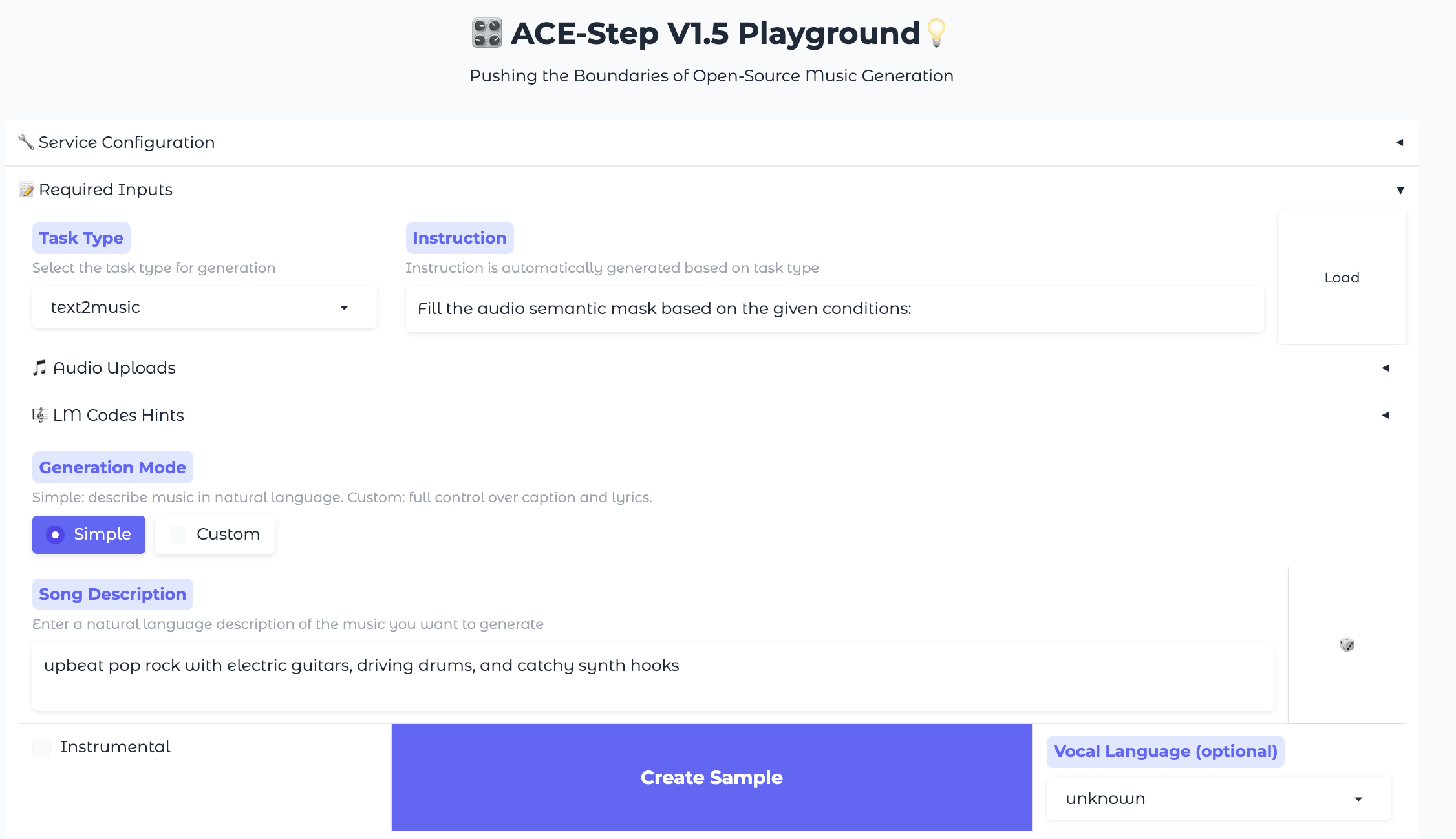
Refine the draft.
a. Review the text that the AI generated in the Music Caption and Lyrics boxes.
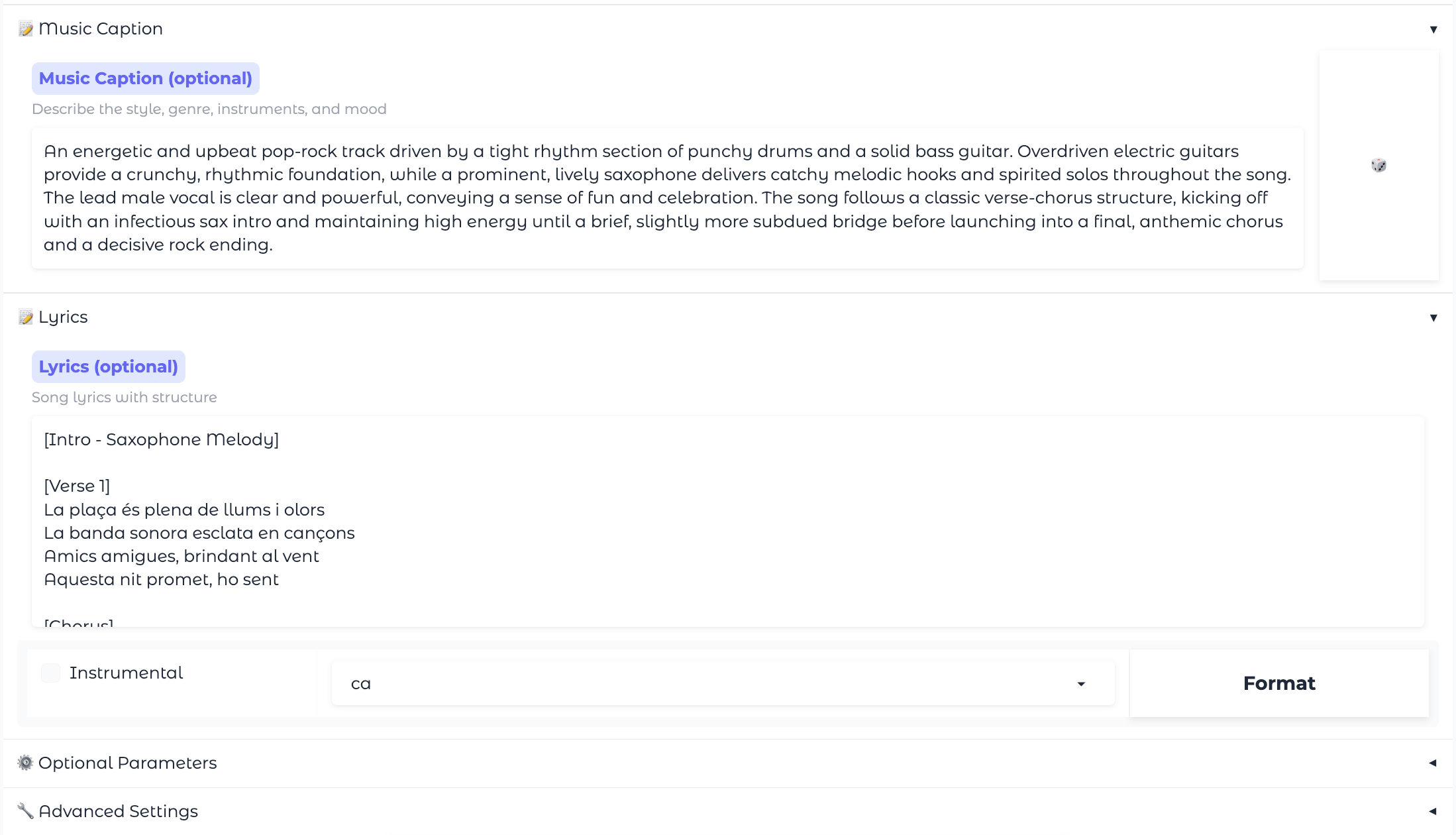
b. Edit the lyrics if needed, and make sure structure tags like
[Verse]and[Chorus]are present.c. Check that content in Music Caption and Lyrics do not conflict. For example, if you add "acoustic guitar” to the caption, don't put
[Heavy Metal Guitar Solo]in the lyrics.Generate and listen.
a. Click Generate Music.
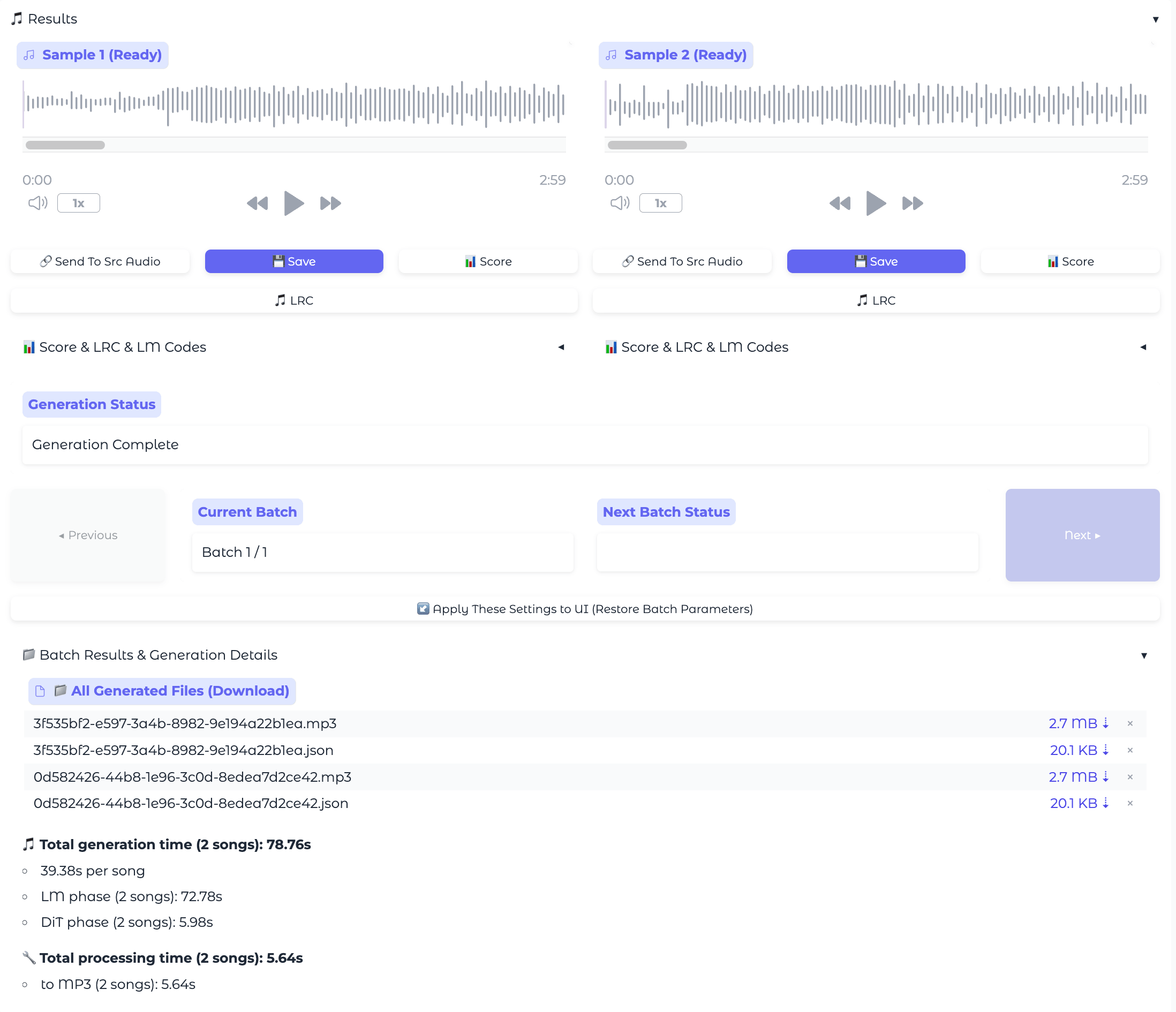
b. Preview the result in the Results area.
TIP
Always generate a few variations. AI music involves randomness. If you don't love the first track, click Generate Music again to get a different interpretation of the same prompt.
Modify the track if needed. If the track is close but still needs changes:
Save the results you want to keep, then continue iterating from the most promising version.
Generate with more control
Once you are comfortable with the general workflow, you can explore more precise controls.
Generate in custom mode
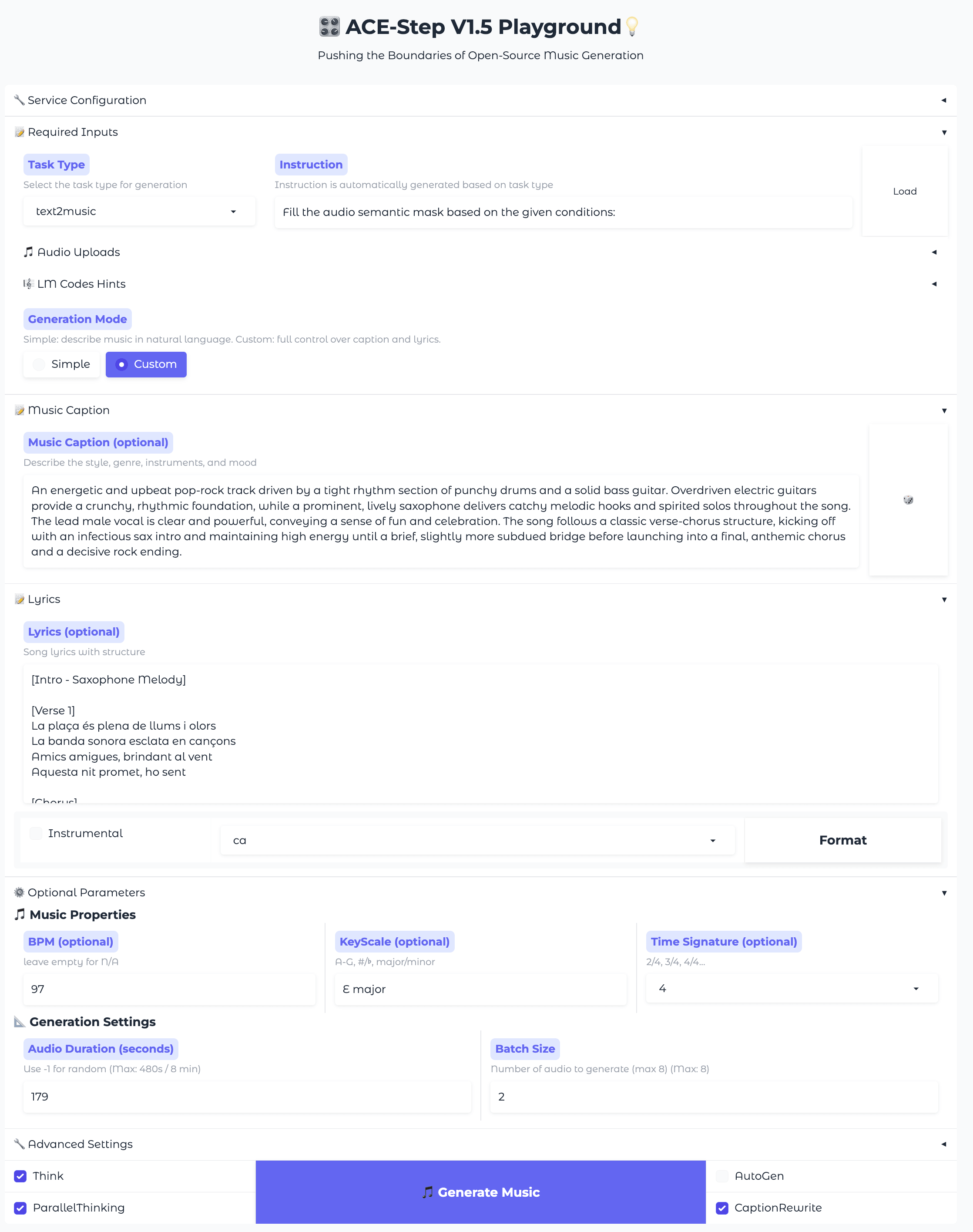
Use Custom mode when you want to skip the drafting step and enter your own lyrics and settings.
- In Task Type, select text2music.
- In Generation Mode, select Custom.
- Fill in Music Caption with the target style, genre, instruments, and mood.
- Optionally click Format to expand a simple handwritten caption into a richer description.
- Enter your text in Lyrics.
- Set metadata such as BPM, Key Scale, Time Signature or Audio Duration when needed.
Need help setting music metadata?
If you do not have a music theory background, you can use these guidelines to customize your song's emotion, tempo, and rhythm:
- Key Scale (Emotion):
Major(e.g.,C Major): Bright, sunny, or uplifting tracks.Minor(e.g.,A Minor): Sad, melancholic, or cold tracks.
- BPM (Tempo):
60–80: Slow ballads and lo-fi.90–120: Mid-tempo pop and rock.130–180: Fast-paced electronic, trap, or high-energy rock.
- Time Signature (Rhythm/Groove):
4: 4/4 time. The standard for pop, rock, and most modern music. If in doubt, this is always a safe choice.3: 3/4 time. Gives a classic waltz or dancing rhythm.2: 2/4 time. Powerful and driving, perfect for marching music or fast country.6: 6/8 time. Creates a gentle, swaying feel, excellent for slow love songs or bluesy ballads.
- Key Scale (Emotion):
- Click Generate Music.
Add style guidance with reference audio
Use this when you want the result to follow the feel of an existing clip more closely, without directly modifying that clip.
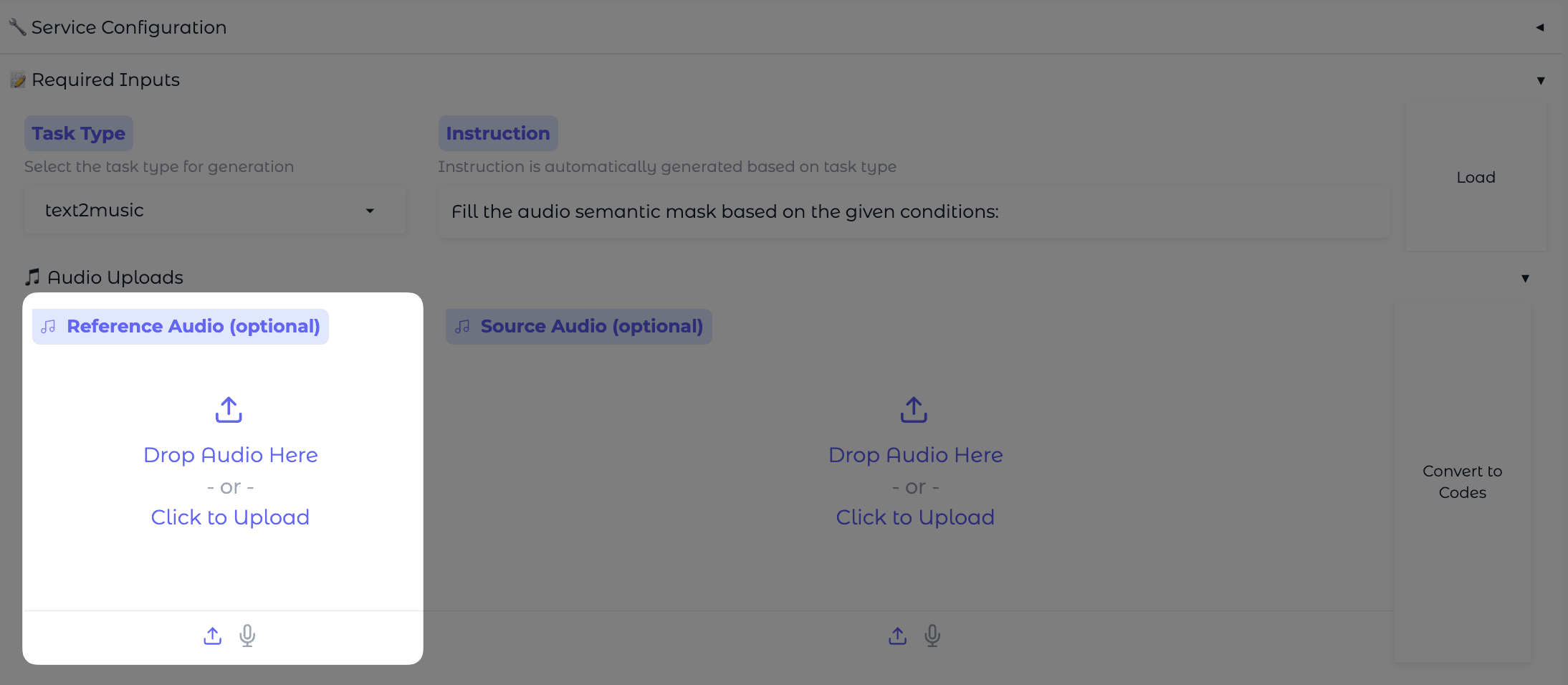
- Go to Audio Uploads.
- Upload a clip to Reference Audio, or use the microphone icon to record one.
- Fill in Music Caption and Lyrics as needed.
- Click Generate Music.
Modify existing tracks
Restyle an existing track with Cover
Use the Cover task type when you want to create a new version of a song while preserving its core melodic structure and rhythm.
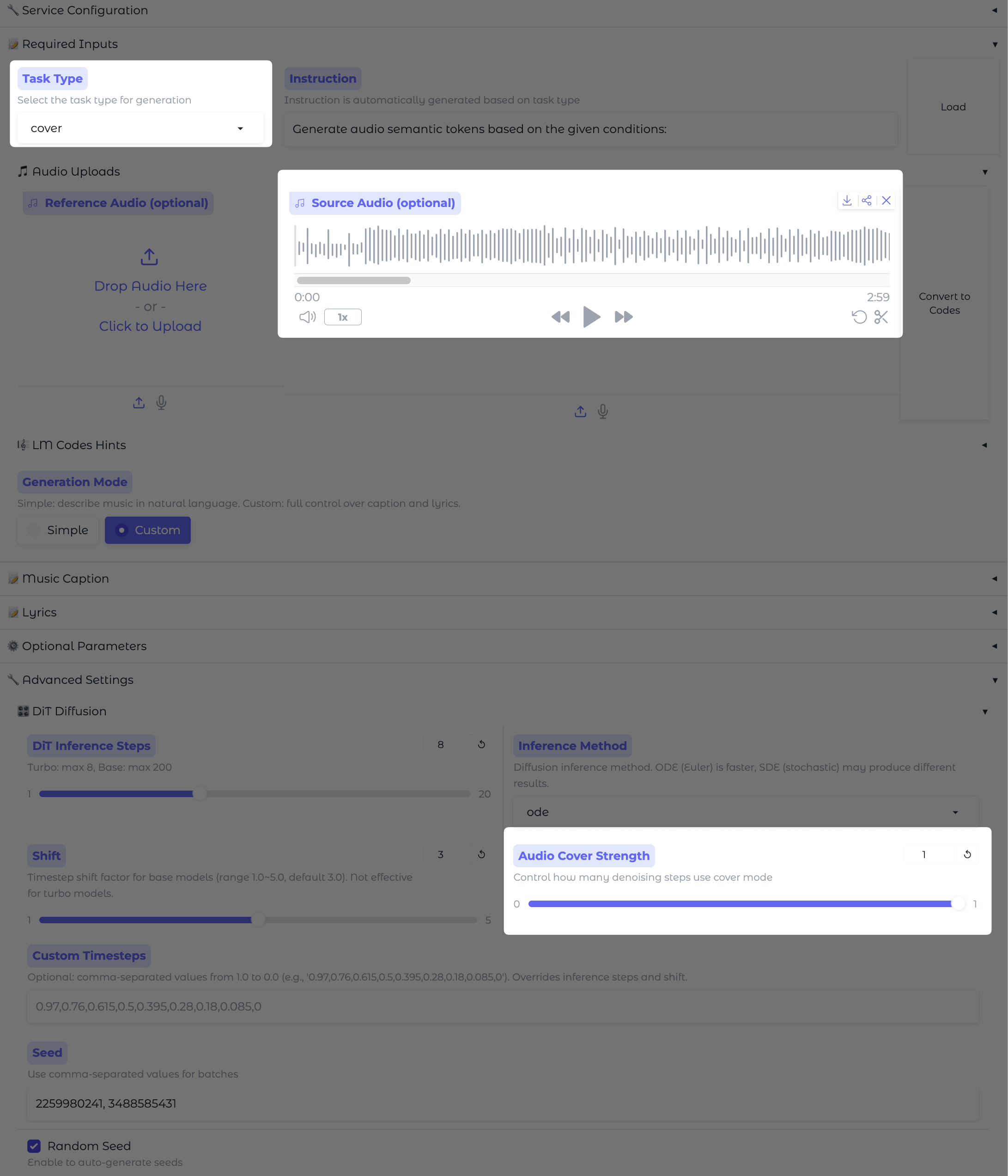
In Task Type, select Cover.
In Audio Uploads, upload the original track to Source Audio. If you want to continue from a track you just generated, click Send To Src Audio in the Results area instead.
Enter a Music Caption describing the new style or sound you want.
In Advanced Settings, adjust the Audio Cover Strength slider. In general, a lower Audio Cover Strength value allows more variation, while a higher value keeps the result closer to the original structure.
Click Generate Music.
Regenerate part of a track with Repaint
Use the Repaint task type when only one specific section of a track needs to change.
In Task Type, select Repaint.
In Audio Uploads, upload the track to Source Audio.
Set Repainting Start and Repainting End to isolate the section that needs to be regenerated. Use
-1in Repainting End if you want the edit to continue to the end of the track.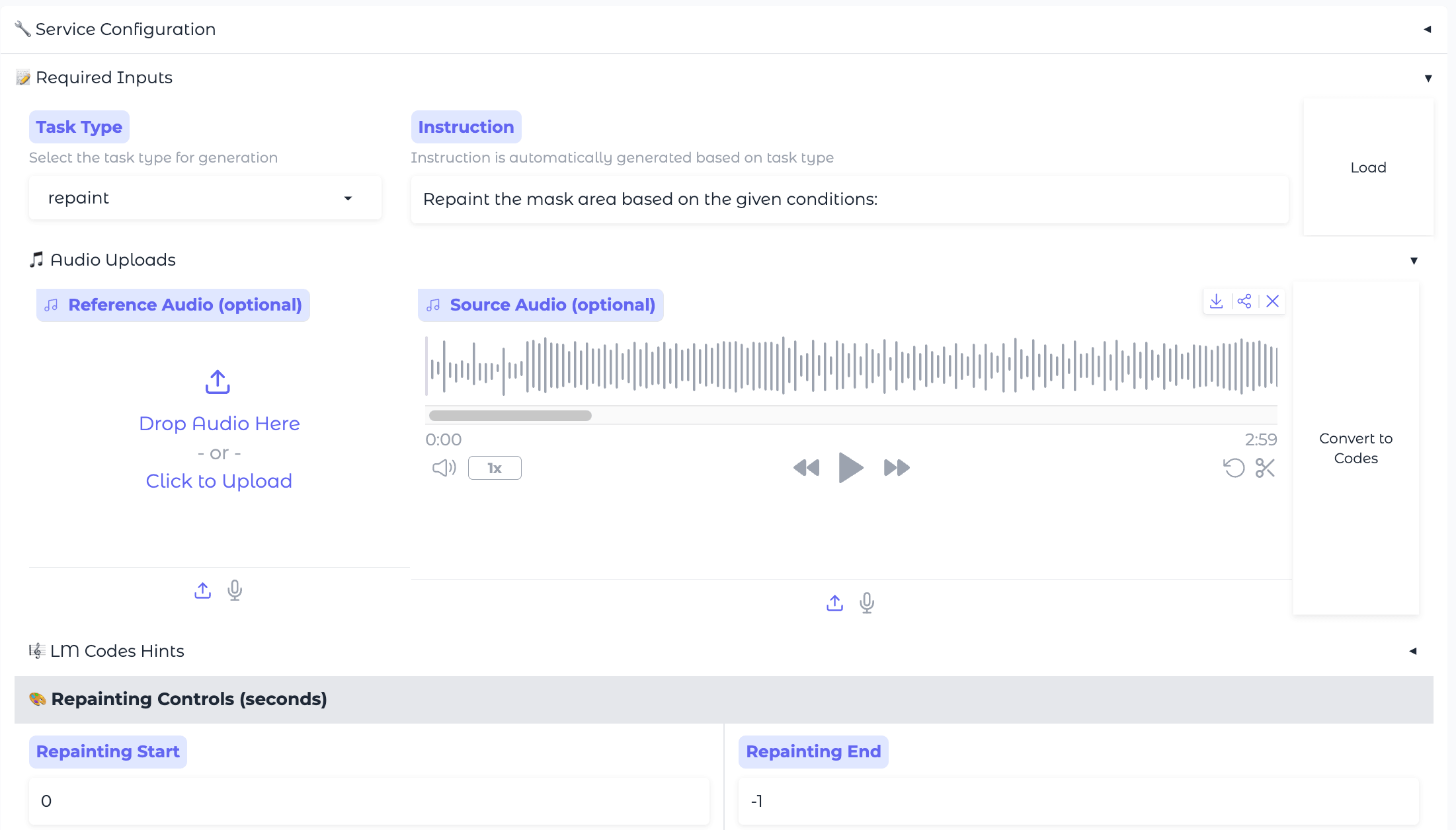
Enter a Music Caption describing what the updated section should sound like.
Click Generate Music.
Review, save, and reuse results
After generation finishes:
- Listen to the results.
- Compare a few versions.
- Decide which track to keep or refine.
- Use the tools in the Results area to continue:
- Send To Src Audio: Moves the current result directly into the Source Audio slot so you can start a Cover or Repaint task right away.
- Apply These Settings to UI: Restores the parameters of a promising track back to the workspace so you can generate similar variations.
- Score: Shows automatic alignment scores for comparing multiple versions.
- Save: Keeps the current result for later reuse.
Train a custom style with LoRA
Use LoRA Training when you want ACE-Step 1.5 to learn a more consistent style from your own dataset. This is an advanced workflow and is not required for everyday music generation.
INFO
Training requires at least 16 GB of VRAM. 20 GB or more is recommended for longer songs.
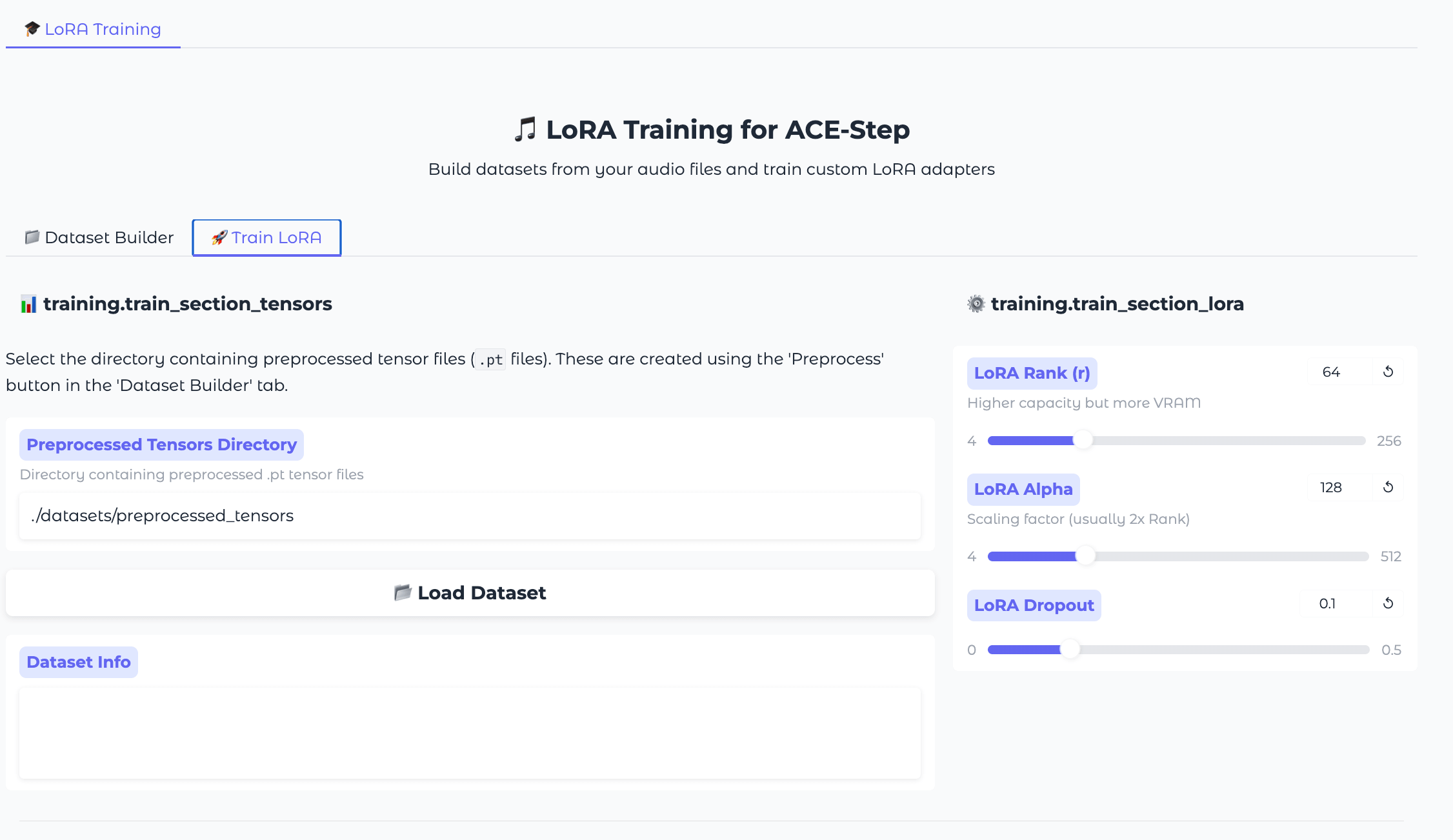
To train a LoRA:
- Prepare a dataset with audio files, lyrics, and annotations.
- In Dataset Builder, scan or load your dataset.
- Review and edit the detected metadata if needed.
- Save the dataset and preprocess it into tensors.
- Switch to the Train LoRA tab and start training. If you are unfamiliar with training parameters, the default values are generally fine.
- After training finishes, load the trained LoRA and use it in generation.
For detailed dataset requirements, parameter reference, and full training steps, refer to the official ACE-Step 1.5 LoRA training documentation.
Troubleshoot common issues
Generation is slow or fails
Generation speed depends on your hardware and current system load.
If generation is slow or fails:
- Wait for the current task to finish.
- Try generating a shorter clip.
- Close other heavy workloads on Olares.
On some devices, limited GPU memory may also affect stability.
The result is not what you expected
AI music generation often requires iteration.
If the result does not match your intent:
- Make your Music Caption more specific.
- Make sure your Lyrics use clear structure tags such as
[Verse]and[Chorus]. - Check that content in Music Caption and Lyrics do not conflict.
- Click Generate Music more than once to explore different versions.
Learn more
For more details on generation, advanced workflows, and LoRA training, refer to the official ACE-Step documentation:
- ACE-Step 1.5 Ultimate Guide: Learn more about the two-step workflow, parameter behavior, and generation concepts.
- ACE-Step 1.5 — A Musician's Guide: Explore prompting ideas, hardware guidance, and practical tips for structure tags.
- ACE-Step 1.5 LoRA Training Tutorial: Follow the full workflow for dataset preparation and LoRA training.