Create AI art with ComfyUI and Krita
ComfyUI provides powerful AI image generation, but to make it truly useful, you need to integrate it into your creative workflow. This guide shows you how to connect ComfyUI running on Olares to Krita on your computer, so you can generate AI artwork directly within your digital painting environment.
Learning objectives
In this guide, you will learn how to:
- Deploy and configure ComfyUI in Olares to maximize performance and resource efficiency.
- Install and configure the Krita AI Diffusion plugin.
- Connect Krita to your Olares-hosted ComfyUI instance.
- Generate AI artwork using text prompts in Krita.
Prerequisites
- A working Olares installation with ComfyUI Shared installed and running.
- Krita installed on your computer.
- Sufficient system resources on your Olares device to download models.
Set up ComfyUI
Open ComfyUI Launcher and click START to make sure the service is running.
Maximize GPU performance
You can set the GPU mode to App exclusive and assign ComfyUI full GPU access in Settings > GPU to ensure maximum performance.
Get the endpoint for ComfyUI
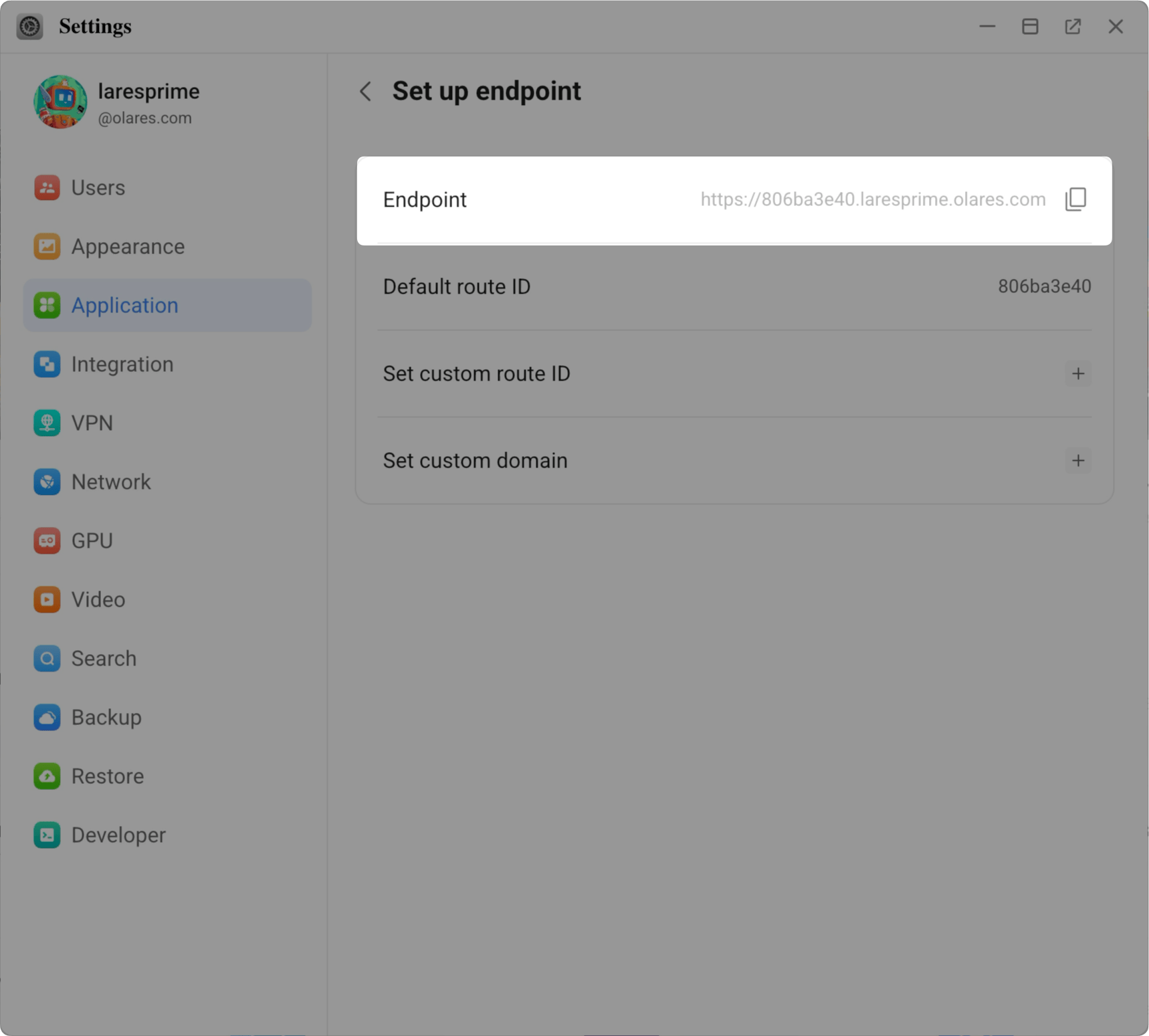
On Olares, open Settings, then go to Application > ComfyUI Shared.
In Entrances, click ComfyUI.
Make sure its Authentication level is set to Internal.
Click Set up endpoint, then copy the endpoint URL displayed.
Download and enable AI Diffusion plugin
Download the Krita AI Diffusion plugin.
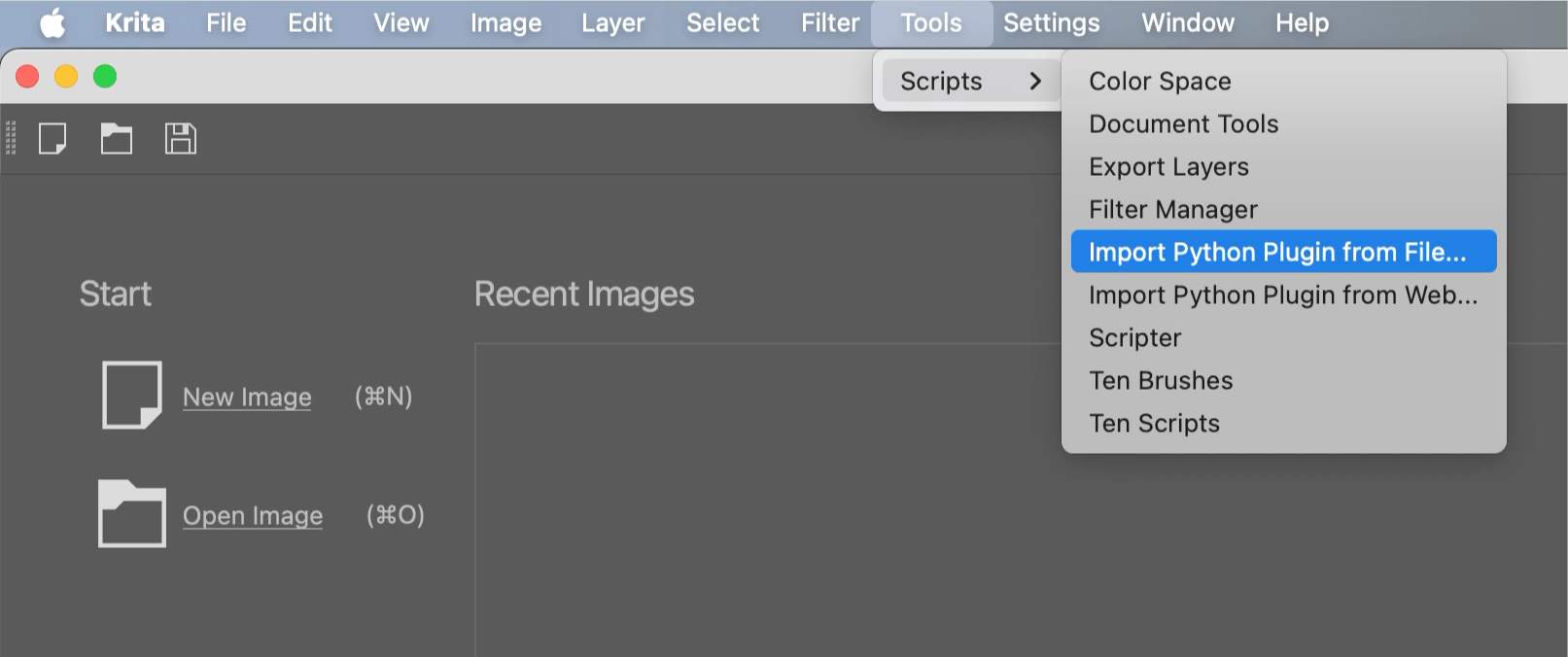
Launch Krita, and from the toolbar, select Tools > Scripts > Import Python Plugin from File.
Select the downloaded ZIP package.
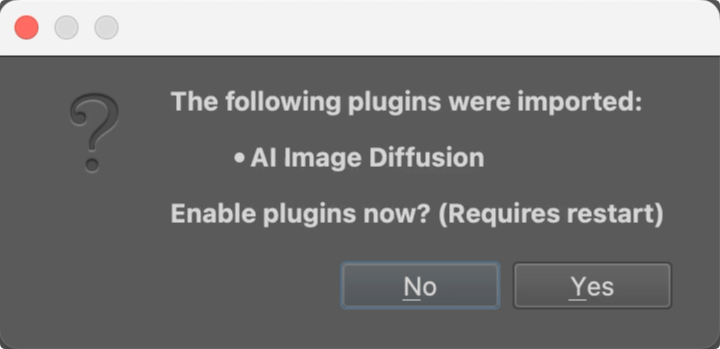
When prompted, confirm the plugin activation and restart Krita.
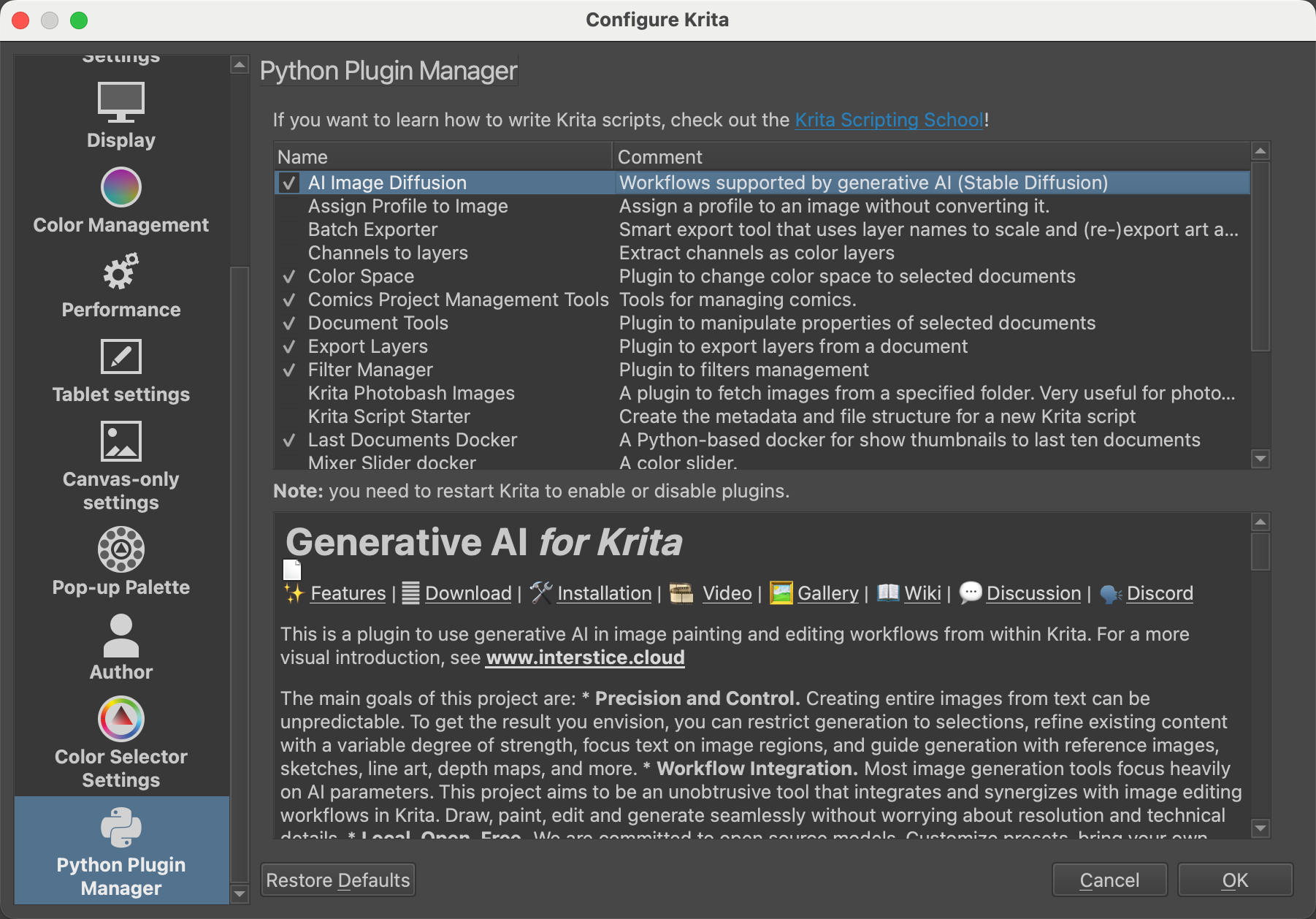
After restarting, verify the installation in Krita > Preferences > Python Plugin Manager.
Connect Krita to ComfyUI
The connection steps depend on whether your computer and Olares device are on the same network.
Prepare models and plugins
Install required custom nodes
The Krita AI Diffusion plugin requires the following custom nodes:
- ControlNet preprocessors: https://github.com/Fannovel16/comfyui_controlnet_aux
- IP-Adapter: https://github.com/cubiq/ComfyUI_IPAdapter_plus
- Inpaint nodes: https://github.com/Acly/comfyui-inpaint-nodes
- External tooling nodes: https://github.com/Acly/comfyui-tooling-nodes
To install them:
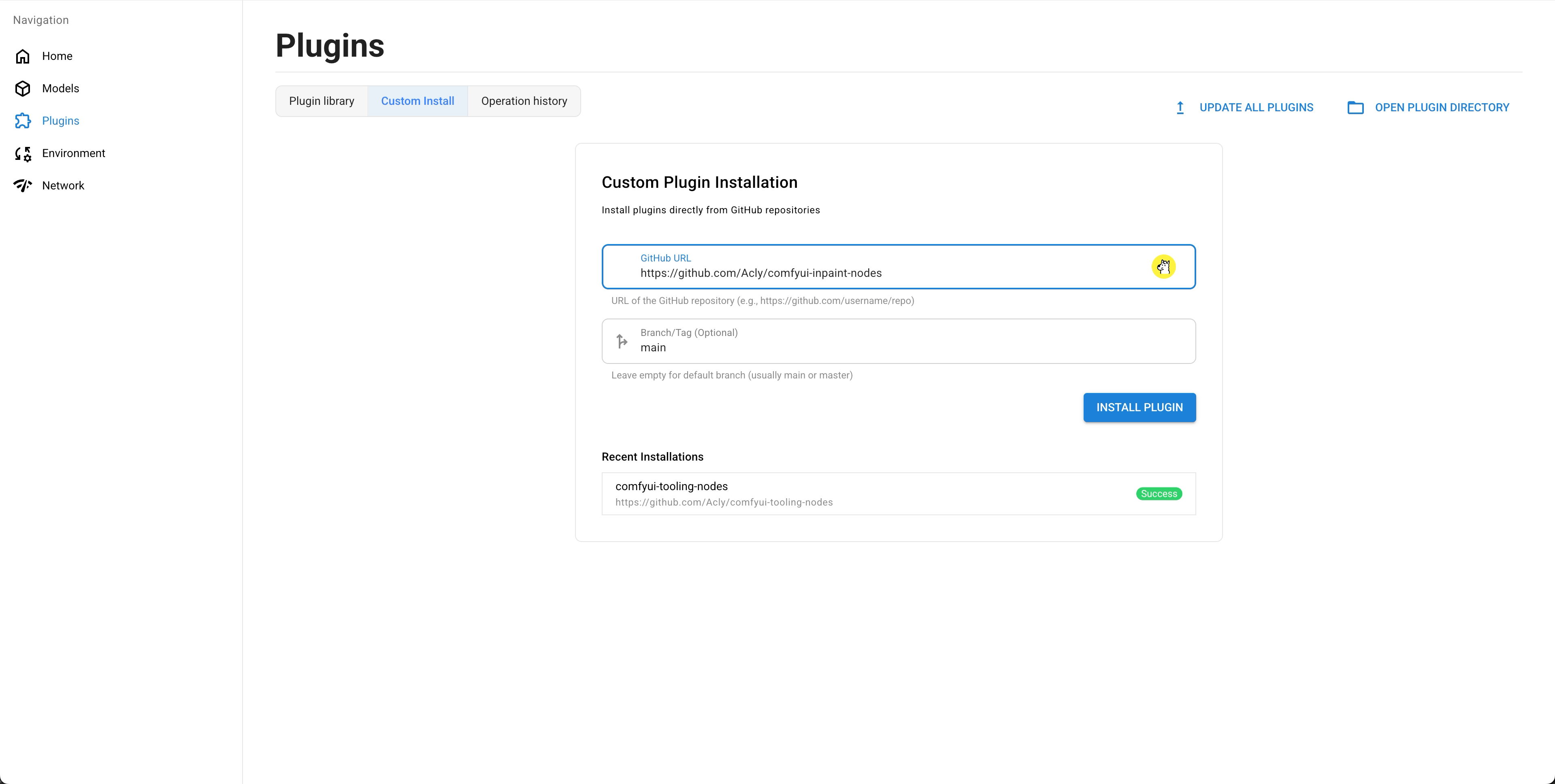
Open ComfyUI Launcher, and go to Plugins > Custom Install.
Paste the GitHub URL of the custom node (e.g.,
https://github.com/Acly/comfyui-tooling-nodes), and click INSTALL PLUGIN.Repeat for each of the remaining custom nodes listed above.
Go back to the Home page in ComfyUI Launcher, then click RESTART for the changes to take effect.
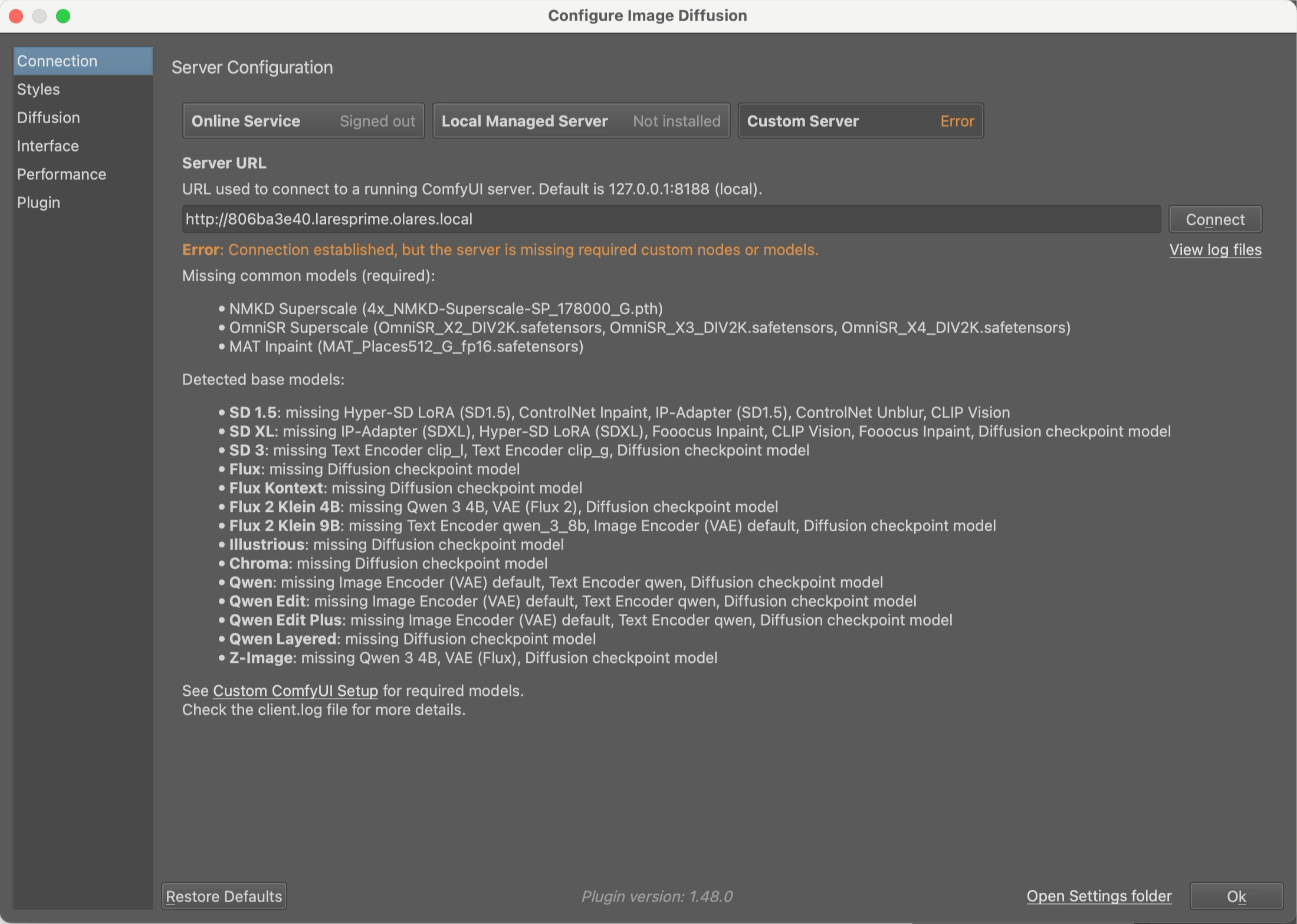
Optional: If you go back to Krita and click Connect again, you should see an error message indicating that required models are still missing.
Install required models
The plugin needs these utility models to work properly. Without them, some features will not function correctly. Pre-installing them ensures a smoother experience.
- NMKD Superscale: https://huggingface.co/gemasai/4x_NMKD-Superscale-SP_178000_G/resolve/main/4x_NMKD-Superscale-SP_178000_G.pth
- OmniSR X2: https://huggingface.co/Acly/Omni-SR/resolve/main/OmniSR_X2_DIV2K.safetensors
- OmniSR X3: https://huggingface.co/Acly/Omni-SR/resolve/main/OmniSR_X3_DIV2K.safetensors
- OmniSR X4: https://huggingface.co/Acly/Omni-SR/resolve/main/OmniSR_X4_DIV2K.safetensors
- MAT Inpaint: https://huggingface.co/Acly/MAT/resolve/main/MAT_Places512_G_fp16.safetensors
To download them via ComfyUI Launcher:
Open ComfyUI Launcher, and go to Models > Custom Download.
Download upscale models:
a. Paste the NMKD Superscale URL, set Destination folder to Upscale Models, and click DOWNLOAD MODEL.
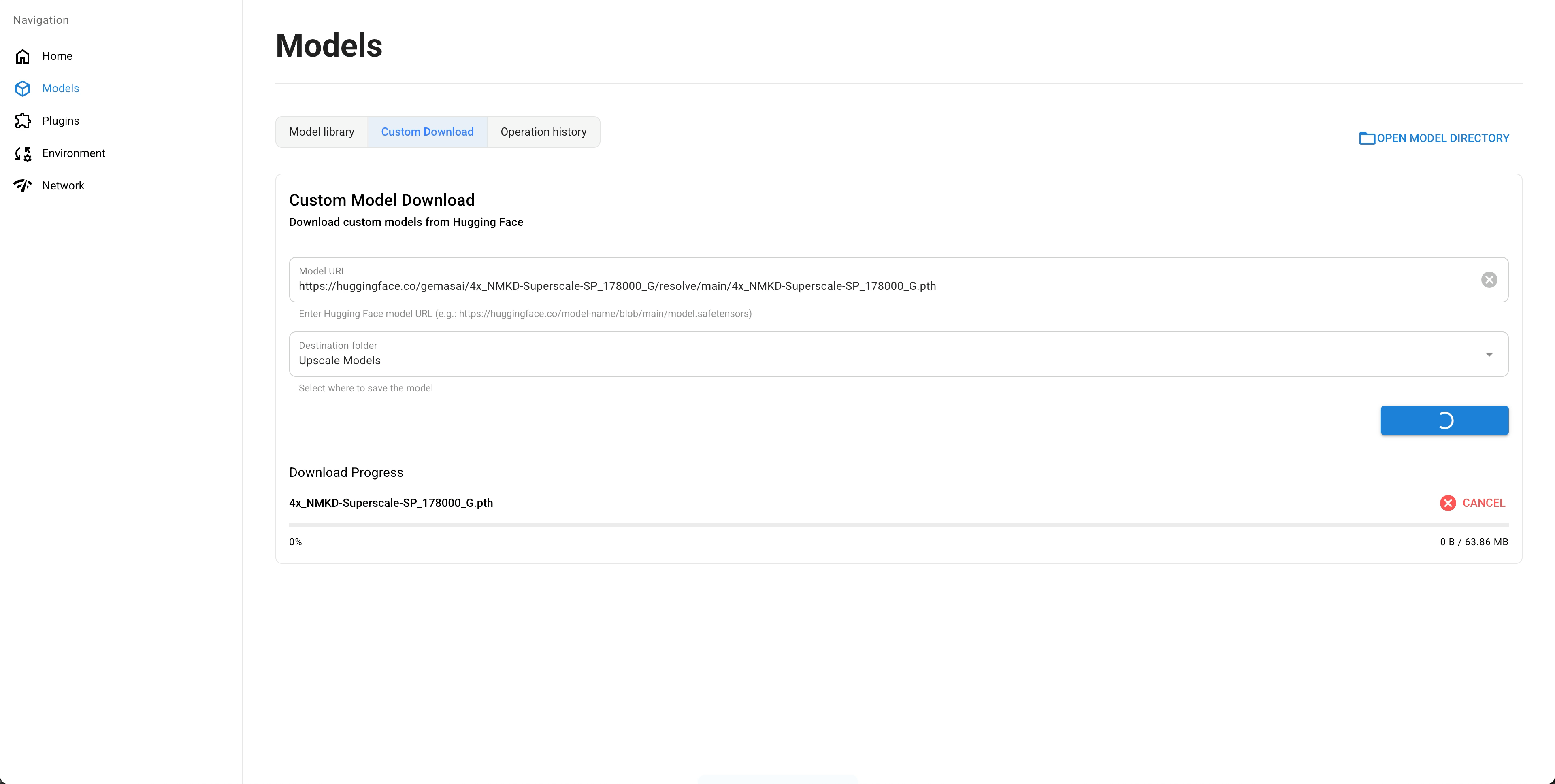
b. Repeat for the three OmniSR models using the same destination folder.
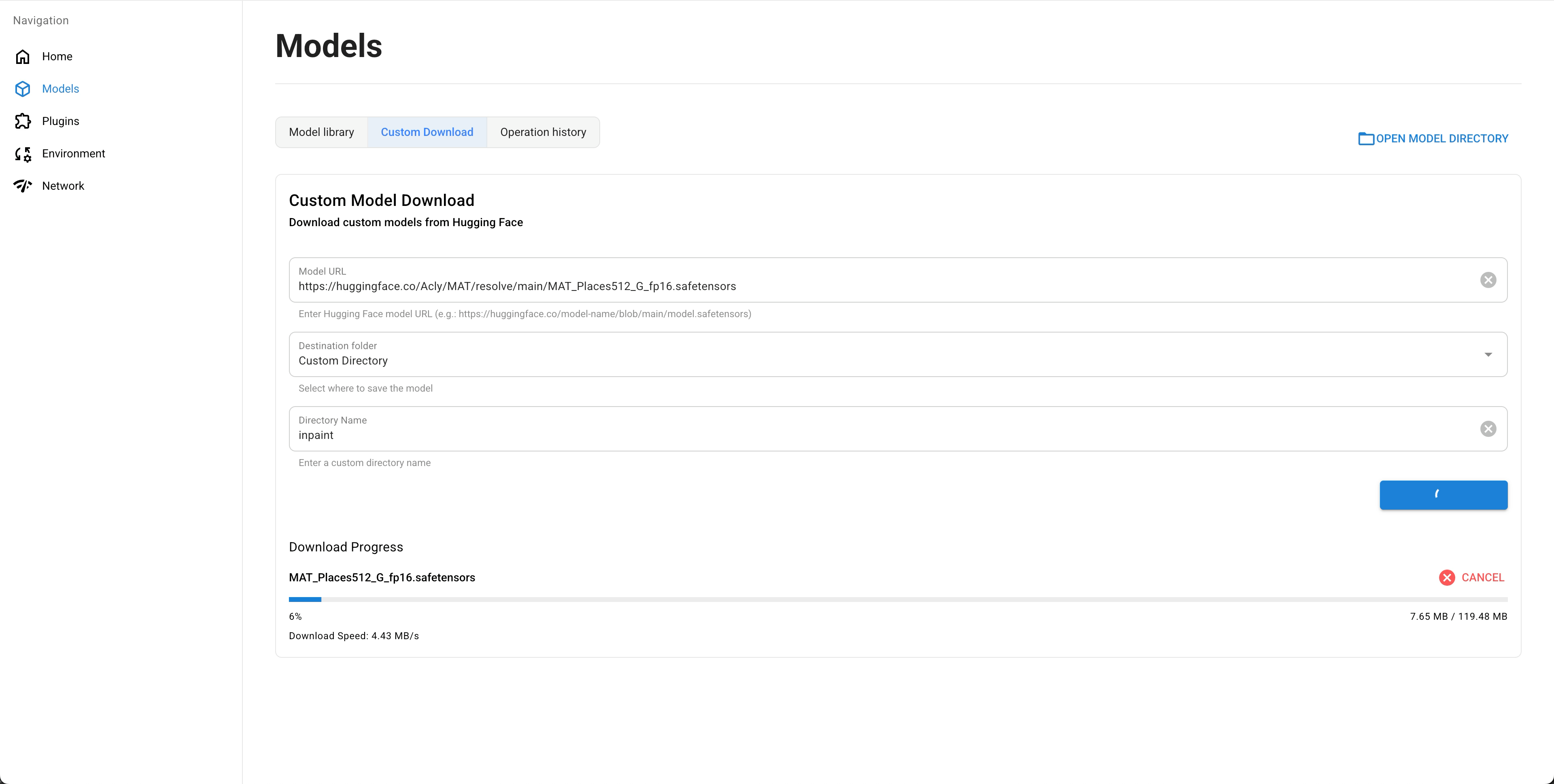
Download the inpaint model:
a. Paste the MAT Inpaint URL.
b. Set Destination folder to Custom Directory.
c. Enter
inpaintas the Directory Name.d. Click DOWNLOAD MODEL.
Go back to the Home page in ComfyUI Launcher, then click RESTART for the changes to take effect.
Optional: If you go back to Krita and click Connect again, you should see an error message indicating that base models are still missing.
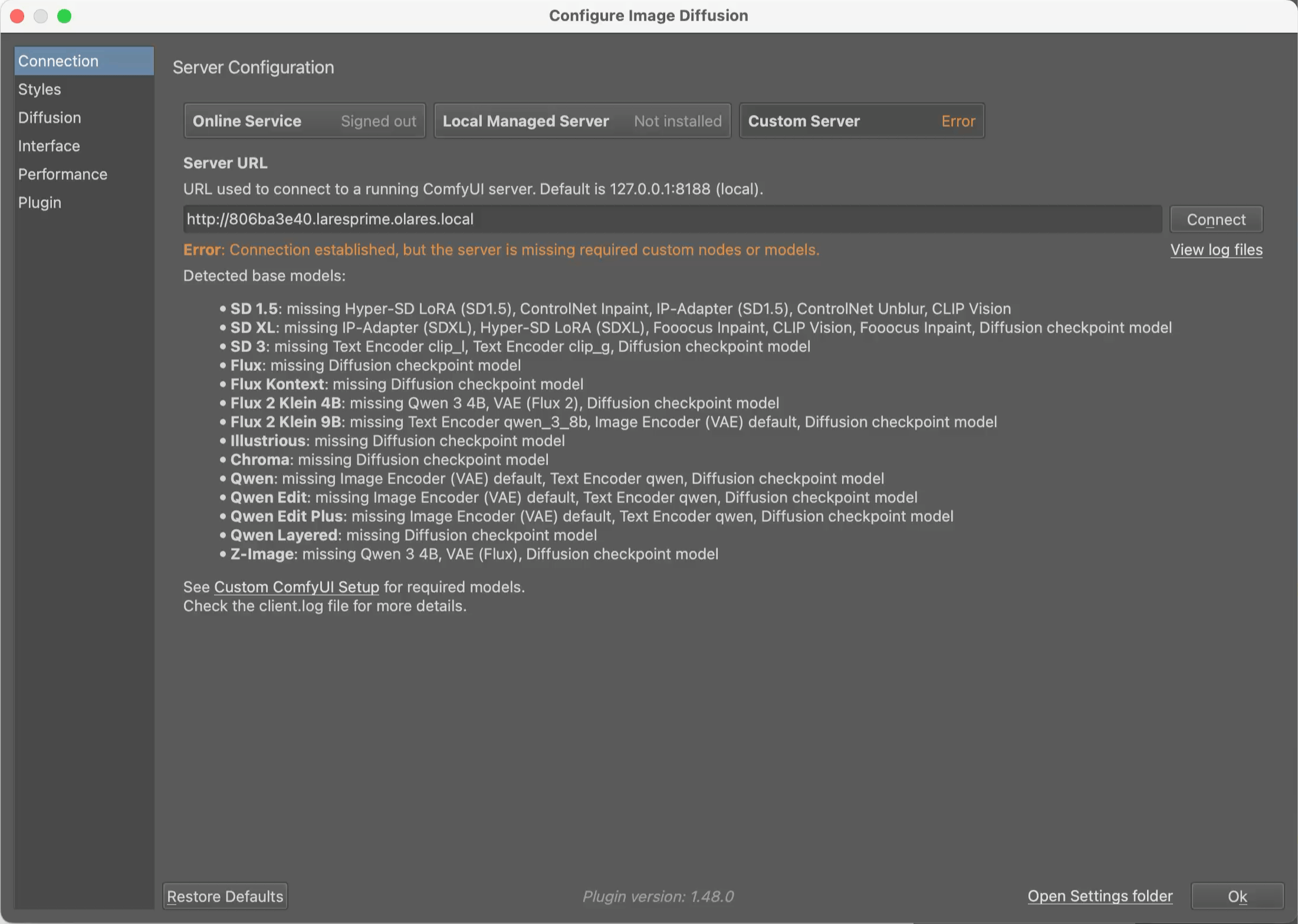
Install a base diffusion model
At least one diffusion model (commonly called a “checkpoint”) is required. This guide uses Z-Image Turbo as an example. Z-Image Turbo is a medium-sized model that balances quality and speed, producing realistic images without requiring excessive memory.
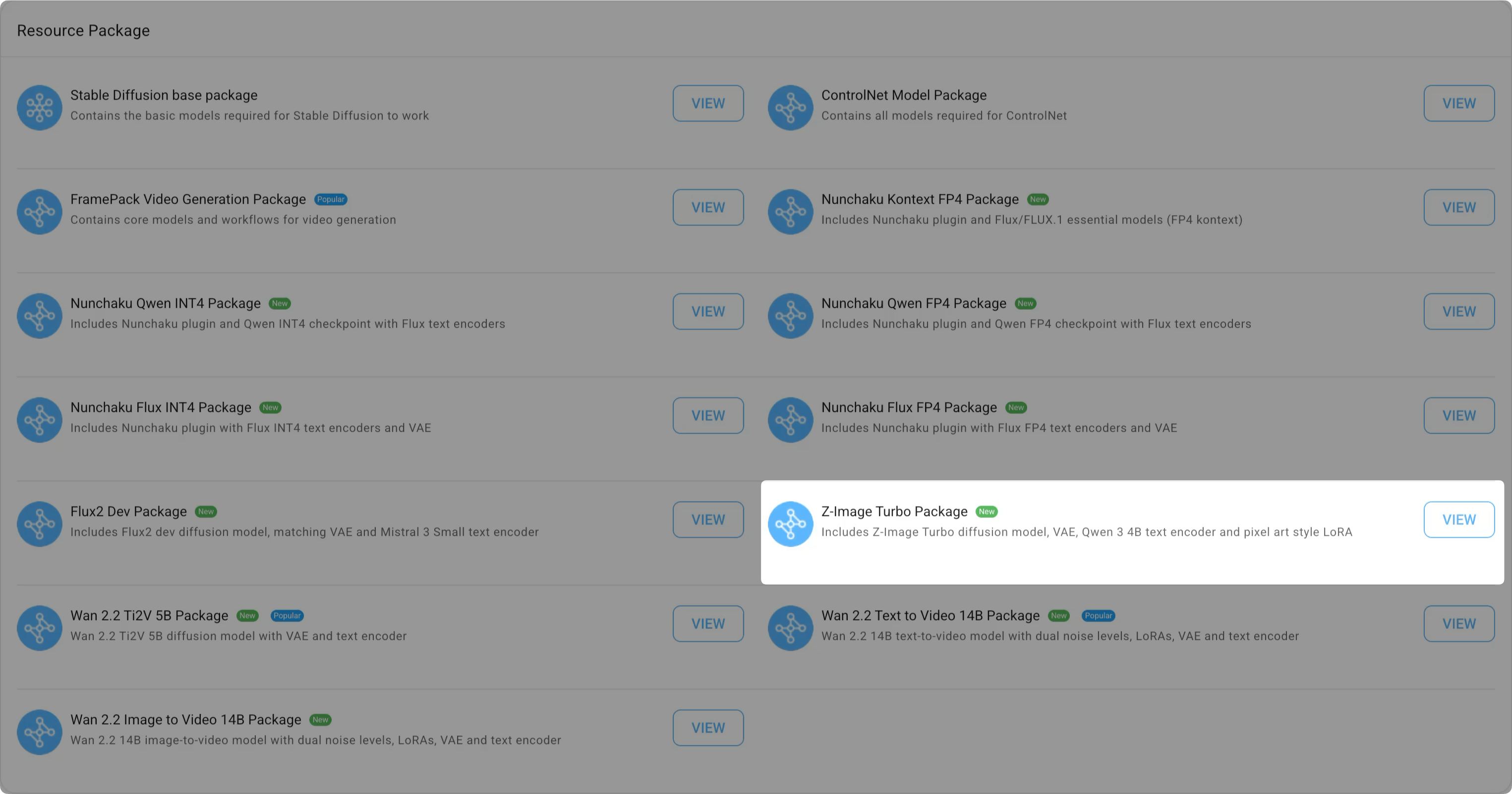
Open ComfyUI Launcher, and scroll down to the Package installation section.
Find Z-Image Turbo Package and click VIEW.
On the package details page, click GET ALL to start downloading. You can track the progress in the status bar.
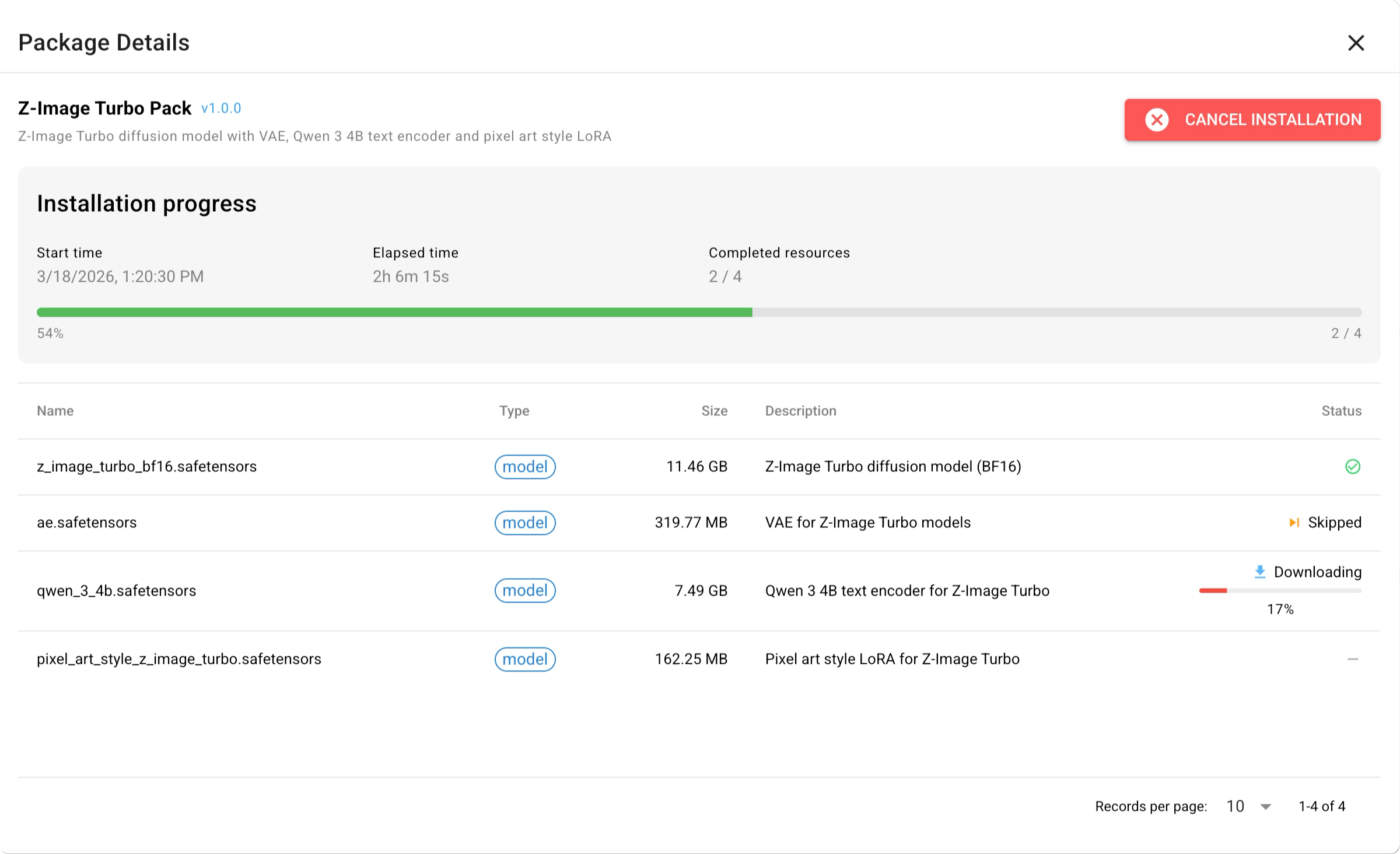
Go back to the Home page in ComfyUI Launcher, then click RESTART for the changes to take effect.
In Krita, go to Connection > Server Configuration and click Connect again. A green “Connected” indicator confirms a successful connection. You should see Z-Image marked as “supported” in the base model list.
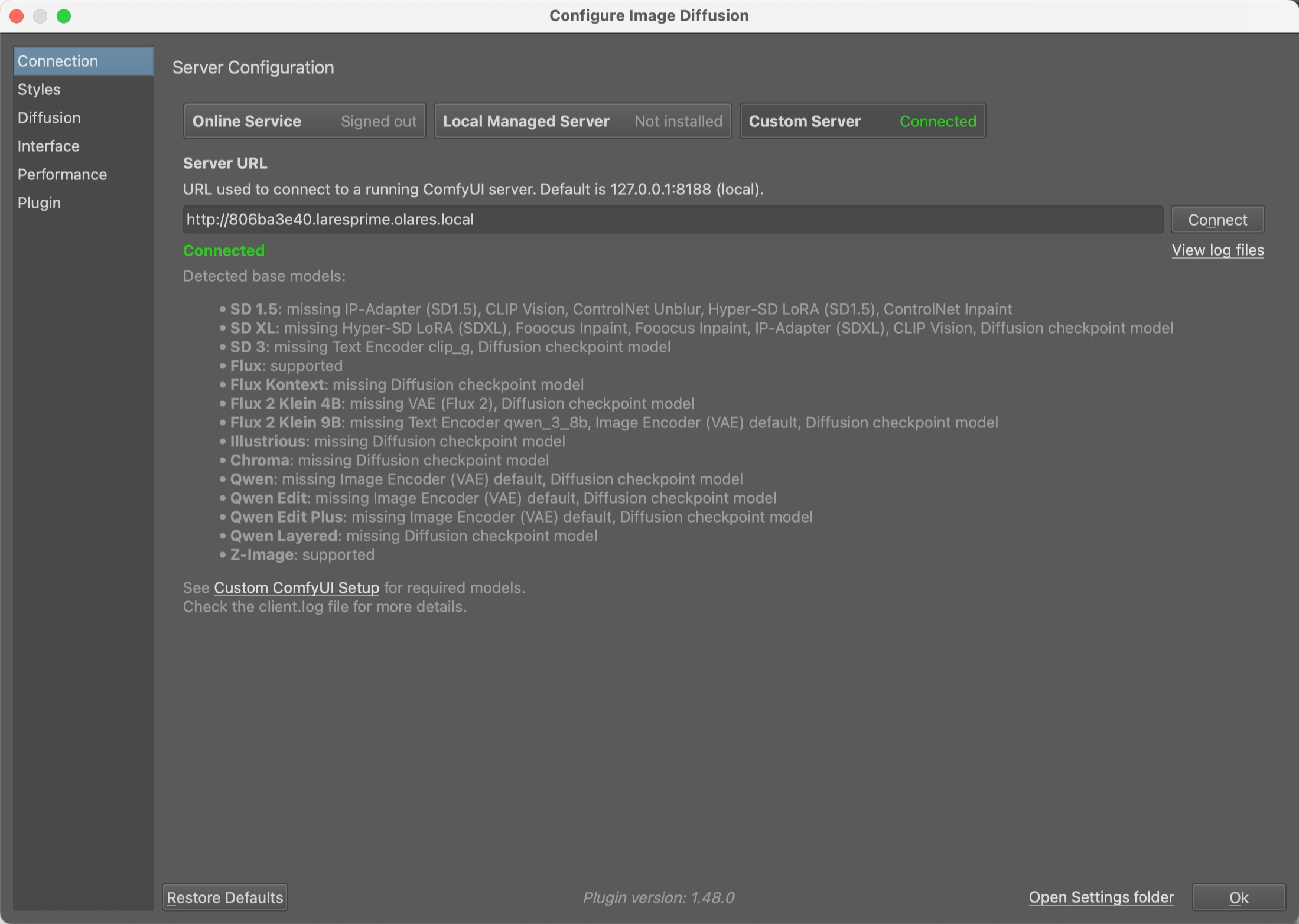
Add a style
Before generating images, you need to create a Style Preset that tells Krita which model to use.
Open the Configure Image Diffusion dialog in Krita, and go to the Styles tab.
For Style Presets, select Z-Image Turbo from the built-in styles.
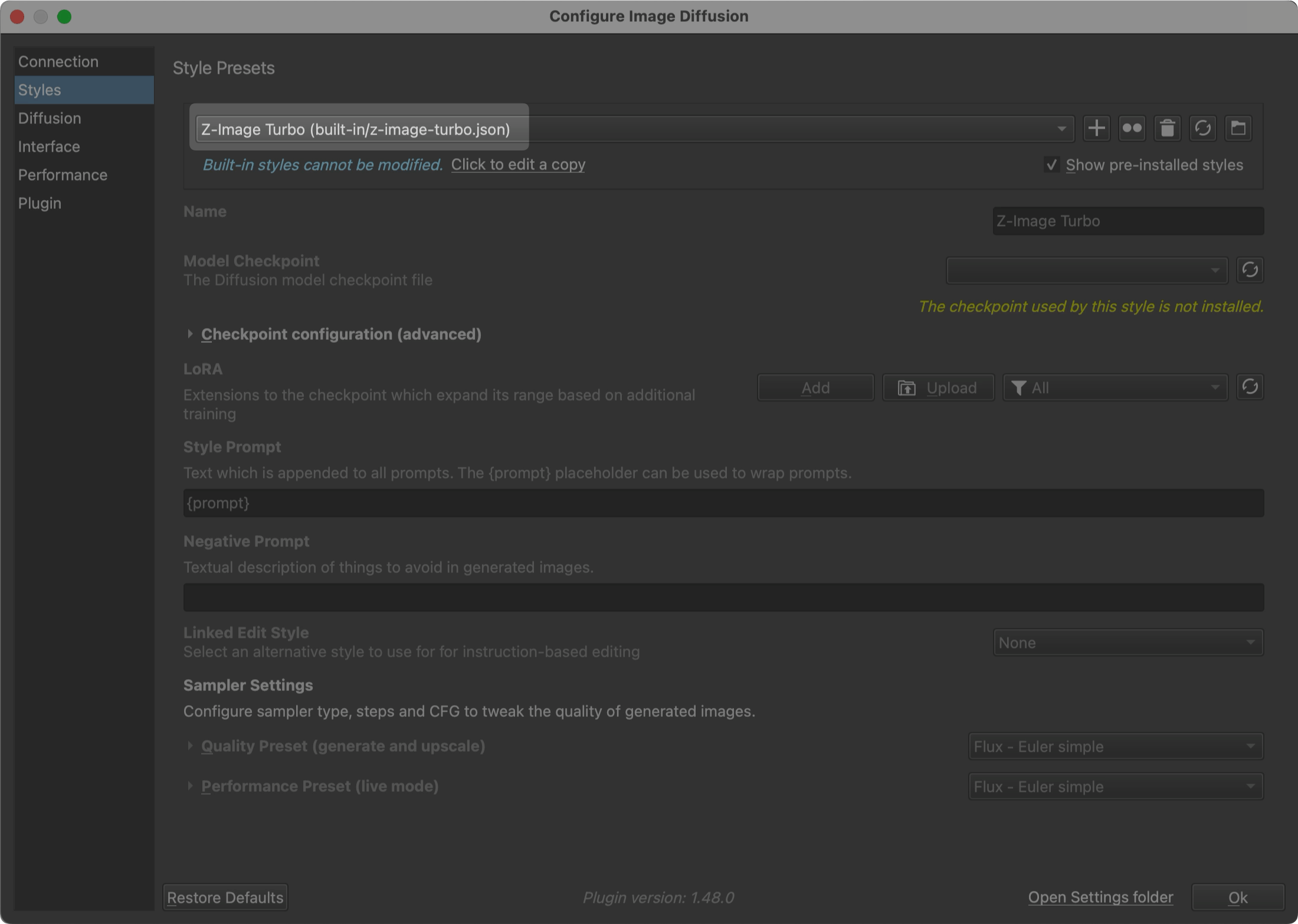
Click the duplicate icon to create a duplicate of the current style.
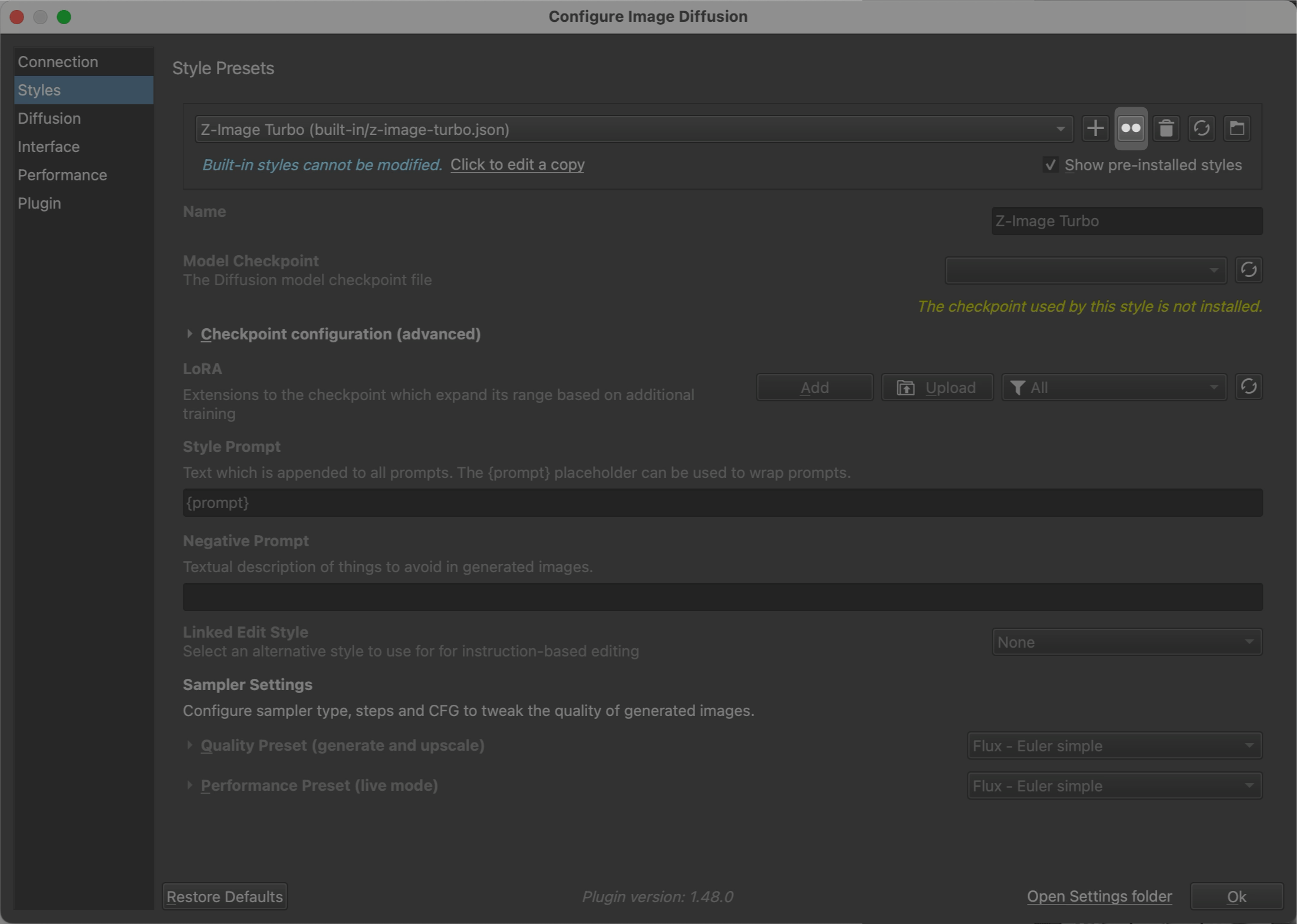
For Model Checkpoint, select the Z-Image model. The model name should be
public/z_image_turbo_bf16.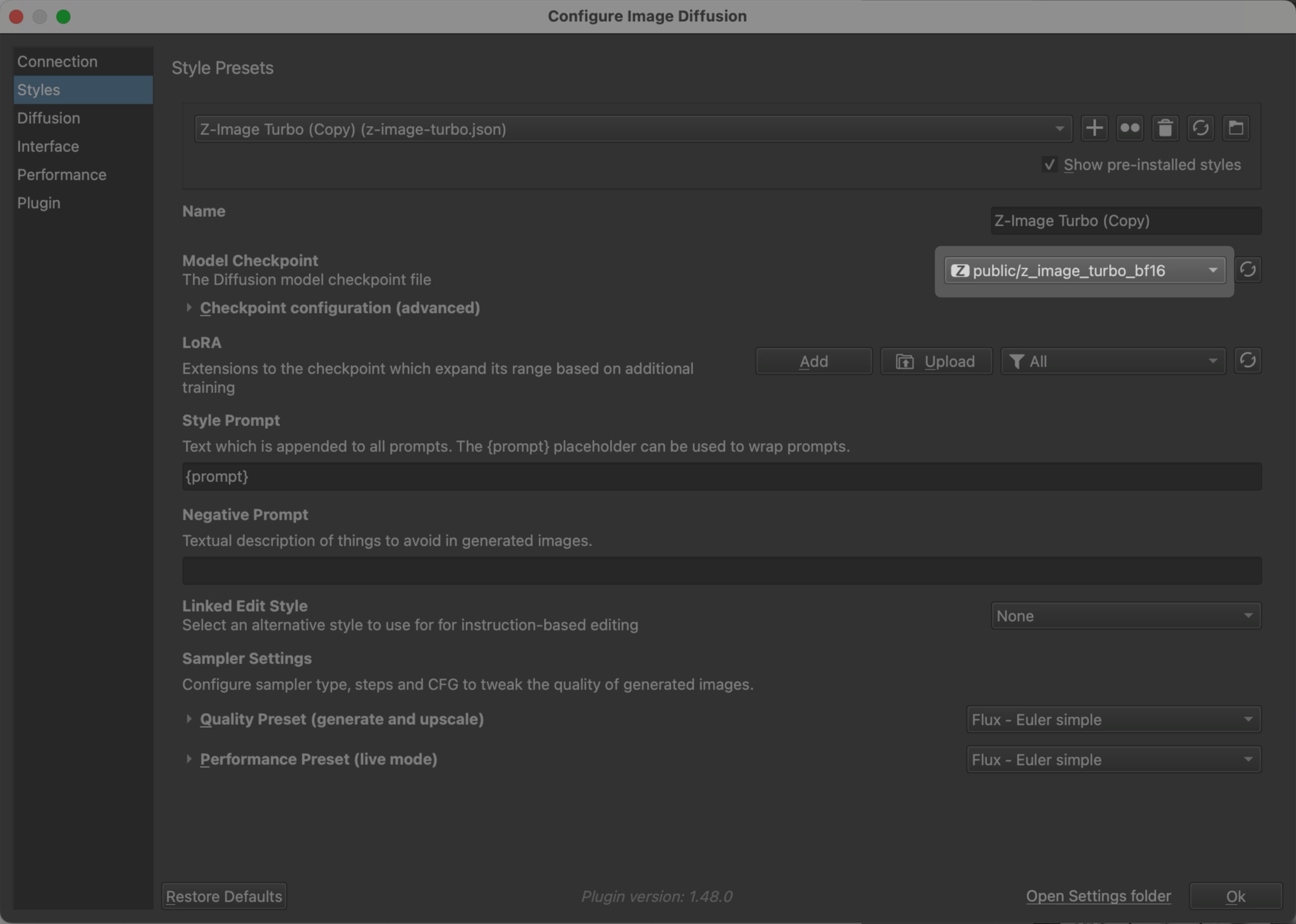
Click the refresh icon to refresh the available styles.
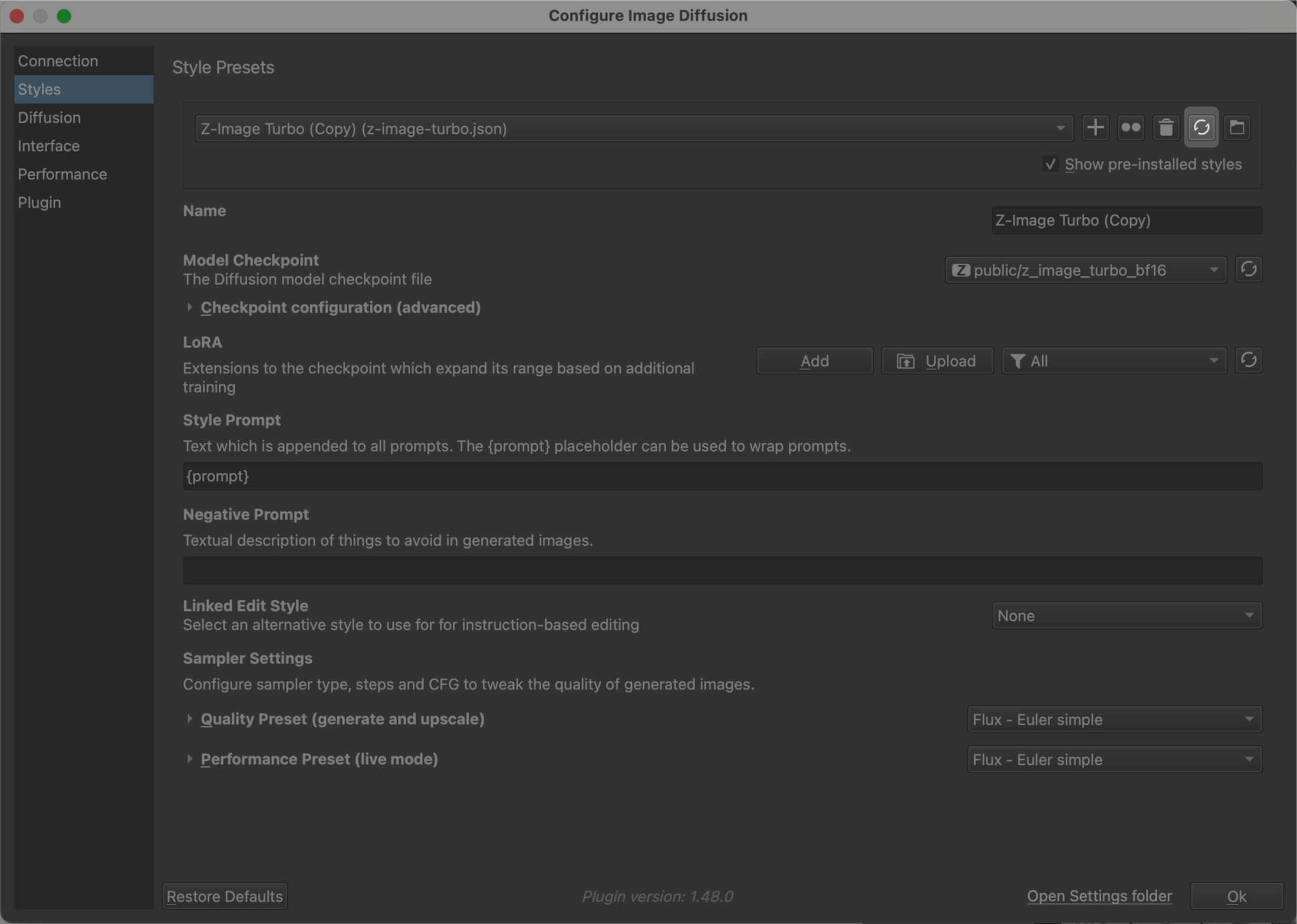
Keep default values for other settings, and click Ok to save changes.
WARNING
It is recommended to use the default settings if you are not familiar with Krita. Changing the default settings might generate unexpected results.
Create AI art with text prompts
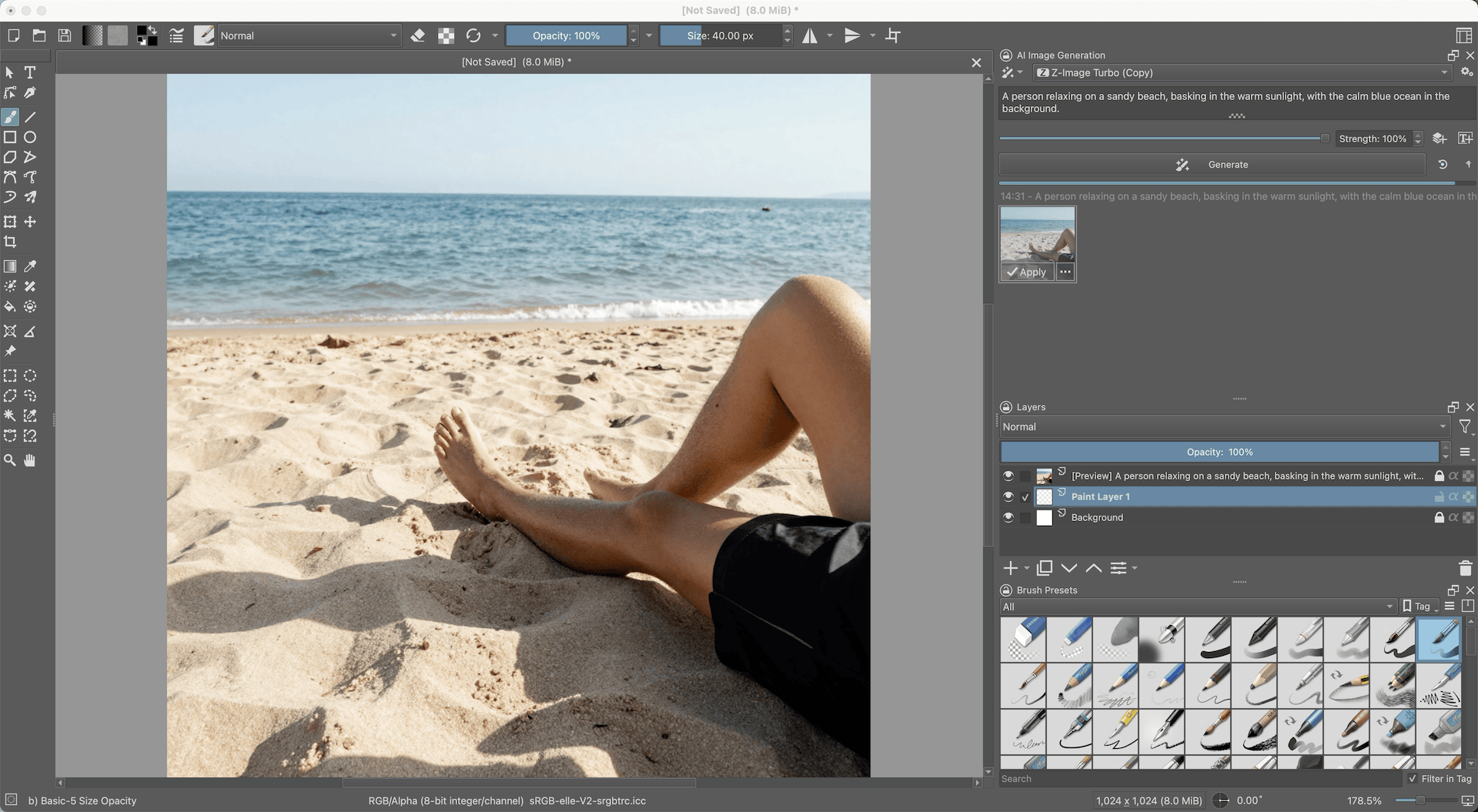
In the AI Image Generation panel, confirm that the Z-Image Turbo style is selected.
Enter your prompts in the text box. For example:
plainA person relaxing on a sandy beach, basking in the warm sunlight, with the calm blue ocean in the background.Click Generate. The generated image appears on the canvas.
Click Generate again to generate a new image.
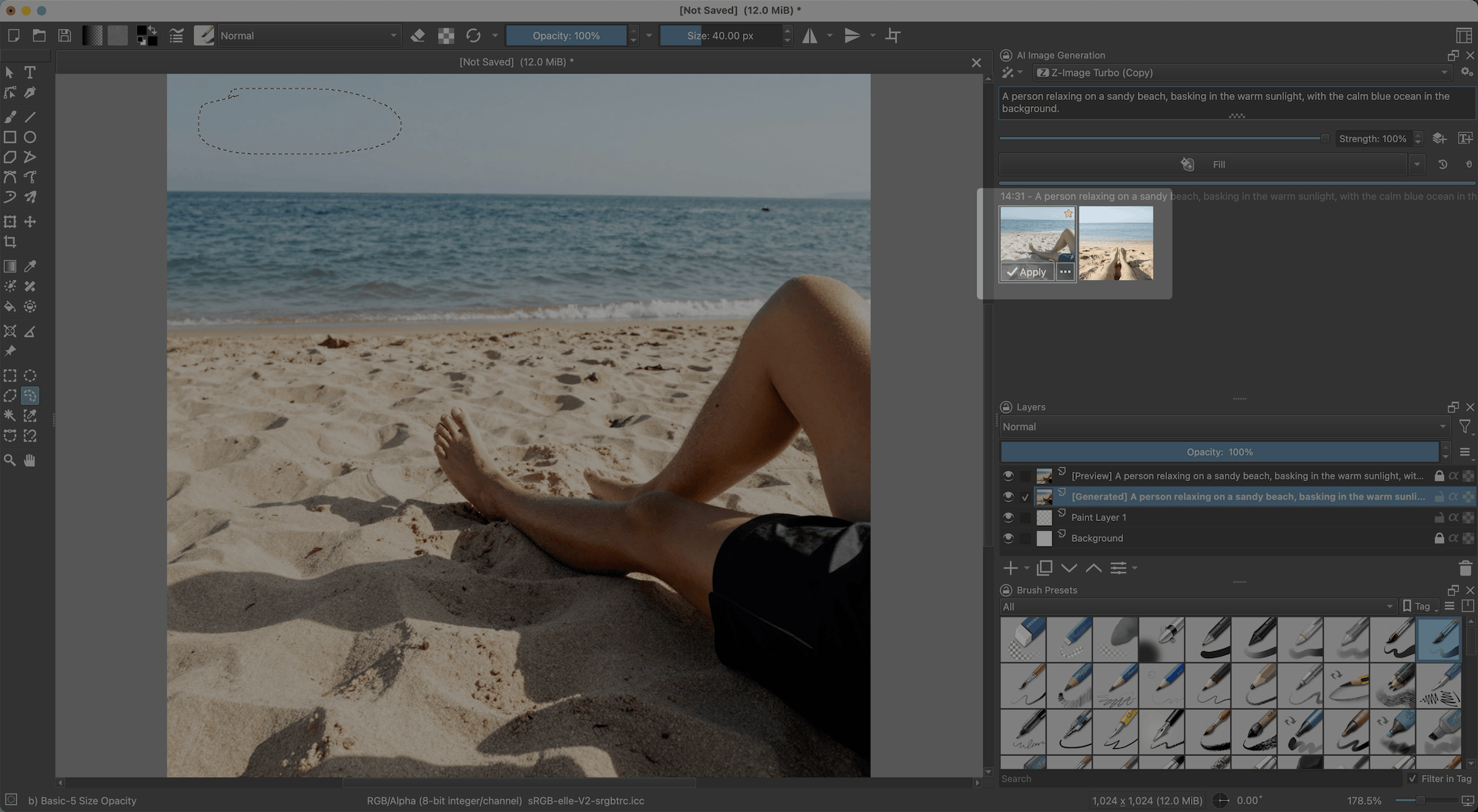
Select a preferred result, and click Apply to add it to the layers.
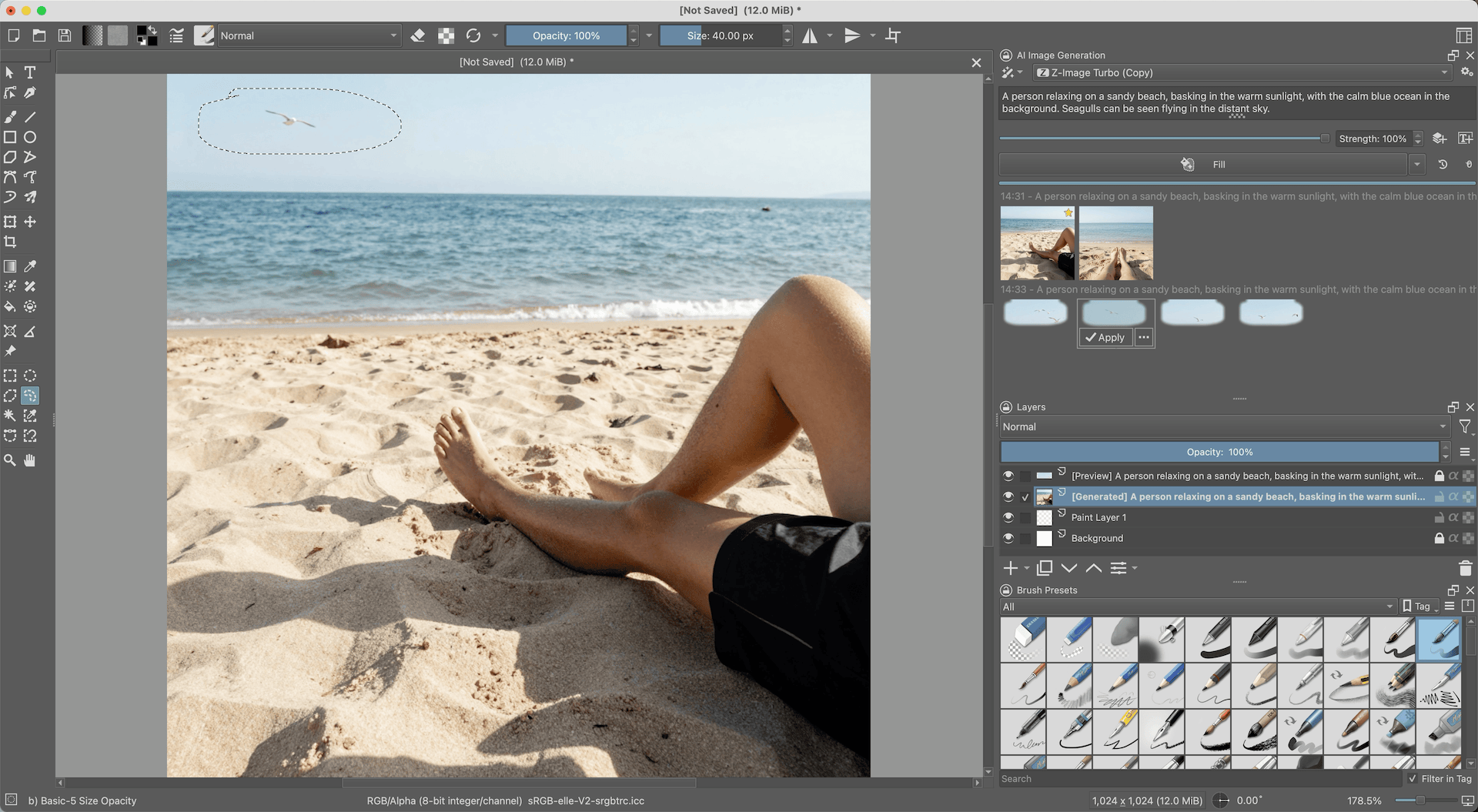
Inpaint
To refine specific areas of a generated image, use inpainting. This lets you modify parts of the image while keeping the rest intact.
Select the freehand selection tool and draw around the area you want to modify.
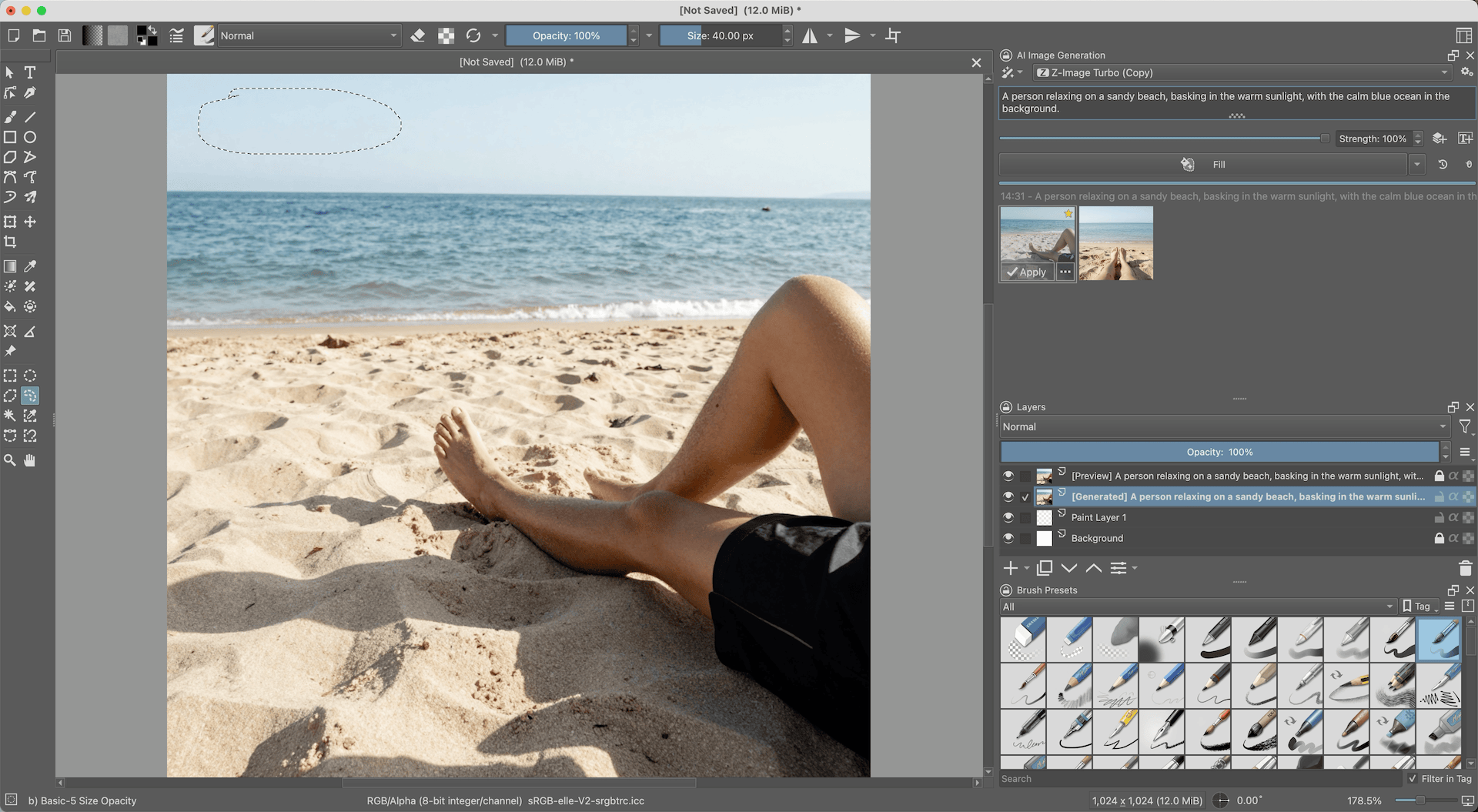
Enter a description for what you want in the selected area. For example:
plainSeagulls can be seen flying in the distant sky.Click Fill. Several fill candidates will appear in the panel.
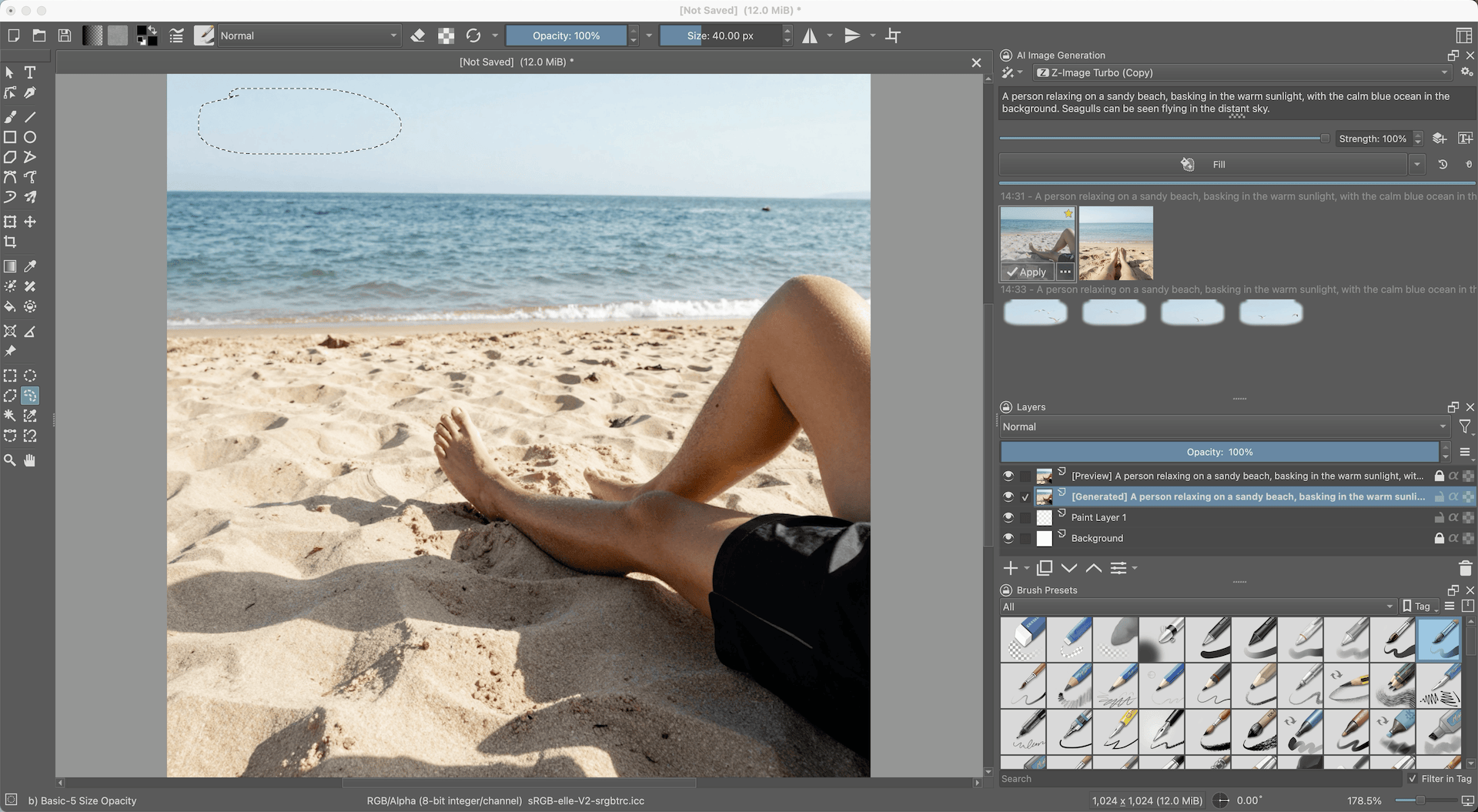
Click each candidate to preview it on the canvas.
When you find a result you like, click Apply to add it to the layers.
Troubleshooting
Cannot connect to ComfyUI from Krita
If Krita shows a connection error:
| Check | What to do |
|---|---|
| Network connectivity | Make sure your computer and Olares are on the same network. |
| ComfyUI authentication level | In Settings > Application > ComfyUI Shared, confirm it is set to Internal. |
LarePass VPN for .com URLs | Enable VPN connection in the LarePass desktop app. |
| Interfering proxy/VPN | Temporarily disable other VPN or proxy software. |
| ComfyUI service status | Open ComfyUI Launcher and verify the service is Running. |
| GPU access | In Settings > GPU, verify ComfyUI is bound to the GPU with enough VRAM allocated. |
| Required plugins and models | Make sure all custom nodes, utility models, and base diffusion models are downloaded and ComfyUI has been restarted. |
Learn more
- ComfyUI quick start guide: Install ComfyUI and generate your first image.
- Manage ComfyUI using ComfyUI Launcher: Control the ComfyUI service, manage models, and configure the environment.
- Krita AI Diffusion documentation: Explore advanced features and workflows.