ComfyUI
ComfyUI is a powerful, node-based interface for Stable Diffusion that transforms AI image generation into a visual programming experience. By connecting different nodes together like building blocks, you gain precise control over every aspect of the generation process, from prompts and models to post-processing effects.
Learning objectives
In this guide, you will learn how to:
- Install ComfyUI Shared and understand its components.
- Download the essential Stable Diffusion model package via ComfyUI Launcher.
- Start the ComfyUI service and generate your first image using the default workflow.
Prerequisites
- A working Olares installation with a GPU and sufficient disk space to download models.
- Admin privileges to install ComfyUI from Market and to start the ComfyUI service.
Install ComfyUI
Open Market and search for "ComfyUI".
Click Get, then click Install, and wait for installation to complete.
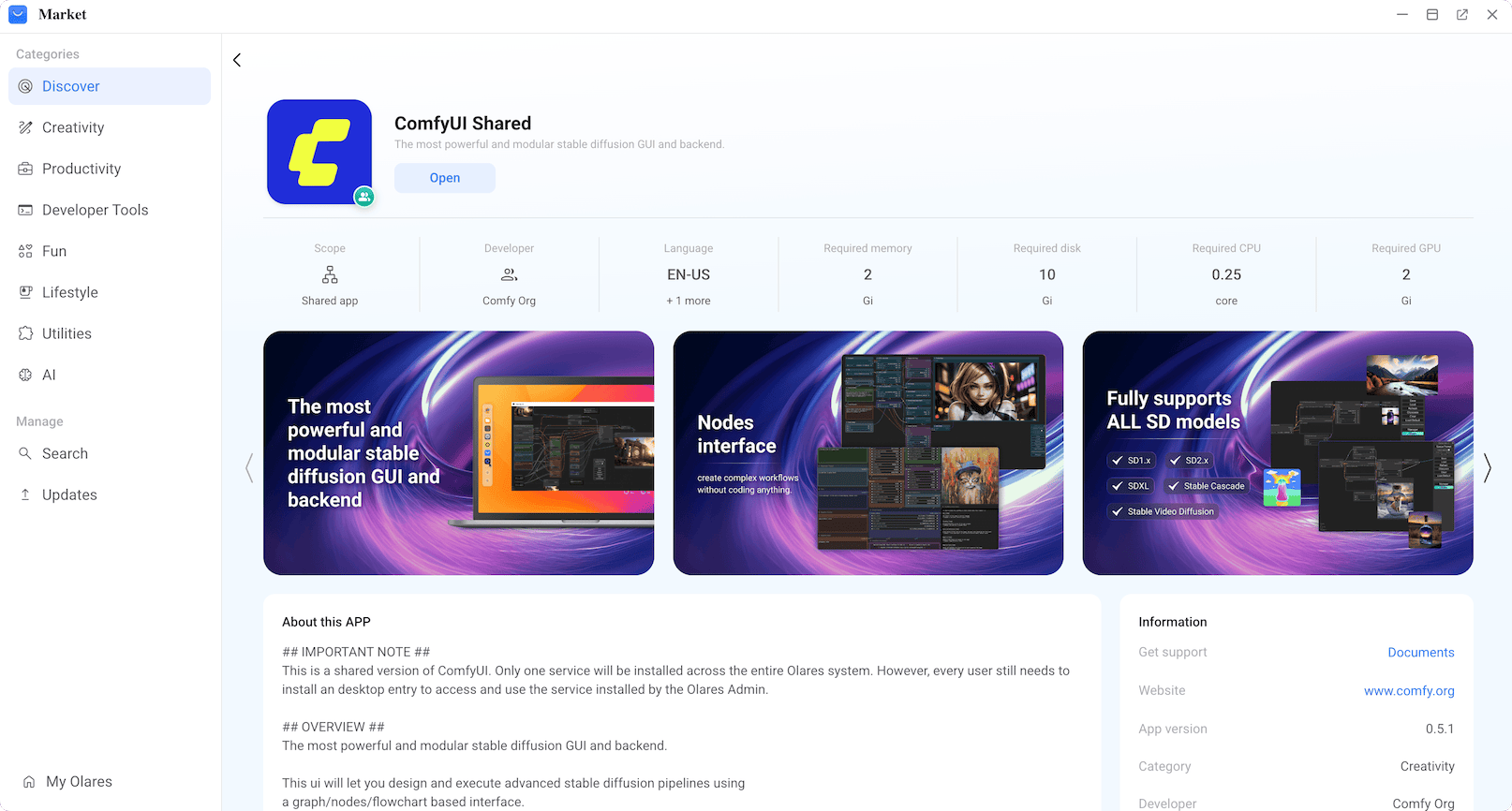
After installation, you will see two icons on Launchpad:
- ComfyUI: The client interface where you build workflows and generate images.
- ComfyUI Launcher: The management dashboard for the administrator. You must use this tool to start the ComfyUI service before anyone in the cluster can use the client.
Member users
Member users will only see the ComfyUI client icon. The administrator must start the service from the Launcher before members can access ComfyUI.
Download the essential model package
Before generating images, you need to prepare models. This guide uses Stable Diffusion v1.5 as an example. ComfyUI Launcher provides a one-click package that includes all essential base models.
Open ComfyUI Launcher from Launchpad.
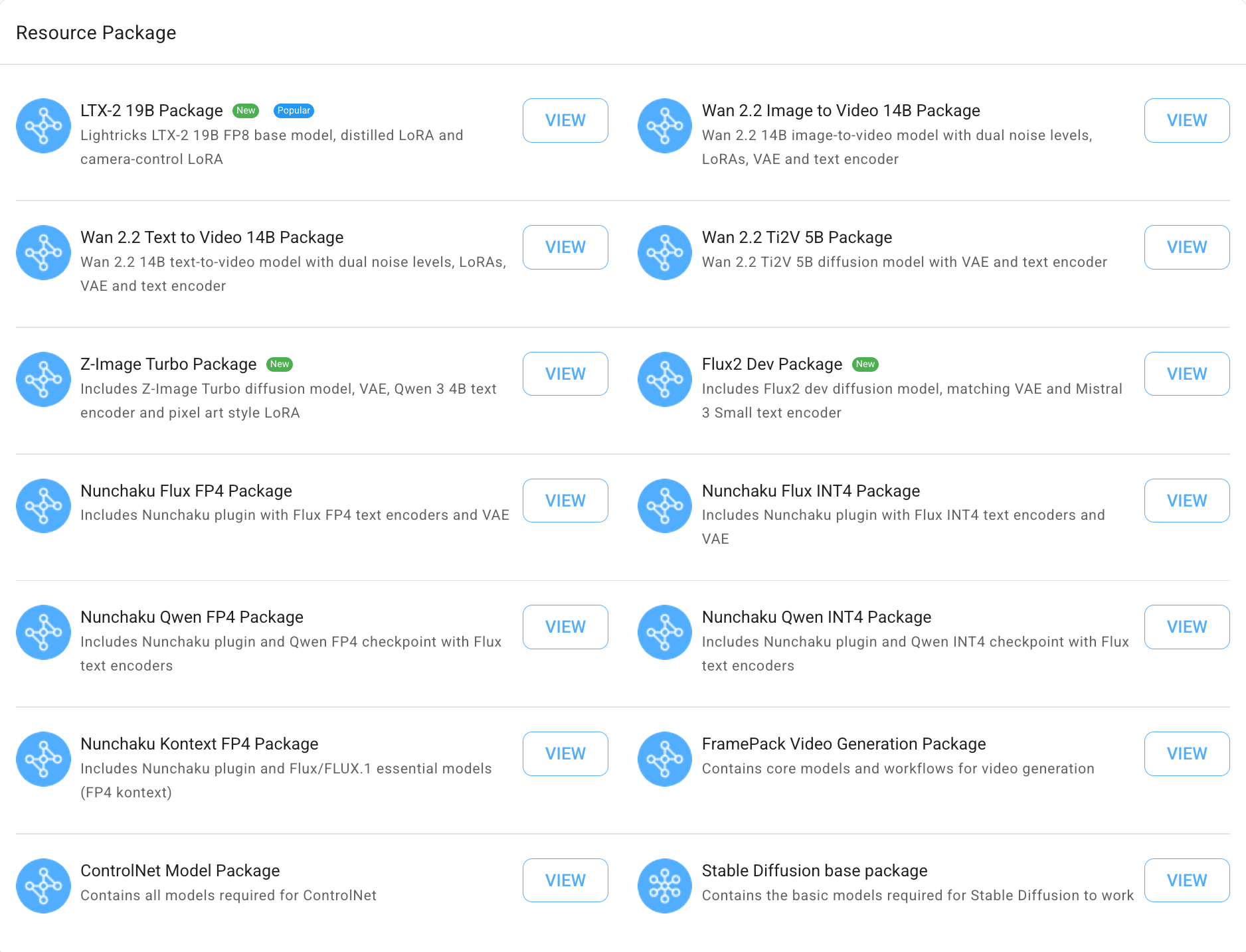
Scroll down to the Resource Package section.
Find Stable Diffusion base package and click VIEW.
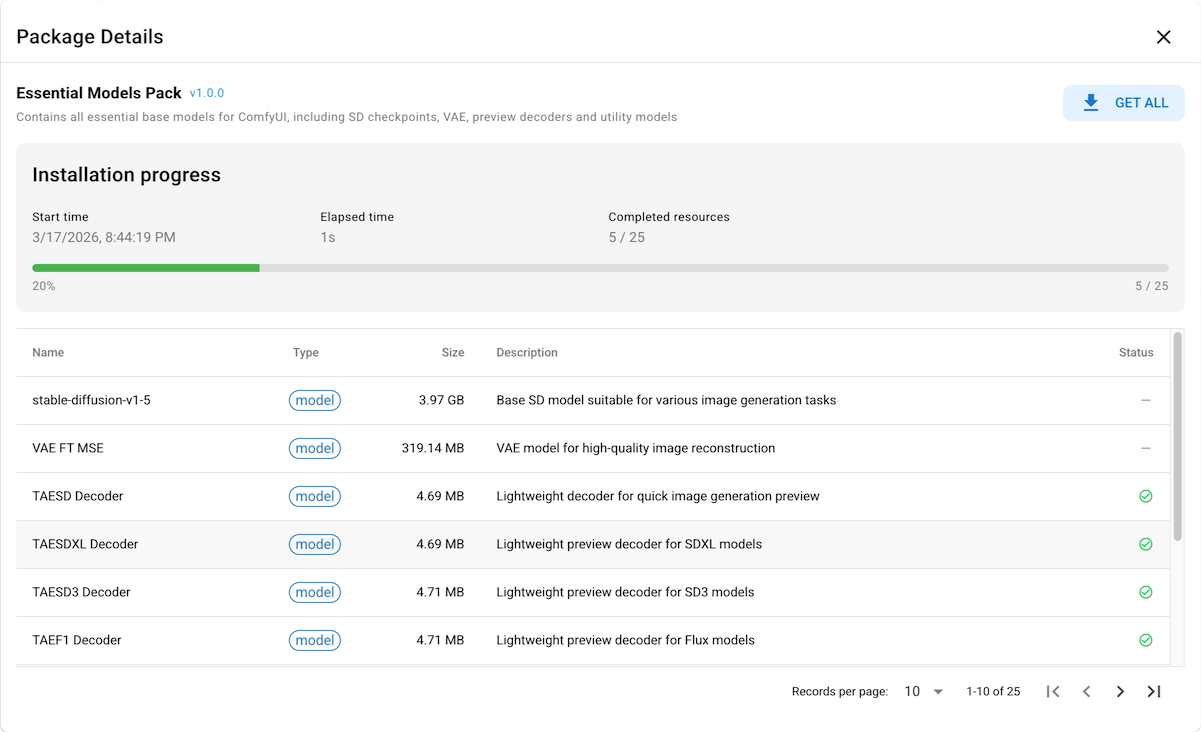
On the package details page, click GET ALL to start downloading. You can track the progress in the status bar.
Start the ComfyUI service
In ComfyUI Launcher, click START in the upper-right corner.

Initialization time
The initial startup typically takes 10–20 seconds as the environment initializes.
Once the status changes to "Running", click OPEN to launch the ComfyUI client in a new browser tab.
When prompted that this workflow is missing models, simply close the window.
Generate your first image
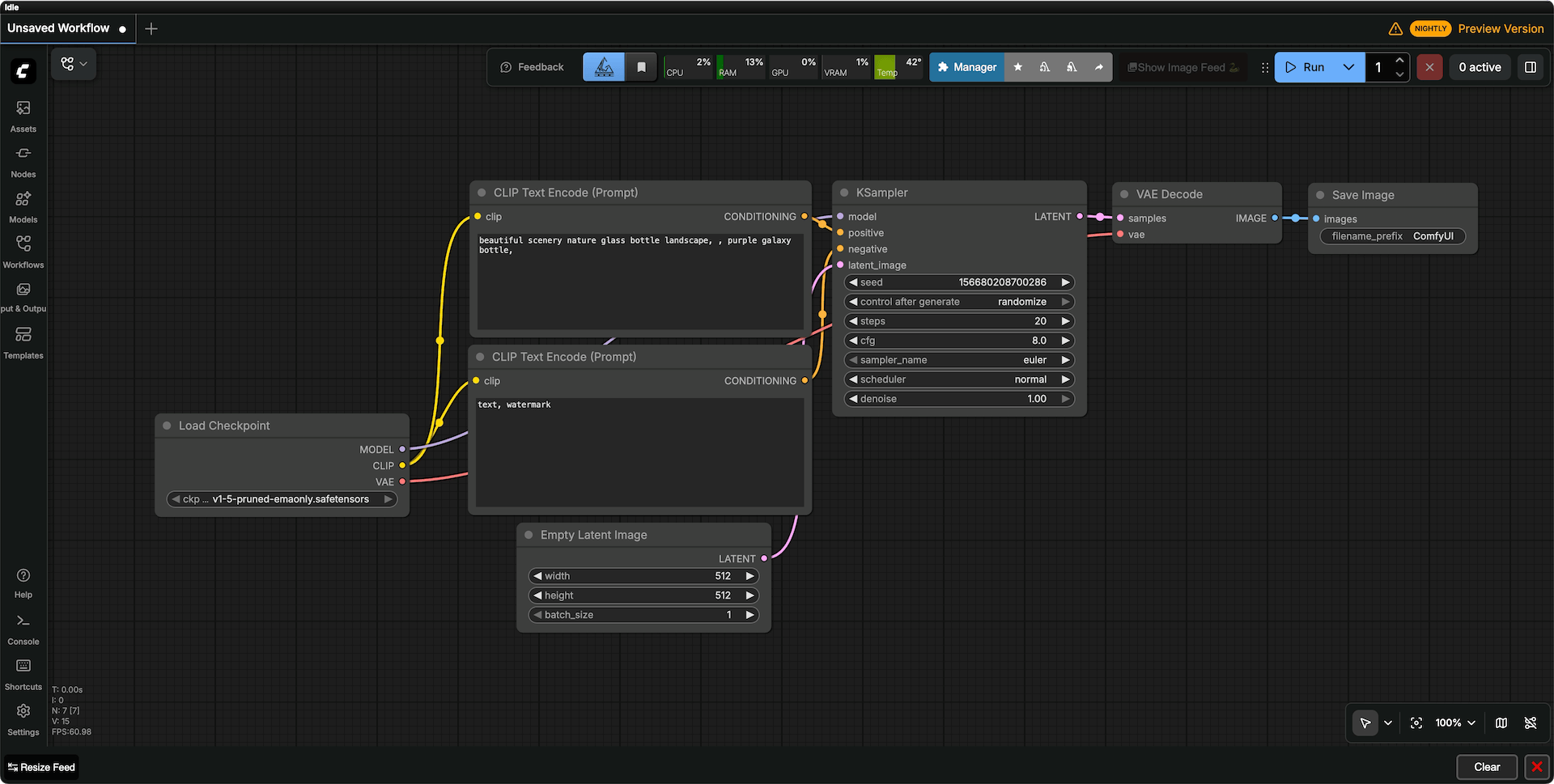
ComfyUI loads with a default text-to-image workflow. This workflow contains all the basic nodes you need to generate an image.
Learn about the default workflow
To understand each node and what it does, see ComfyUI text-to-image workflow node explanation.
Click Run in the toolbar to generate an image using the default prompts. The generated image appears in the Save Image node.
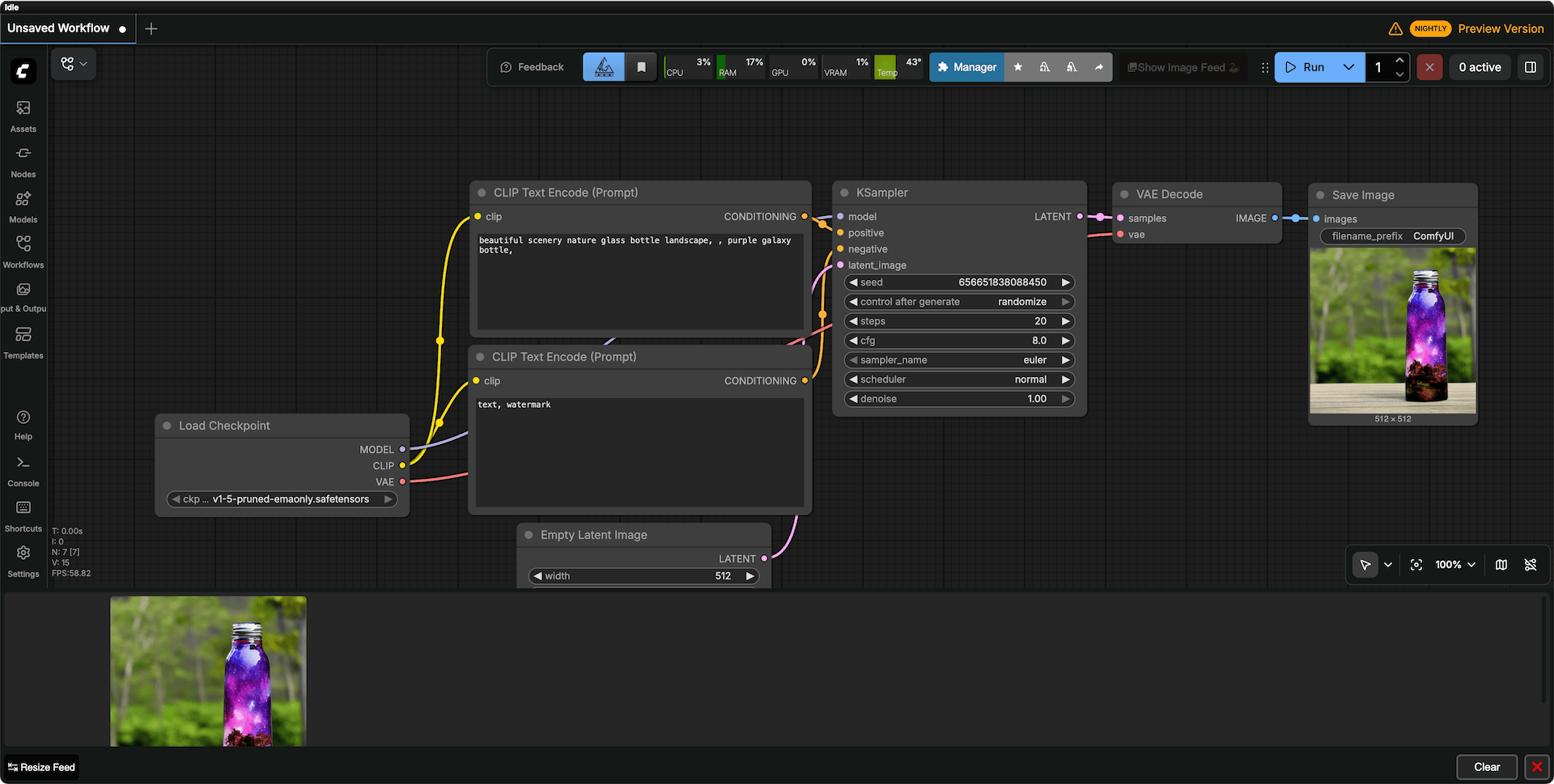
Try modifying the text in the CLIP Text Encode nodes and click Run again to see how the output changes.
Right-click the image in the Save Image node to save it locally, or find all output files in the Files app at
External/olares/ai/output/comfyui.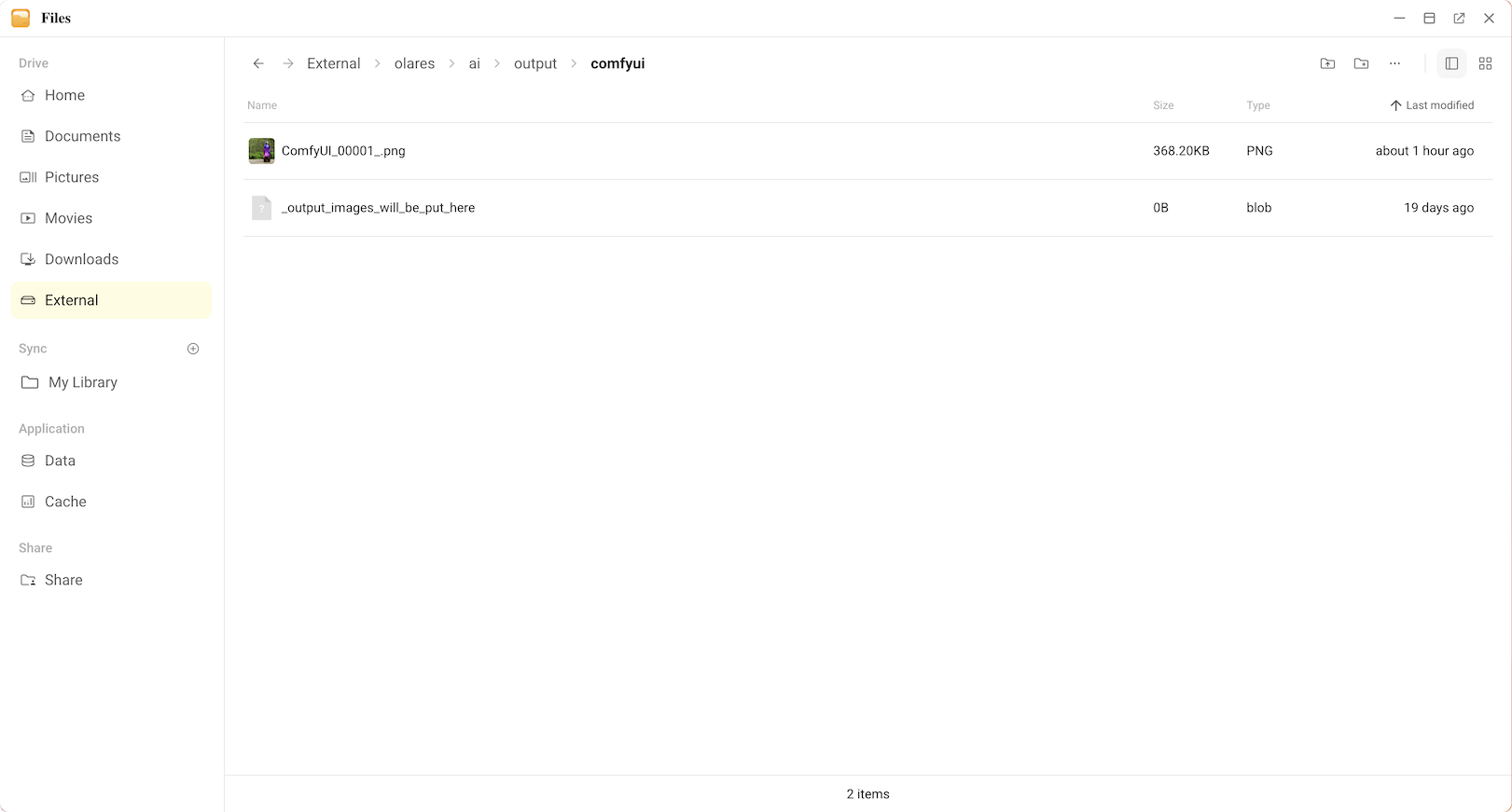
Troubleshooting
Cannot access ComfyUI Launcher
If you open ComfyUI Launcher and see an error message saying the connection cannot be established:
- Go to Settings > GPU and check your GPU mode:
- If you are using Memory slicing, make sure ComfyUI is bound to the GPU and has enough VRAM allocated.
- If you are using App exclusive, make sure the exclusive app is set to ComfyUI.
- Wait a moment, then open ComfyUI Launcher from Launchpad again.
Learn more
- Manage ComfyUI using ComfyUI Launcher: Control the ComfyUI service, manage models, plugins, and Python dependencies.
- AI art creation with ComfyUI and Krita: Integrate ComfyUI with Krita for AI-powered digital art workflows.