Manage photos with Immich
Immich is an open-source, self-hosted photo and video backup solution. It supports automatic backup, original-quality storage, and timeline browsing. With built-in machine learning models, Immich can automatically recognize people, places, and objects in your photos, making photo management smarter and efficient.
Running Immich on Olares gives you a Google Photos experience while keeping full control of your data. Combined with its mobile app, it is ideal for individuals or families building a private media library.
Learning objectives
In this guide, you will learn how to:
- Install Immich and set up the admin account.
- Populate your library via web uploads, mobile backups, and external imports.
- Browse, edit, and manage your photo timeline.
- Use AI-powered smart search and face recognition.
- Share photos and albums with others locally and publicly.
Install Immich
Open Olares Market and search for "Immich".
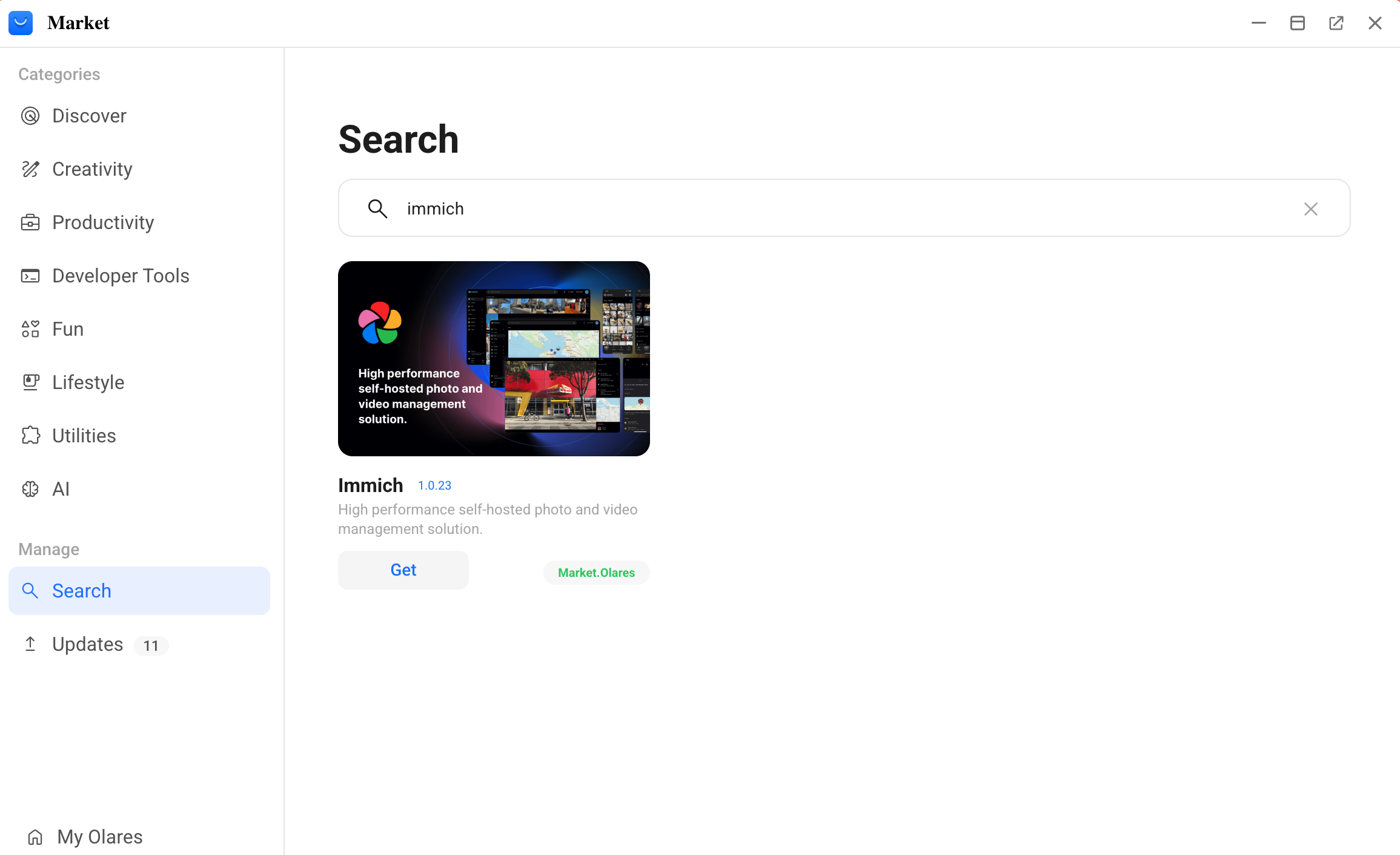
Click Get, and then click Install. Wait for the installation to finish.
Set up the admin account
The first user registered becomes the administrator, responsible for managing the instance and adding other users.
Open Immich from Launchpad, and then click Getting Started.
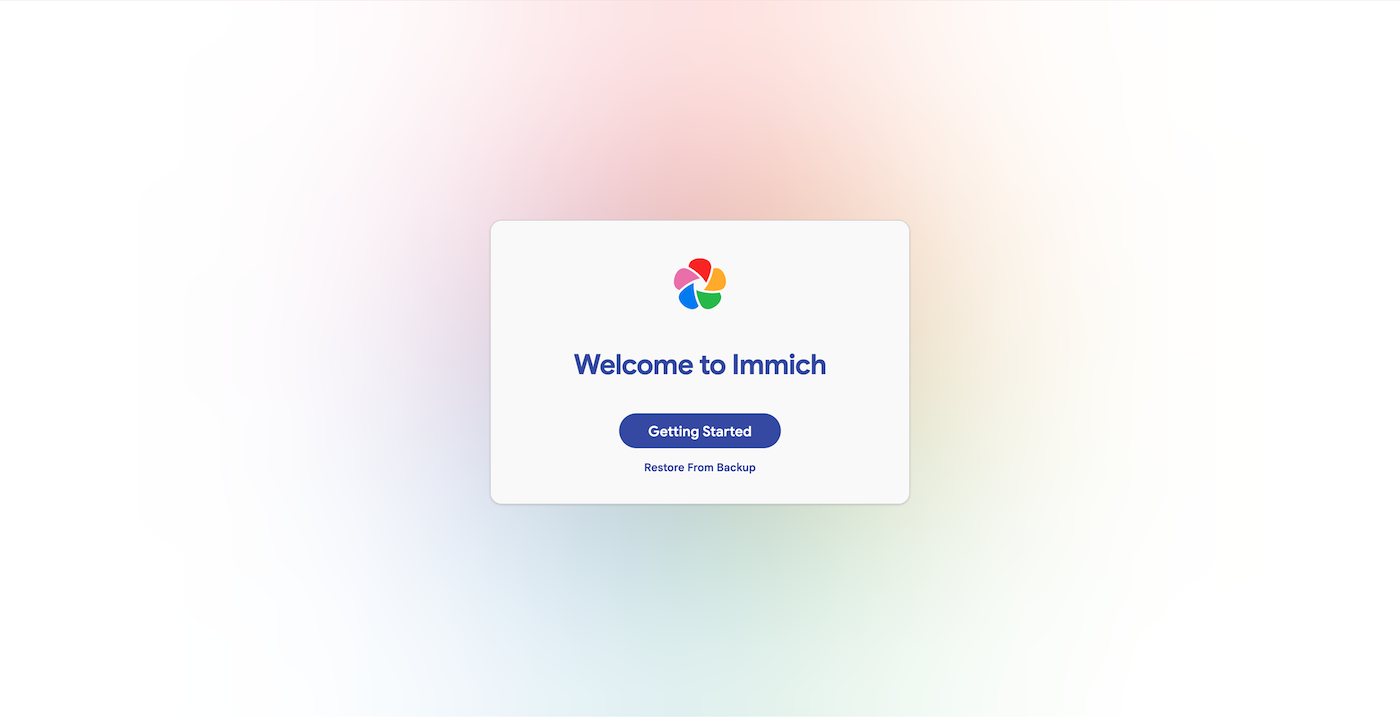
On the Admin Registration page, set the admin email, password, and user name.
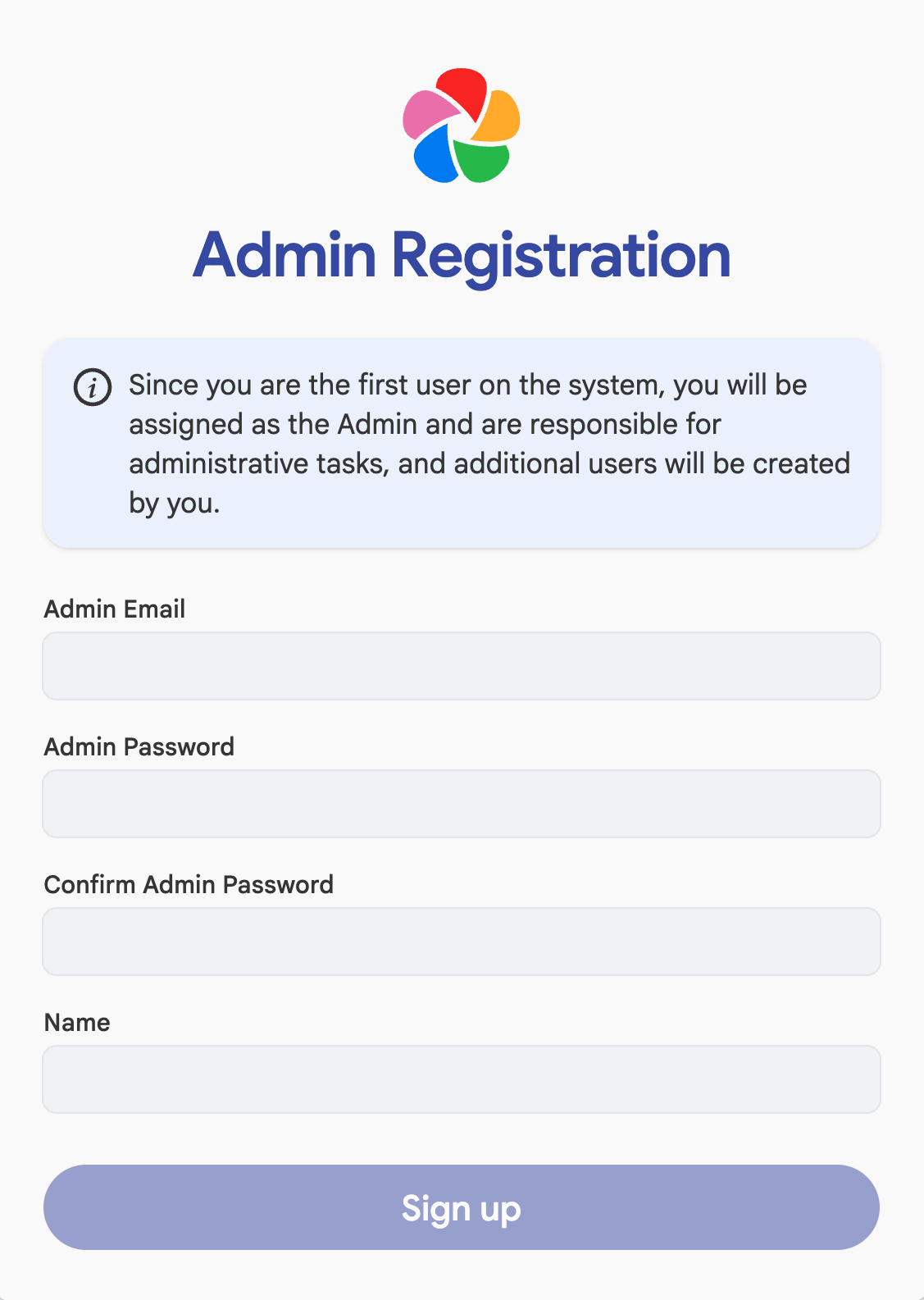
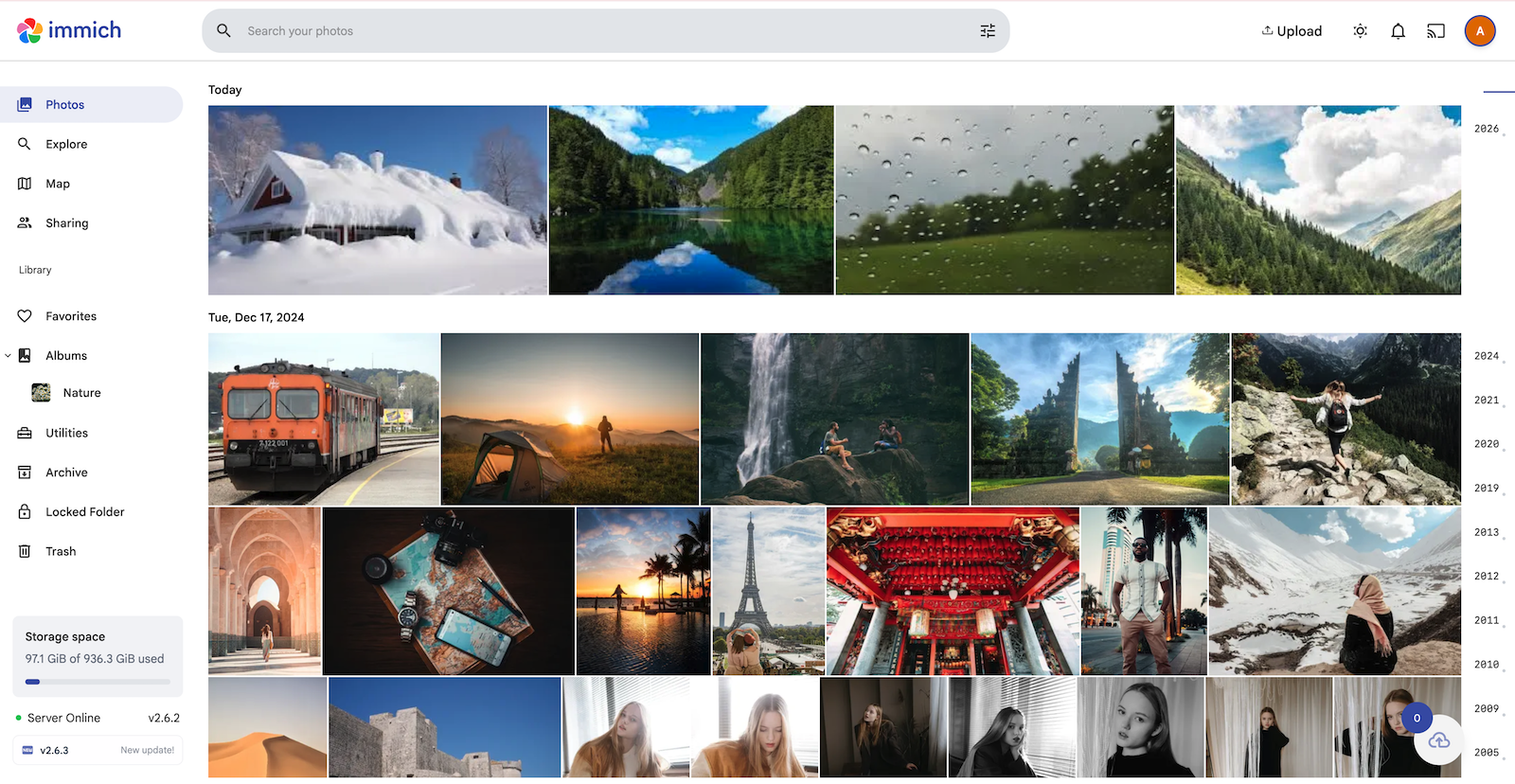
Log in with the new credentials. You land on the Photos page, which displays all photos in a timeline view.
Populate your library
Build your library by bringing photos into Immich from multiple sources.
Upload from computer
Add photos that are stored on your computer.
On the Photos page of the Immich web UI, click the upload area in the center, or click Upload in the upper-right corner.
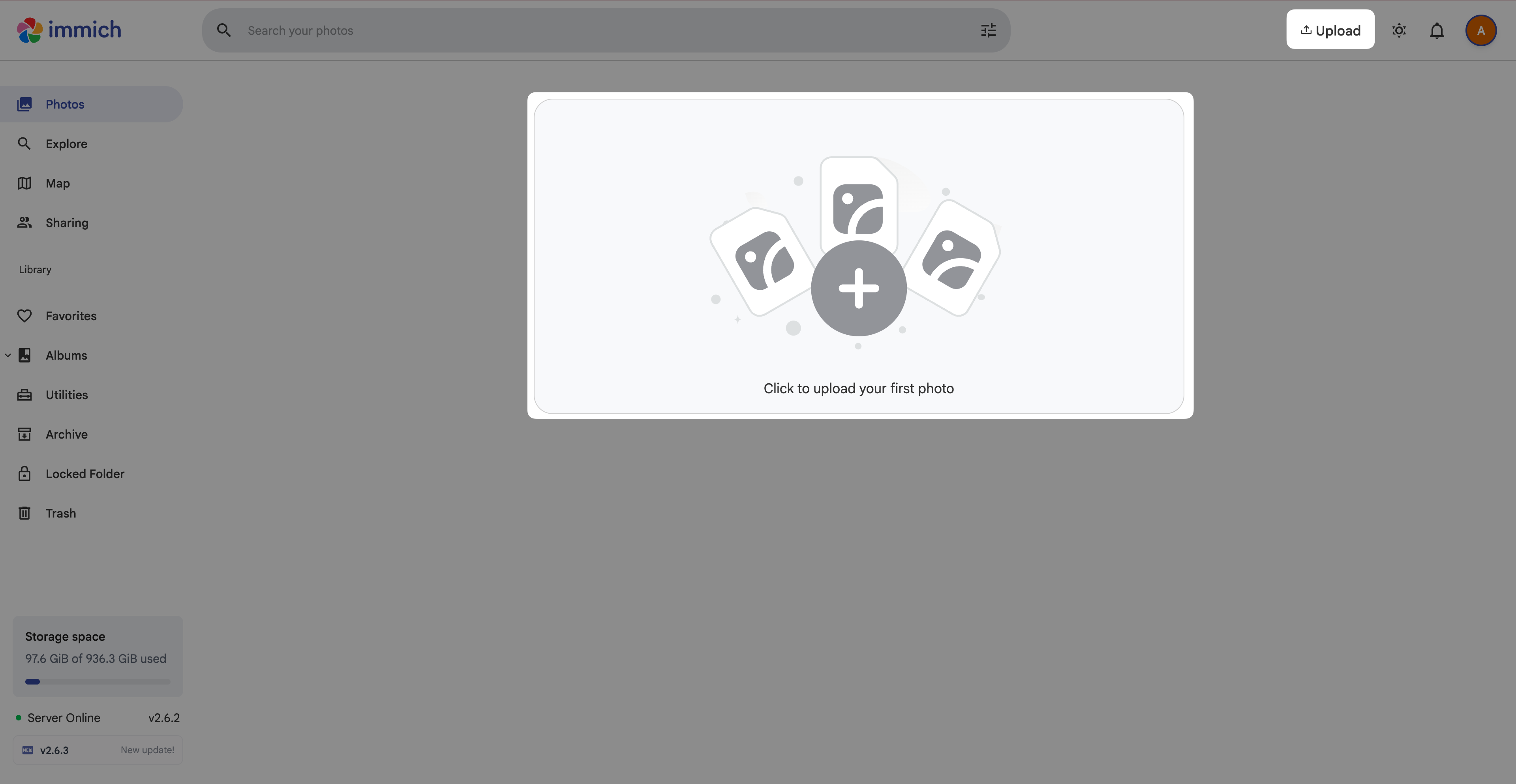
Select the photos to upload.
Once uploaded, they are automatically sorted by date on the photos timeline.
Upload from mobile device
Use the Immich mobile app to upload the photos on your mobile device to the Immich server, creating a private backup.
Install the Immich mobile app.
- iOS: Download "Immich" from the App Store.
- Android: Download the APK from the Immich GitHub Releases page or install from Google Play.
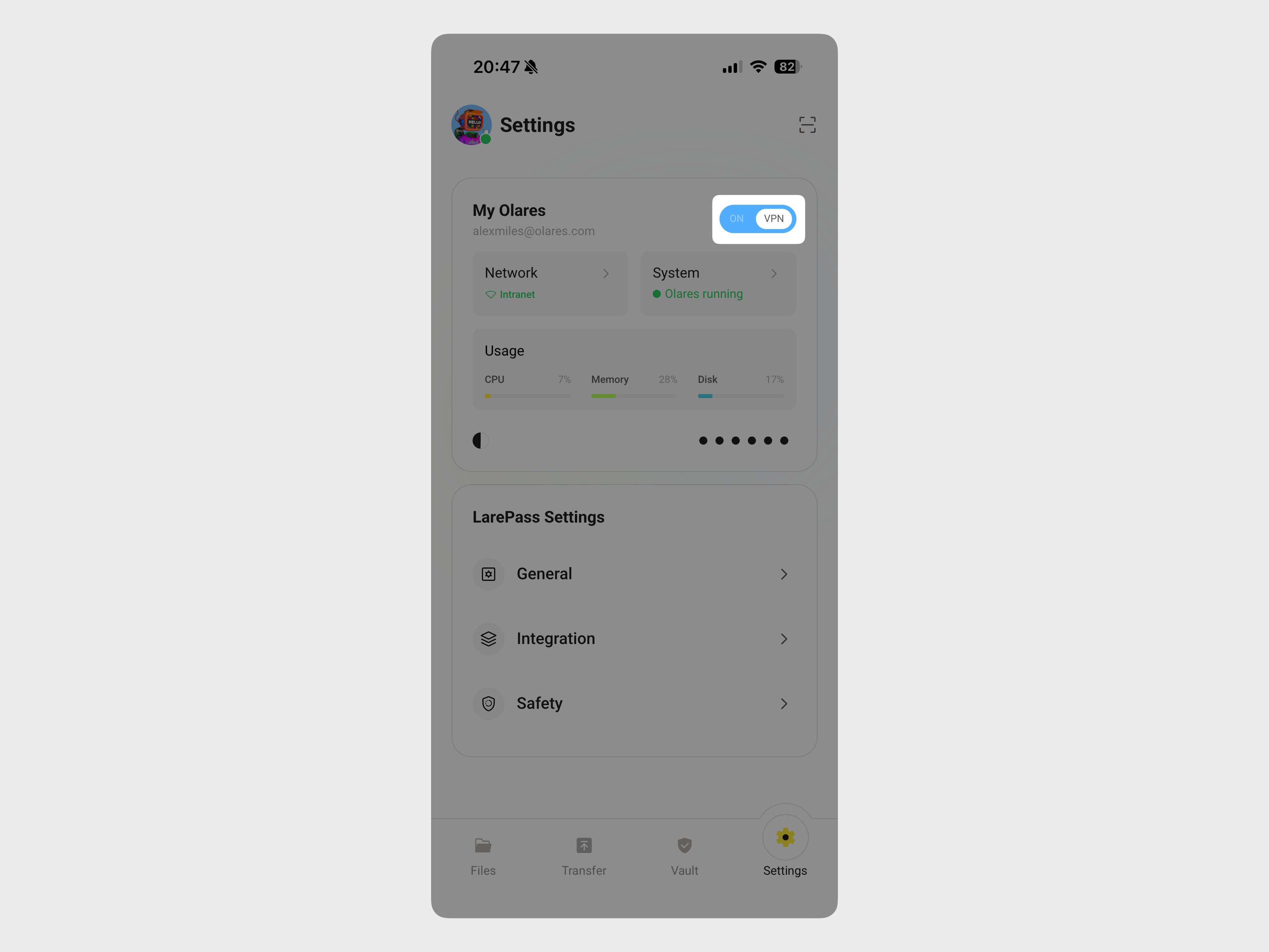
Open LarePass on your mobile device and enable the VPN to ensure a secure connection to your Olares.
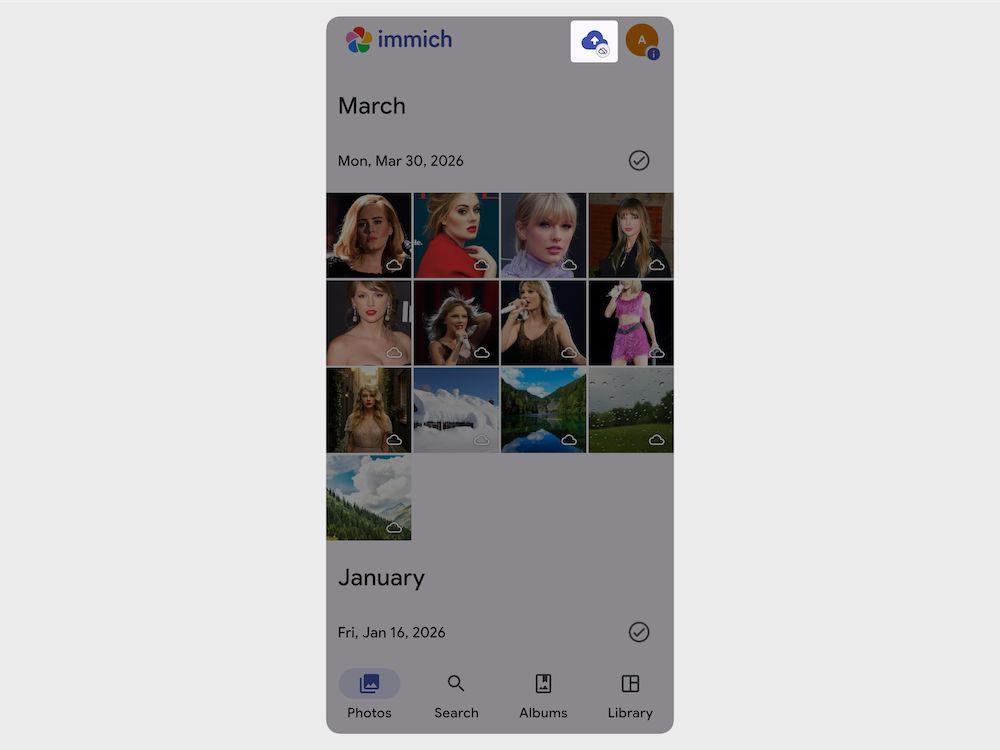
Open the Immich mobile app, and then enter your Immich server URL, admin email, and password to log in. The photos you uploaded from the web UI are displayed.
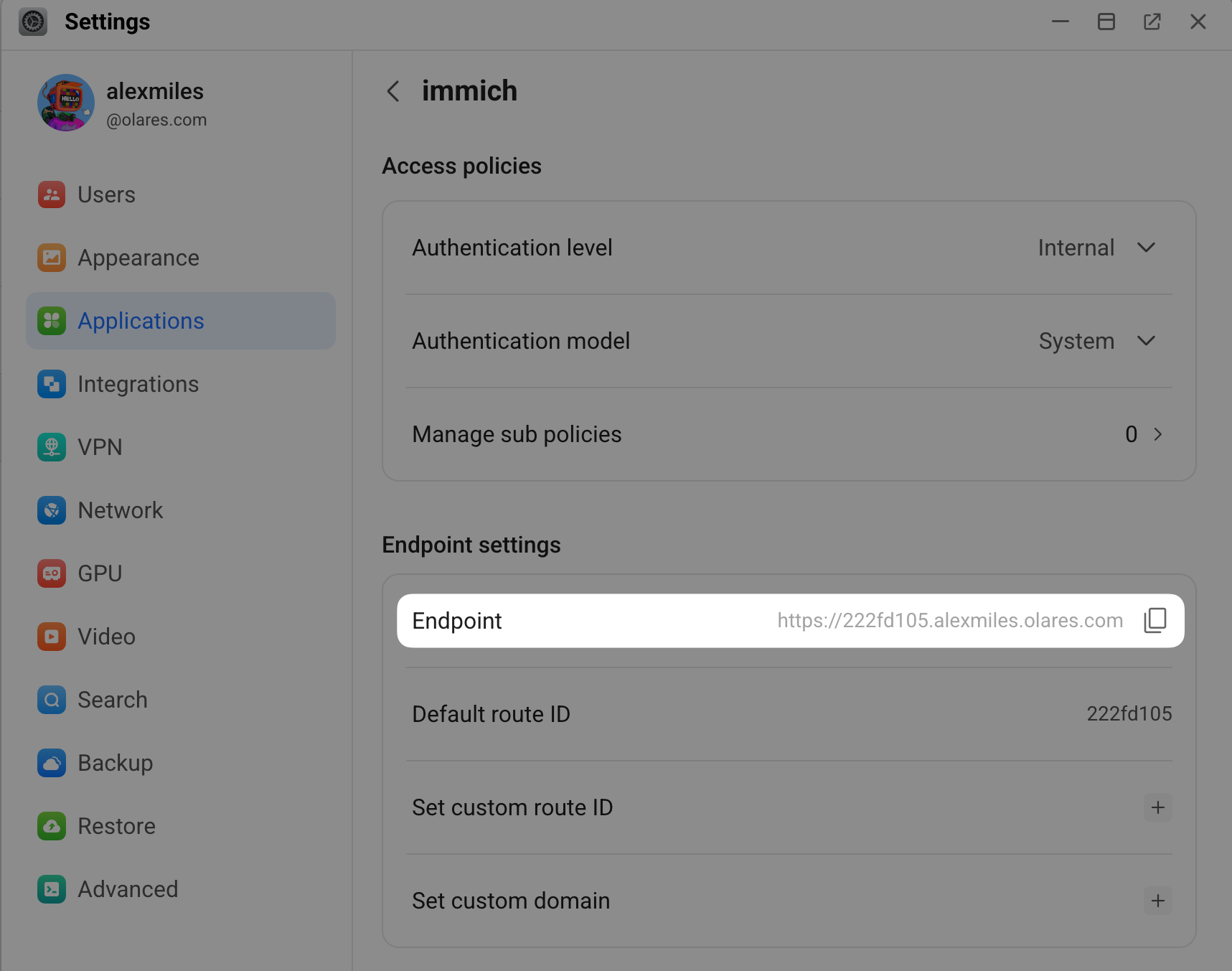
Obtain Immich server URL
Open Settings, go to Applications > Immich > Entrances > Immich > Endpoint settings, and then copy the Endpoint address. This is your Immich server address.
Tap backup in the upper-right corner.
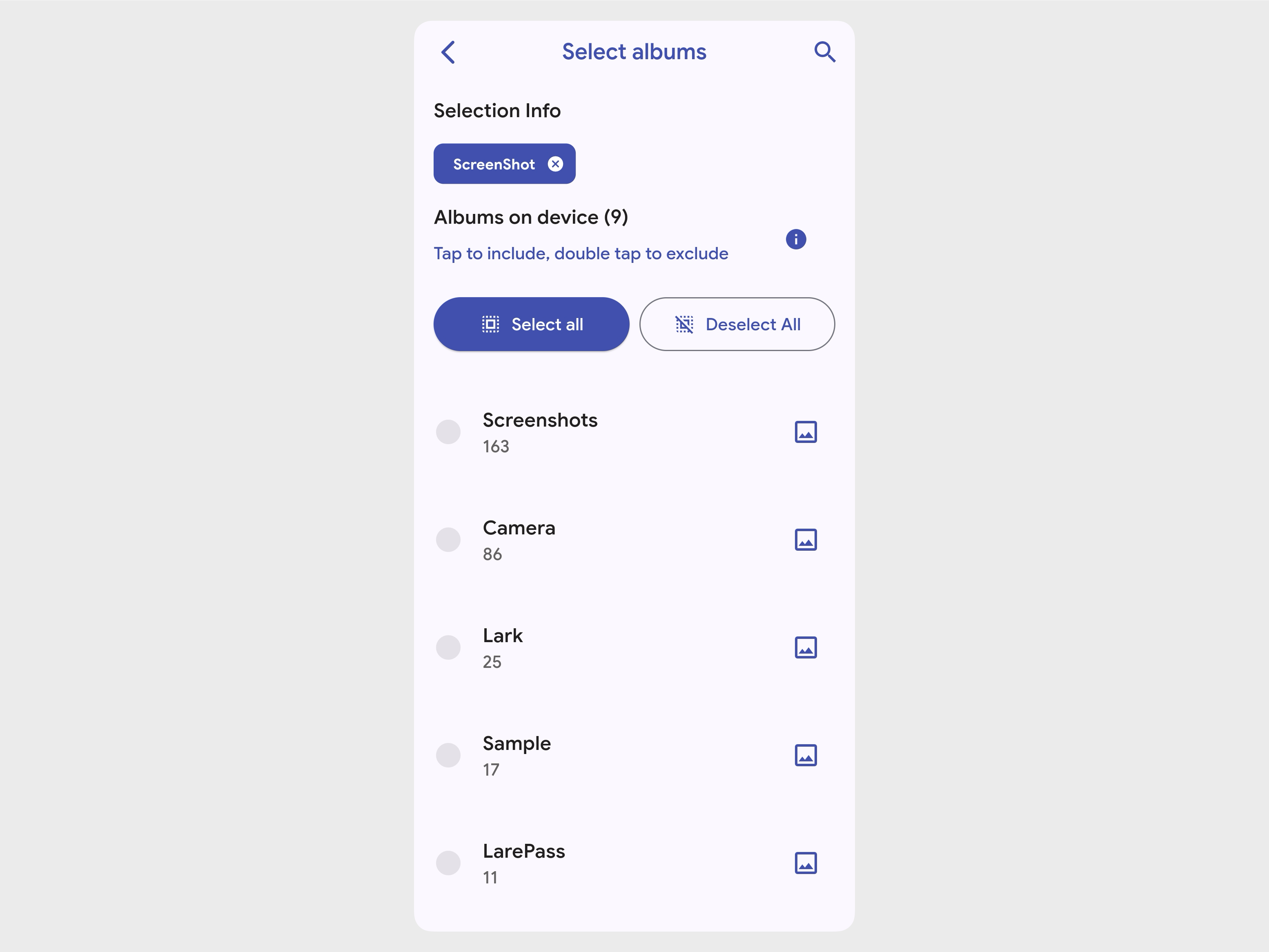
In Backup Albums, tap Select, and then select the folders to upload.
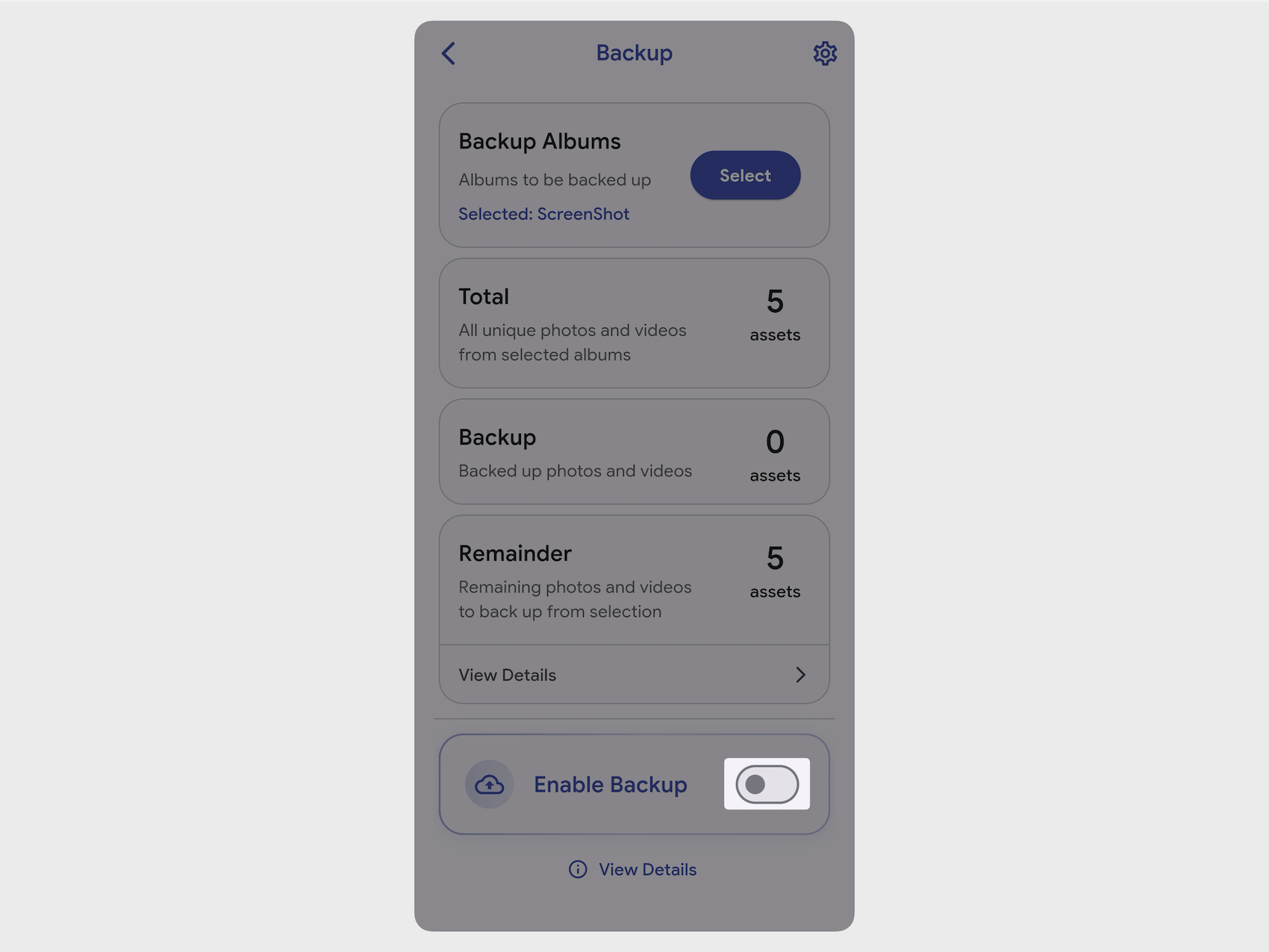
Toggle on Enable Backup.
Once finished, the uploaded photos are displayed in the photos timeline in the Immich web UI. Any new photos added to the selected folder on mobile will be automatically synced to the web UI.
Upload from Olares Files
If you have photos stored in the Olares Files app, you can configure Immich to scan that folder as an external library. Immich will then index and display them without moving the actual files.
In the Immich web UI, click your user avatar in the upper-right corner, and then select Administration.
Select External Libraries > Create Library.
Set the Owner to your admin account, and then click Create.
In the Folders area, click Add.
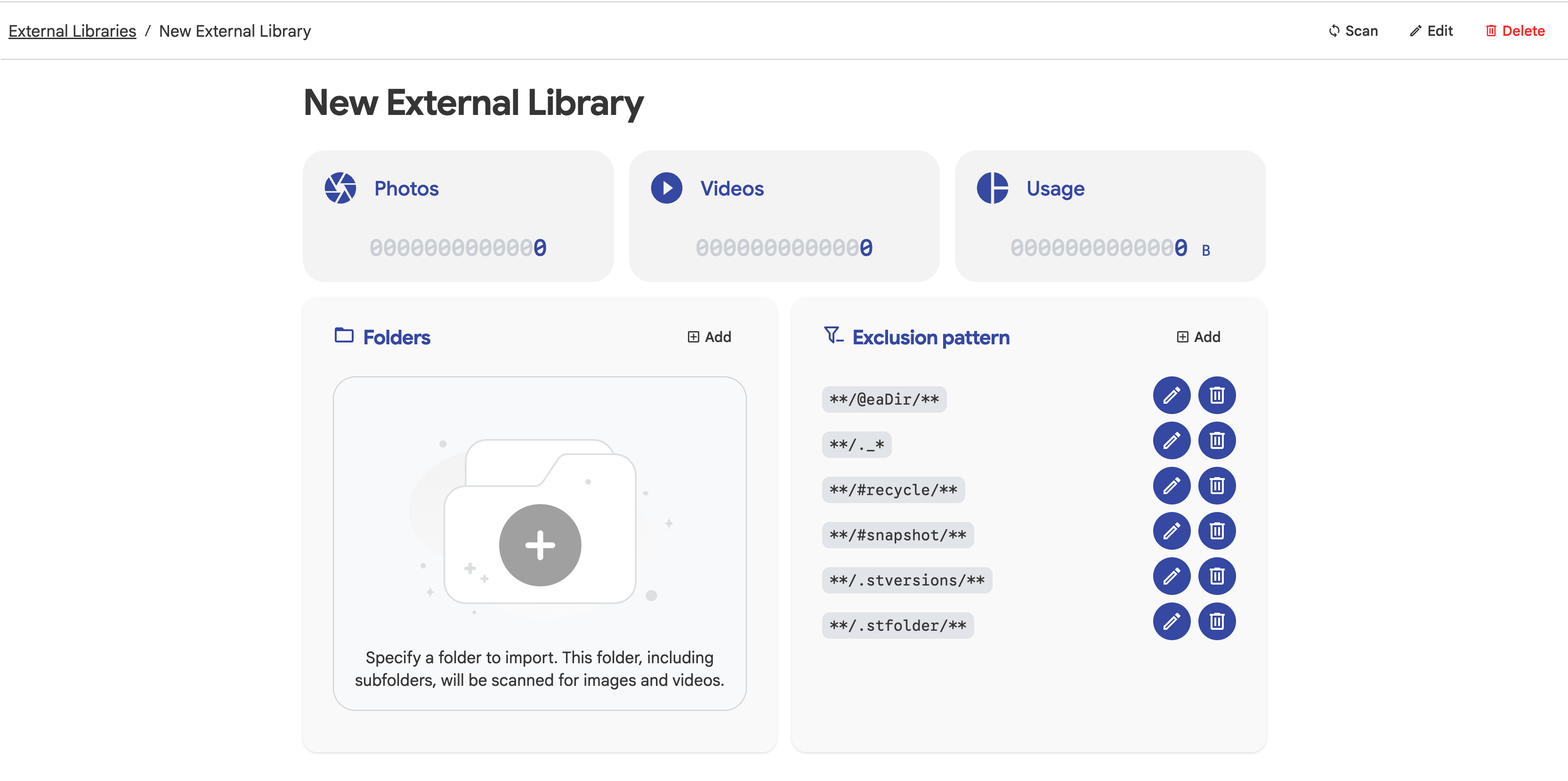
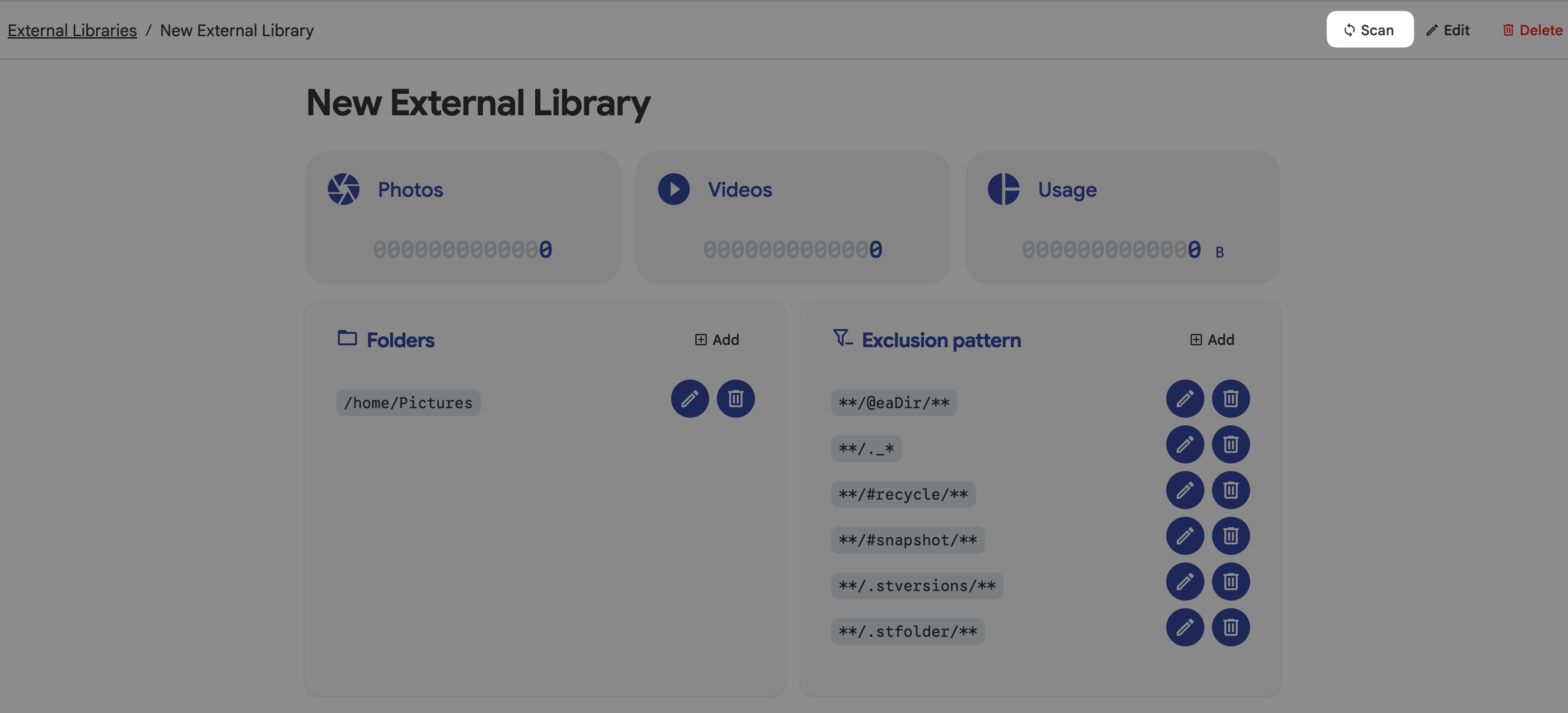
Enter the import path, which is case-sensitive, and then click Add. For example,
text/home/PicturesClick Scan. Immich displays photos under this directory in the photos timeline.
Import from NAS
If you have a large collection of photos stored on a local NAS device, you can mount your NAS directly in Olares and map these directories into Immich without duplicating files.
For detailed steps on setting up an SMB connection and mapping paths, see Import photos from NAS.
Browse and manage photos
With your library populated, you can now interact with the photos.
View photos
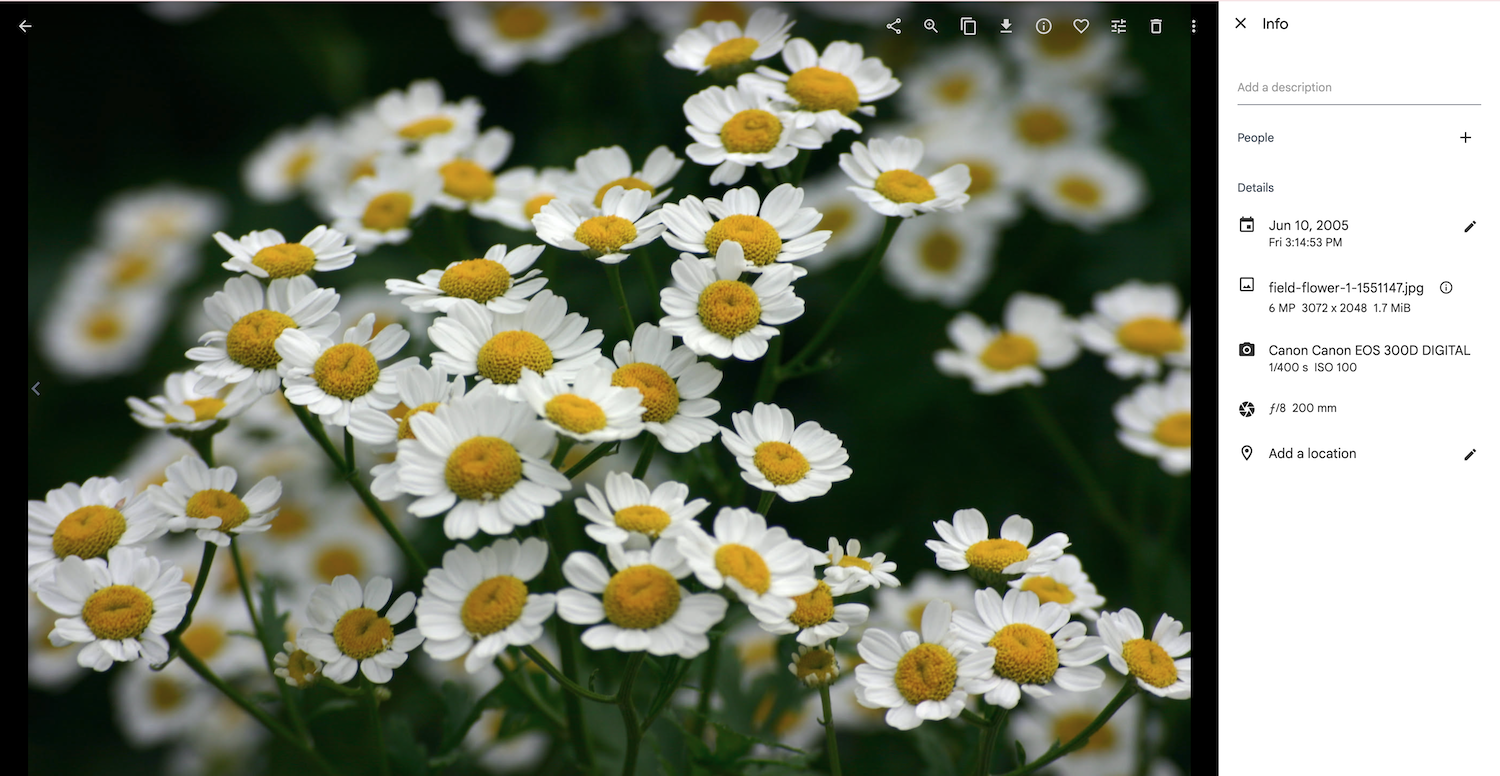
Click the target photo on the timeline to open the preview.
To view the details of the photo, click info in the upper-right corner.
Metadata such as capture date, camera model, and file format are displayed on the right.
Edit photos
Open a photo preview, and then click tune in the upper-right corner.
Use the Editor panel to crop, rotate, or mirror the photo.
INFO
Immich supports non-destructive editing of photos. This means that any edits you make to an asset do not modify the original file, but instead create a new version of the asset with the edits applied.
Click Save.
To revert to the original at any time, click Reset changes in the same panel.
Favorite photos
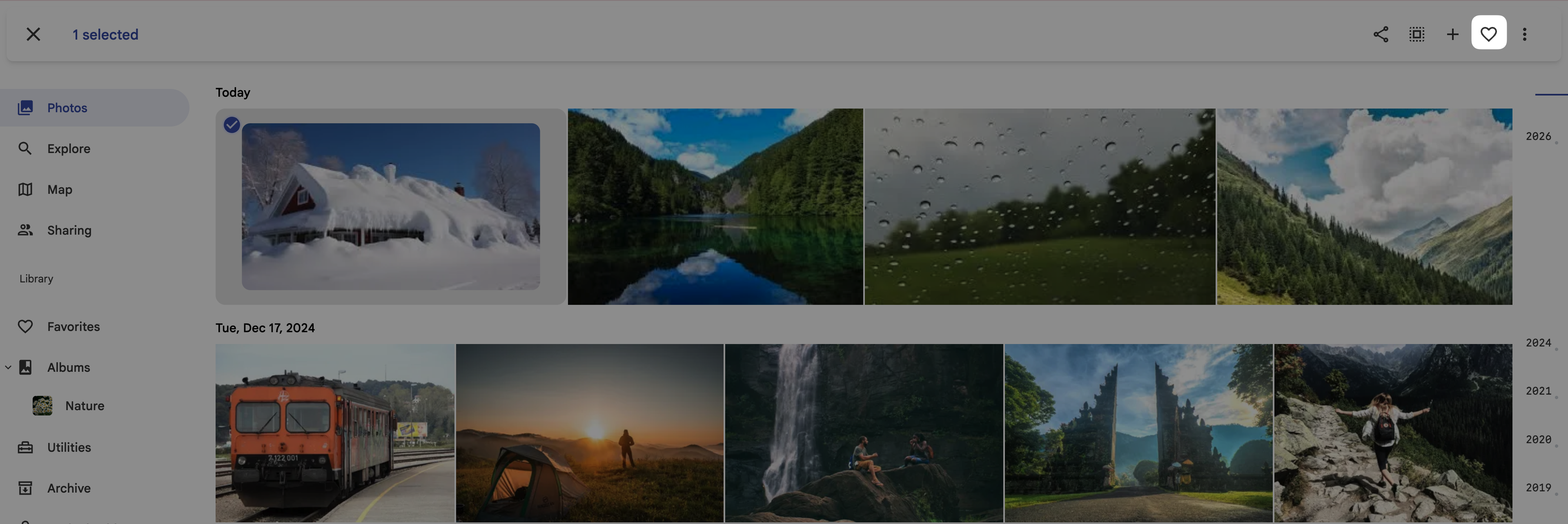
Hover over the target photo on the timeline, and then click check_circle in the upper left corner to select it.
Click favorite. The photo is added to Favorites in the sidebar.
Delete photos
Hover over the target photo on the timeline, and then click check_circle in the upper left corner to select it.
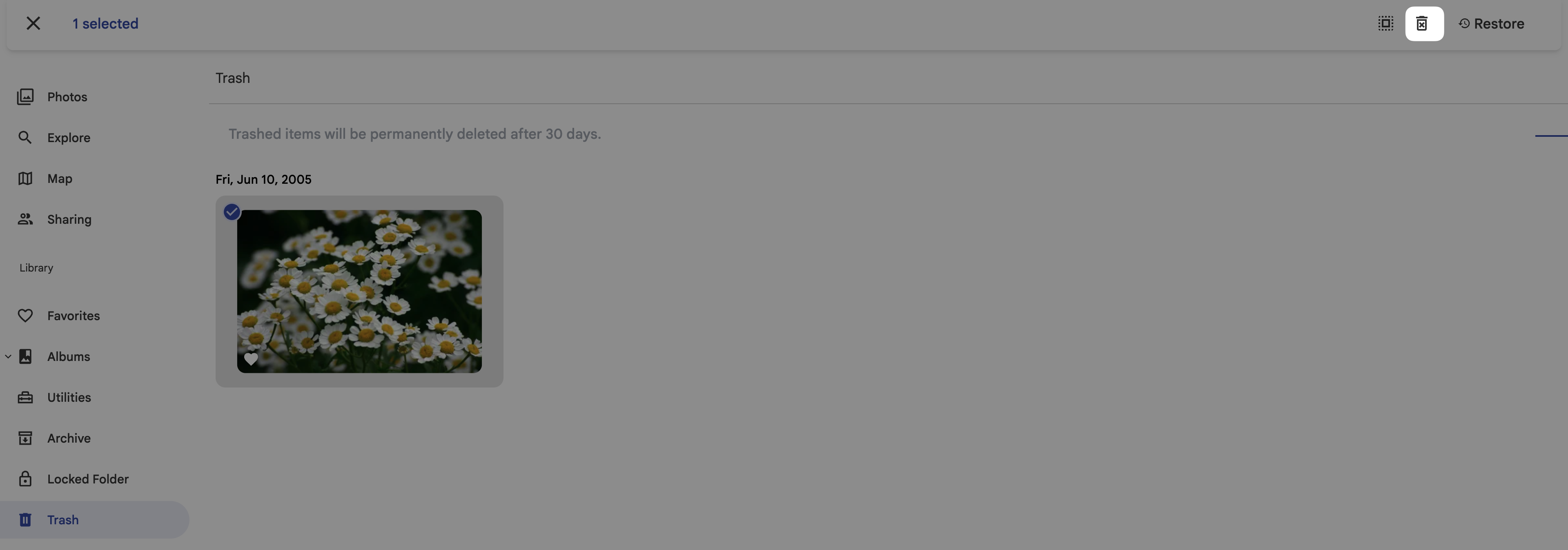
Click more_vert on the top right, and then select Delete. The deleted photo is moved to Trash in the sidebar and will be permenently deleted after 30 days.
To permanently delete it immediately, click Trash in the left sidebar, select the photo, and then click delete_forever.
Restore photos
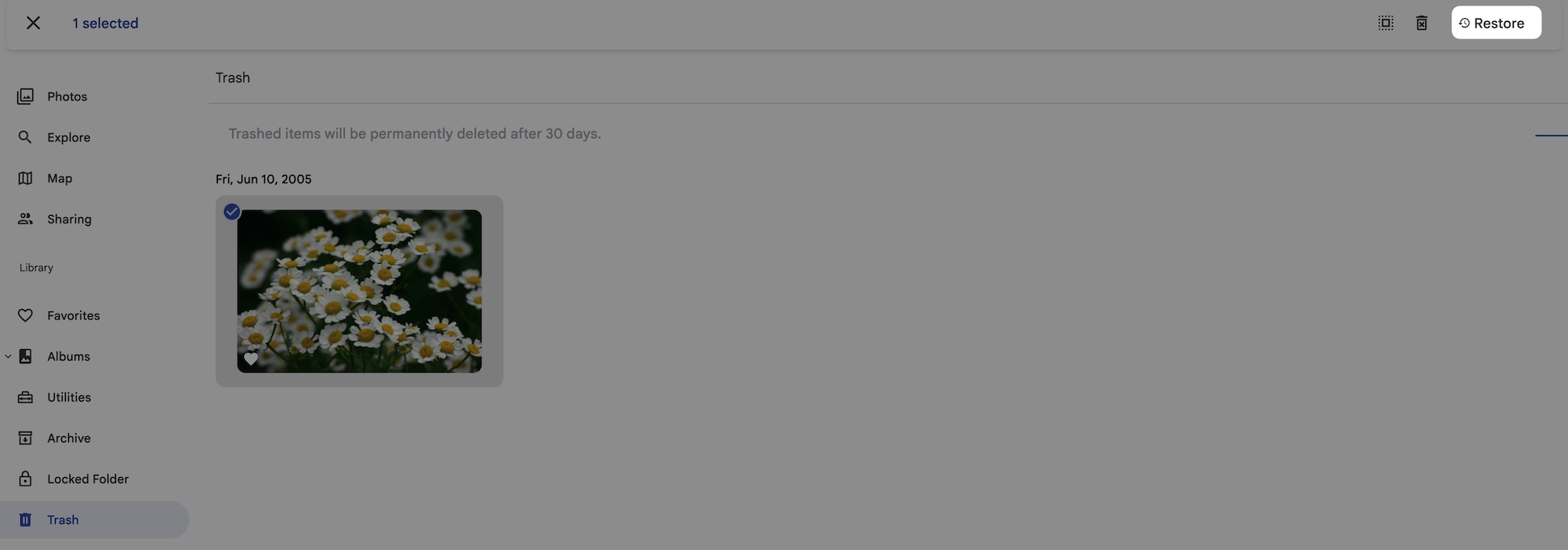
Click Trash in the left sidebar.
Hover over the photo, and then click check_circle in the upper-left corner to select it.
Click Restore.
Download photos
Hover over the target photo on the timeline, and then click check_circle in the upper-left corner to select it.
Click more_vert on the top right, and then select Download.
The photo is saved to your computer. When multiple photos are selected, they are packaged into a
.zipfile for batch download.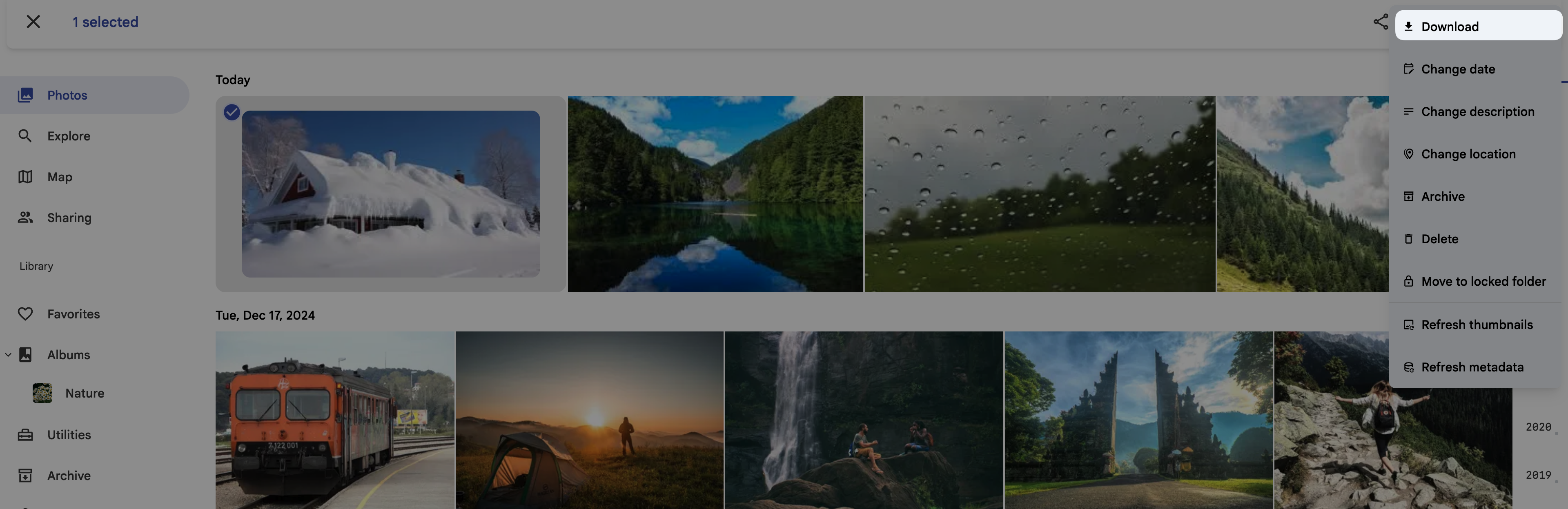
Organize photos
Group your media into curated collections or browse your library using a traditional file explorer structure.
Create an album
Group photos into themed collections for easier access and sharing.
Click Albums in the left sidebar, and then click the album creation area in the center of the page, or click Create album at the top of the page.
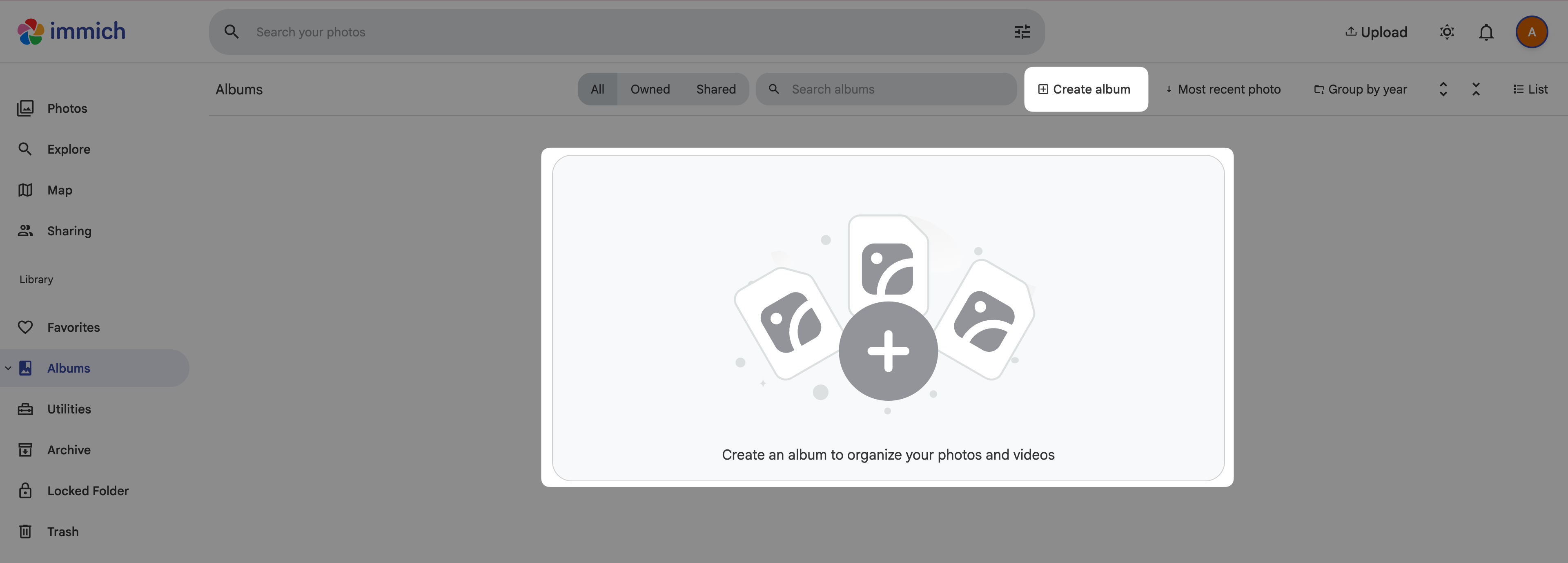
Set the album name and description, and then click Select photos.
To add an existing photo, select the photo, and then click Add assets.
To add a photo from your local device, click Select from computer.
The new album appears in the Albums list in the left sidebar.
Organize by file structure
Enable folder view to navigate your media files using the original directory hierarchy of your Olares files system.
Click your avatar and then click Account Settings.
Expand Features > Folders, and then enable it.
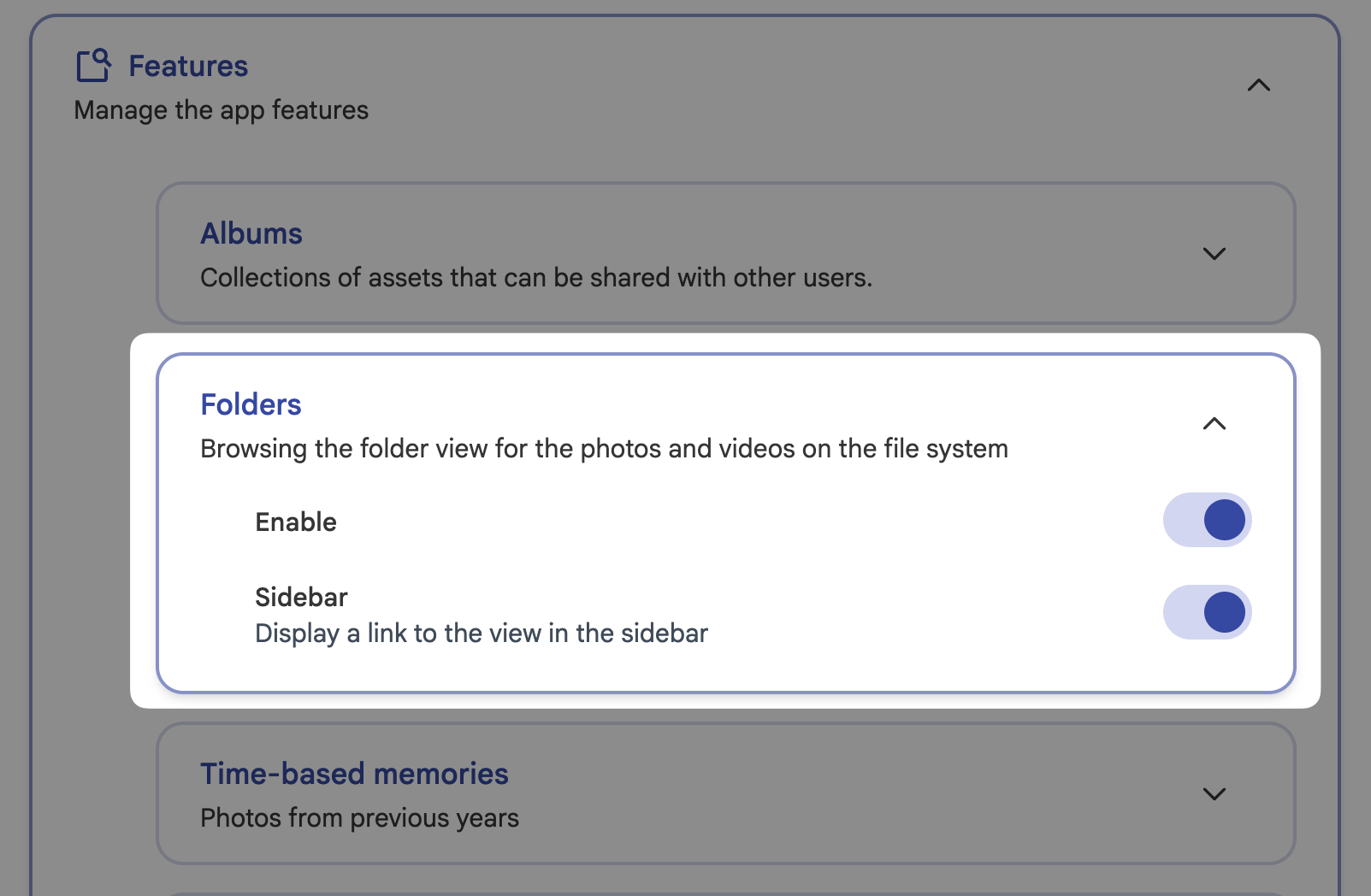
Click Save. A Folders node is displayed on the left sidebar.
Click Folders. You can see the files organized in a view similar to file explorer.
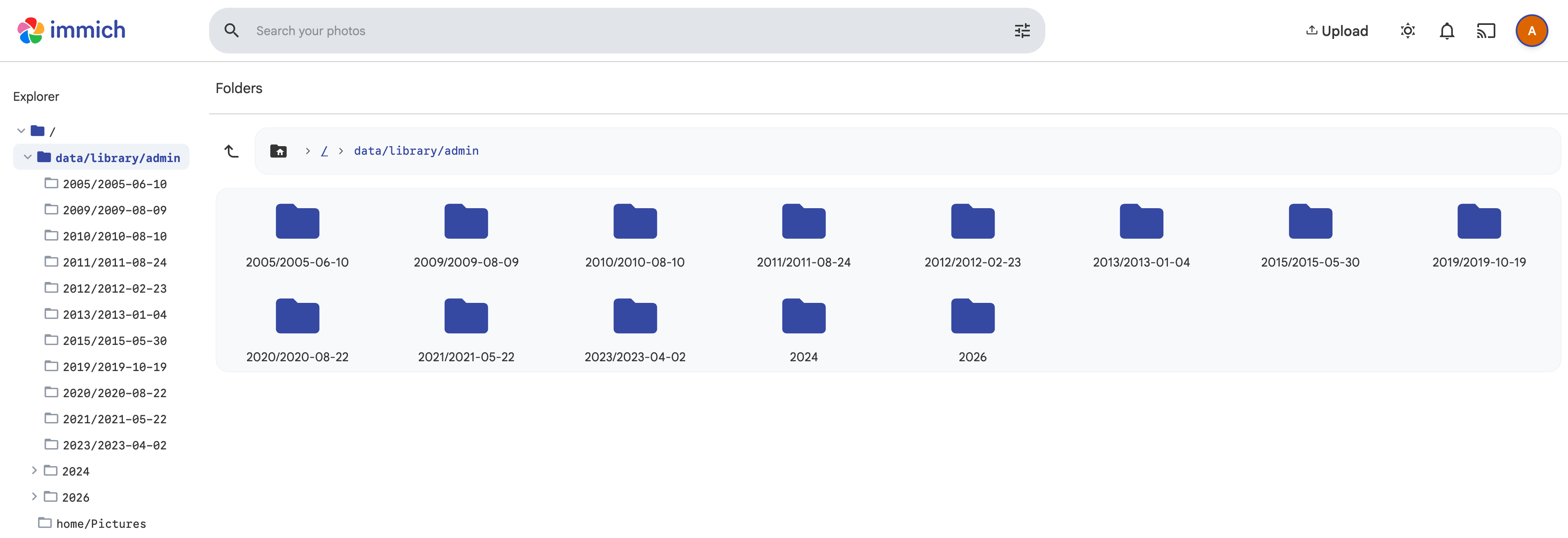
Search photos
Immich uses built-in AI models to analyze your image content, providing a flexible search experience.
Search by context
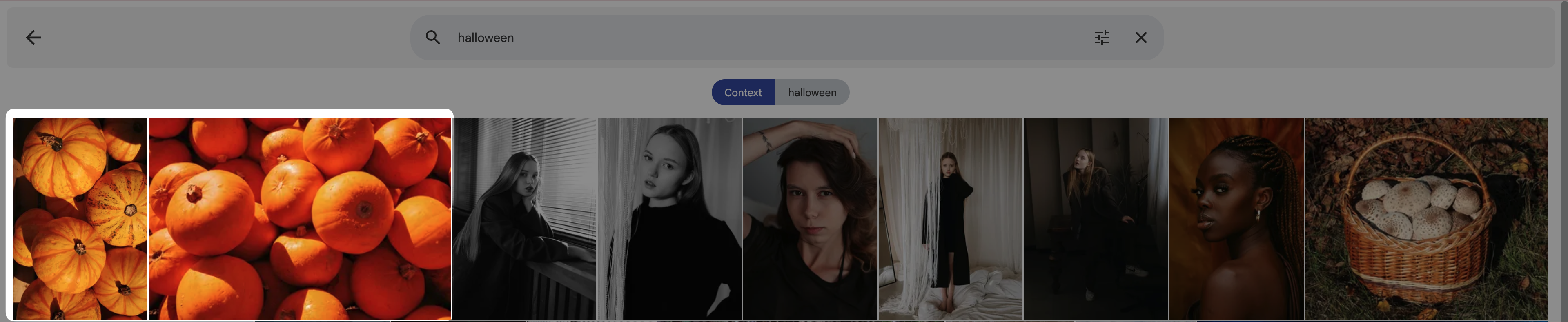
Search for people, places, and objects using natural language without relying on the keywords in the metadata of the photo files.
At the top of the page, type a search word in the search bar. For example,
halloween.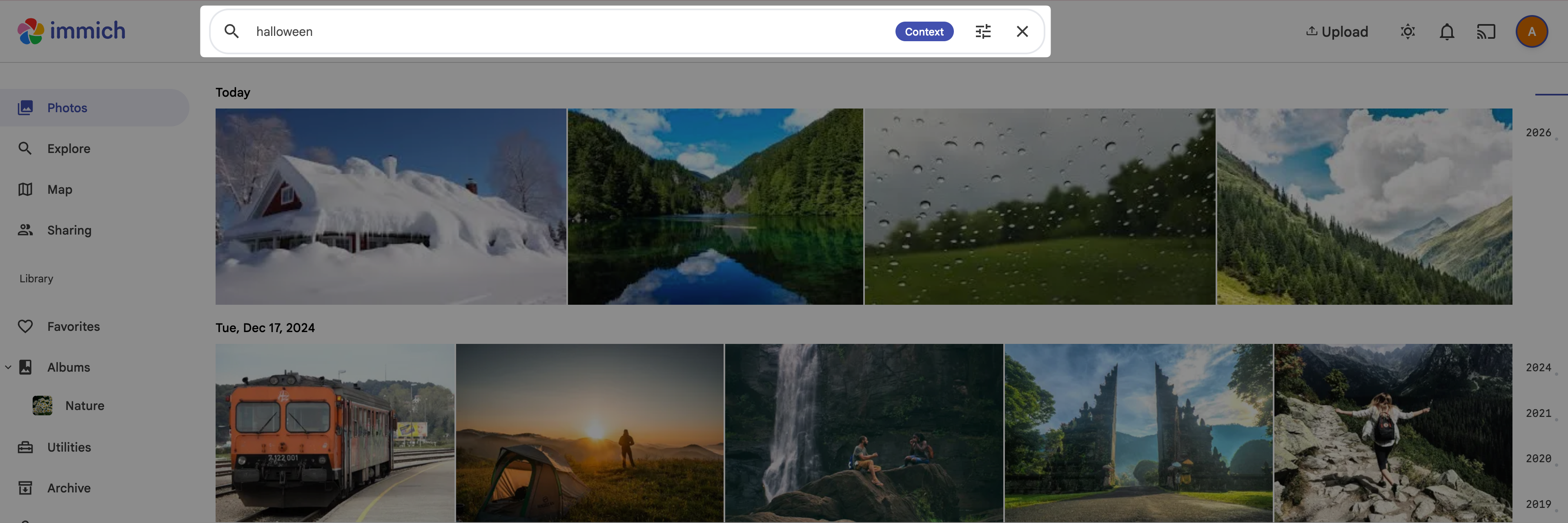
Immich identifies relevant images based on visual content even if they have no manual tags.
Search by face
Immich recognizes faces in your photos and videos and groups them together into People on the Explore page. You can assign names to these people and search for them.
Click Explore in the left sidebar to see automatically detected faces grouped by person.

Click a face group, and then enter a name in the Add a name field to label this face.

Once named, you can search for that person directly in the search bar.
Search by location
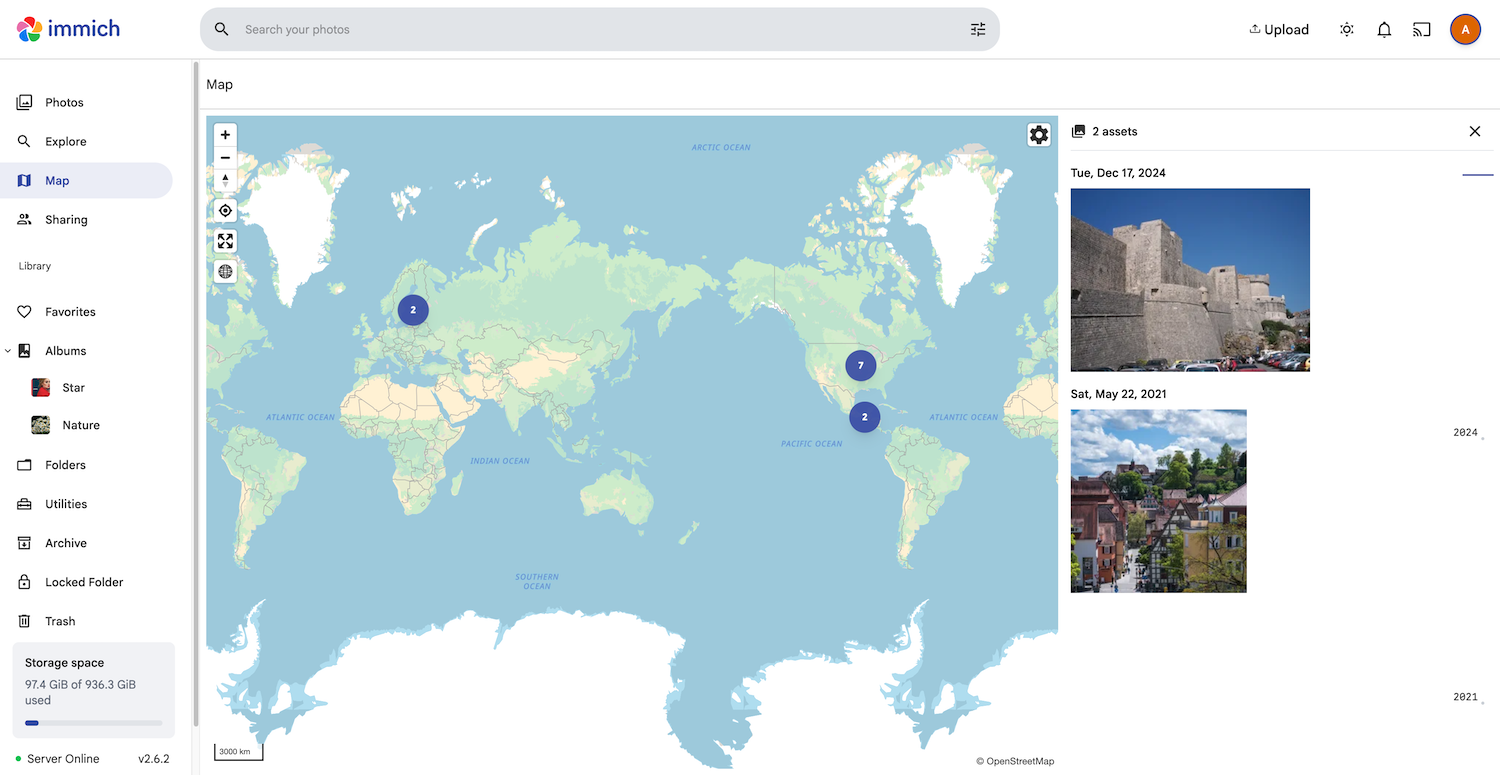
Immich clusters your media based on GPS metadata, so you can search by navigating to specific regions on a global map.
Select Map in the left sidebar to view your photos plotted globally.
Use the zoom controls or scroll to a specific country or city.
Select a blue location cluster to view the photos associated with that area.
Share photos
Immich supports two types of sharing: public links for external recipients and local collaborative albums for users on the same Olares cluster.
Share with external users
Create secure public links to share photos with people outside your Olares network.
Open the Immich web interface, select the photos you want to share from the Photos page.
Click share in the upper-right corner.
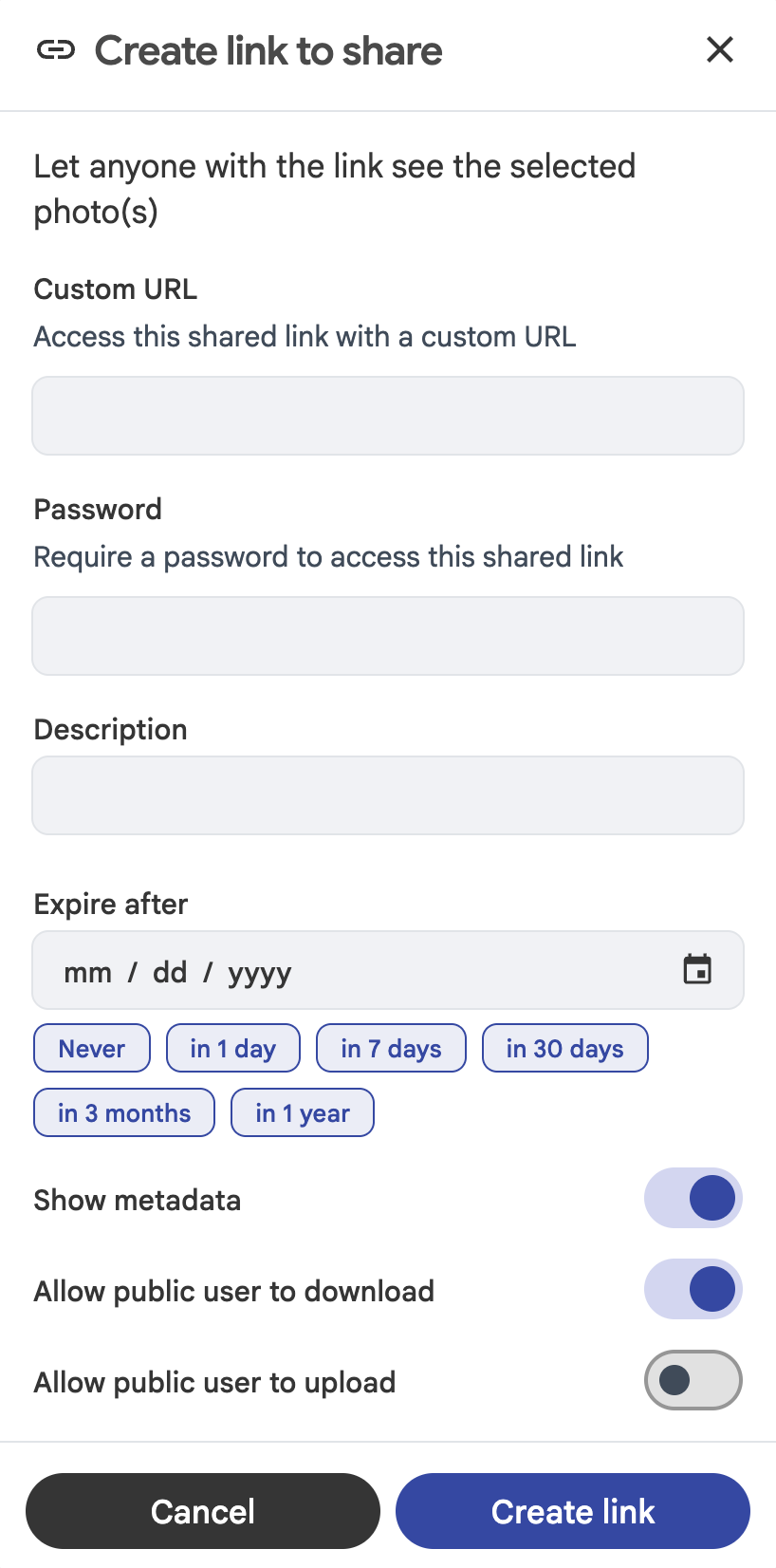
Specify settings for the share link as needed, such as URL, description, access password and expiration date.
Click Create link. Immich generates a share link and QR code that others can use to view the shared photos.
Share with local members
Collaborate on shared albums with other users on your Olares instance.
Add a user.
a. Click your user avatar, and then click Administration.
b. Click Users from the left sidebar, and then click Create user to create accounts for family members or friends.
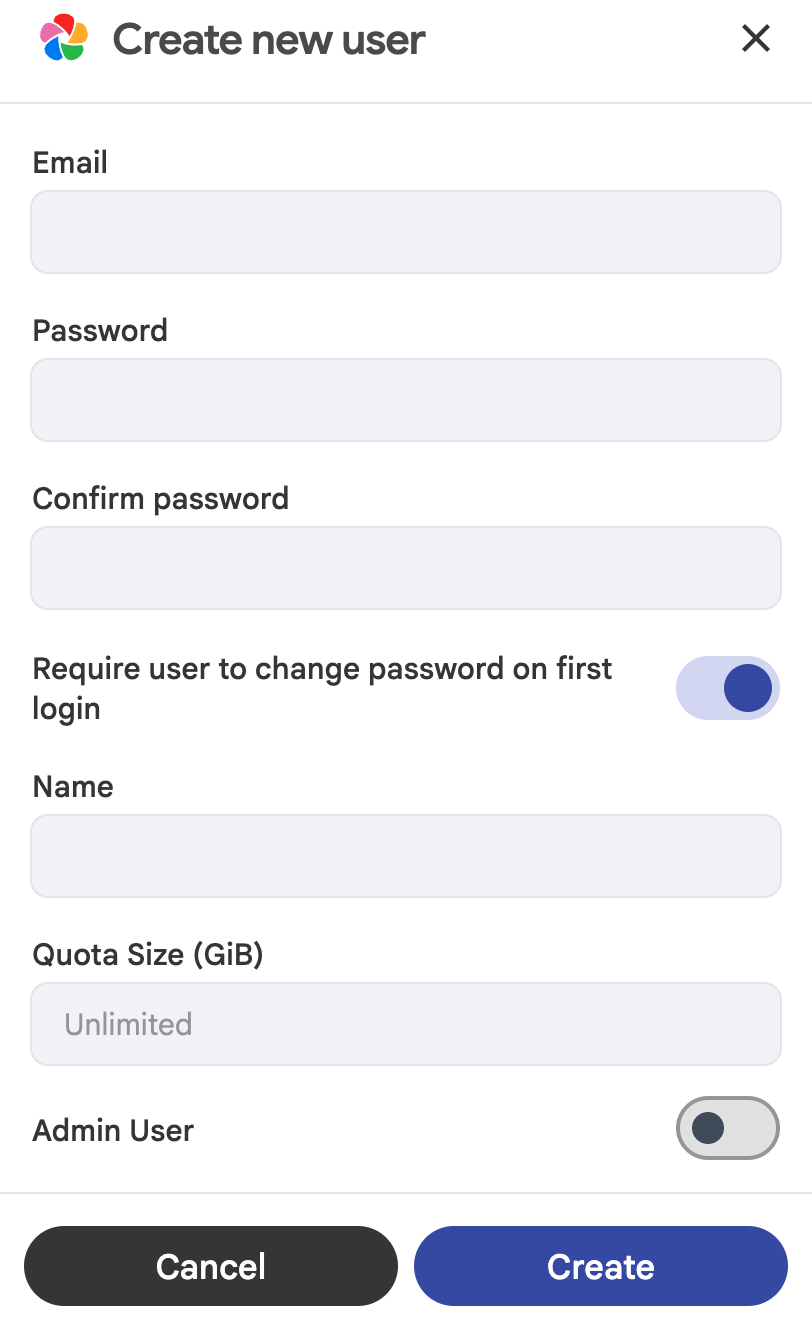
c. Enter related information for the new user account as needed, and then click Create.
d. Return to the homepage by clicking immich at the upper left corner.
Invite the user to an album.
a. Select the album from the left sidebar, and then click share in the upper-right corner.
b. In the Options window, click Invite People, select the user you want to share the album with, and then click Add.
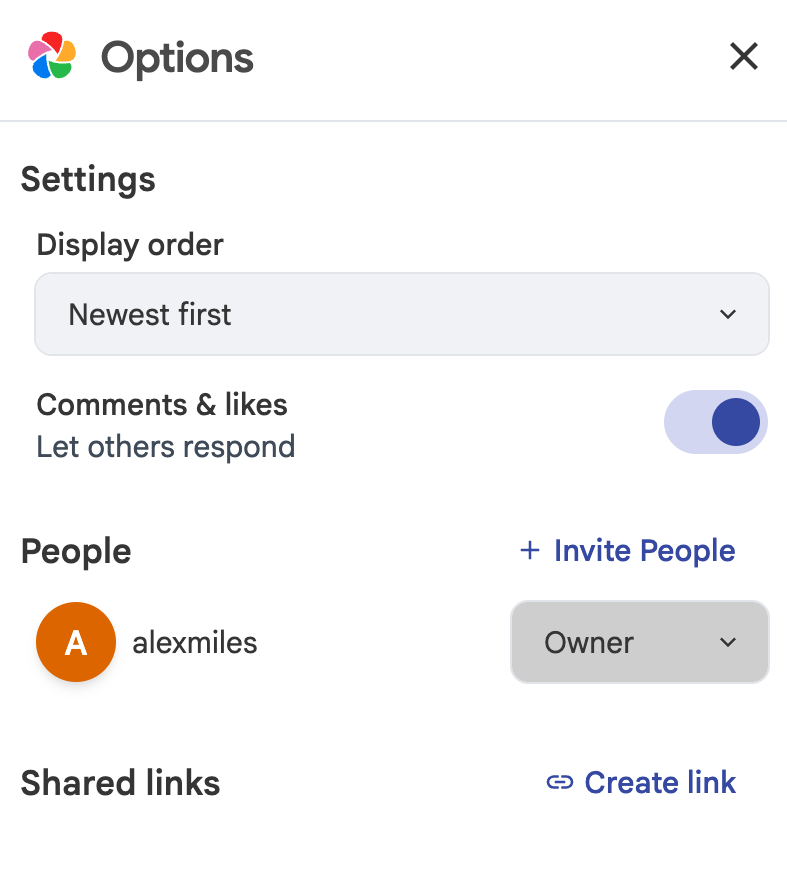
c. Under People, assign the Editor or Viewer access for the user.
The invited user can view photos in the shared album when logging in to Immich, and upload or download photos if granted the Editor access.