Common issues
This page provides solutions to common issues and answers to frequently asked questions when running OpenClaw on Olares.
If you encounter a problem not listed here, check the Upgrade OpenClaw page for version-specific changes or refer to the official OpenClaw documentation.
Cannot restart OpenClaw in CLI
If you attempt to manually start, stop, or restart OpenClaw using commands like openclaw gateway or openclaw gateway stop in the OpenClaw CLI, you receive the following error messages:
Gateway failed to start: gateway already running (pid 1); lock timeout after 5000msGateway service check failed: Error: systemctl --user unavailable: spawn systemctl ENOENT
Cause
OpenClaw is deployed as a containerized app in Olares, where the gateway runs as the primary container process pid 1 and is always active. This environment does not use standard Linux system and service management tools such as systemd and systemctl, so these commands do not work.
Solution
Do not use the OpenClaw CLI to manage the gateway service. Instead, restart OpenClaw using one of the following methods.
Method 1: Restart OpenClaw from Settings or Market
- Open Settings, go to Applications > OpenClaw, click Stop, and then click Resume.
- Open Market, go to My Olares, find OpenClaw, click keyboard_arrow_down next to the operation button, select Stop, and then select Resume.
Method 2: Restart the container
Open Control Hub, click clawdbot under Deployments, and then click Restart.
OpenClaw automatically stops during long tasks
When you ask the OpenClaw agent to perform tasks that take a long time to process like massive web scrapes or deep analysis, the task is abruptly terminated before returning the result.
Cause
By default, OpenClaw sets a maximum runtime limit of 10 minutes per task. If a task exceeds this limit, the system forcefully terminates it to save resources.
Solution
Extend this timeout limit by modifying the configuration file as follows:
Open the Control UI, go to Config > Raw, and then find the
agentssection.In the
defaultsblock, add thetimeoutSecondsfield or modify the existing one in it.To set it to 1 hour, specify
3600for the value:json"agents": { "defaults": { "timeoutSeconds": 3600 } }Click Save to restart the gateway and apply the changes.
"Rate limit exceeded" error when installing skills
Installing a skill fails with a 429 error:
Downloading [email protected] from ClawHub...
ClawHub /api/v1/download failed (429): Rate limit exceeded
Cause
The ClawHub registry temporarily limits downloads due to high traffic to maintain server stability.
Solution
Wait a few hours and run the installation command again.
Model responds slowly
There is a noticeable delay before the agent begins typing its first response.
Cause
This usually happens due to the way Ollama manages system resources and application settings:
- Automatic offloading: To save resources, Ollama unloads models from memory by default when they are idle. The next time you interact with the model, it takes time to reload it, causing a noticeable delay in the first response.
- Context setting clashes: If you have multiple applications using the same model but with different context settings, Ollama is forced to constantly unload and reload the model to switch between those different configurations.
Solution
To fix the issue, try one of the following methods.
Method 1: Prevent automatic offloading for model apps
Keep the model permanently in memory by enabling the KEEP_ALIVE environment variable for your model app.
Open Settings, and then go to Applications > {Your Model App} > Manage environment variables.
Find KEEP_ALIVE, click edit_square, set the value to true, and then click Confirm.
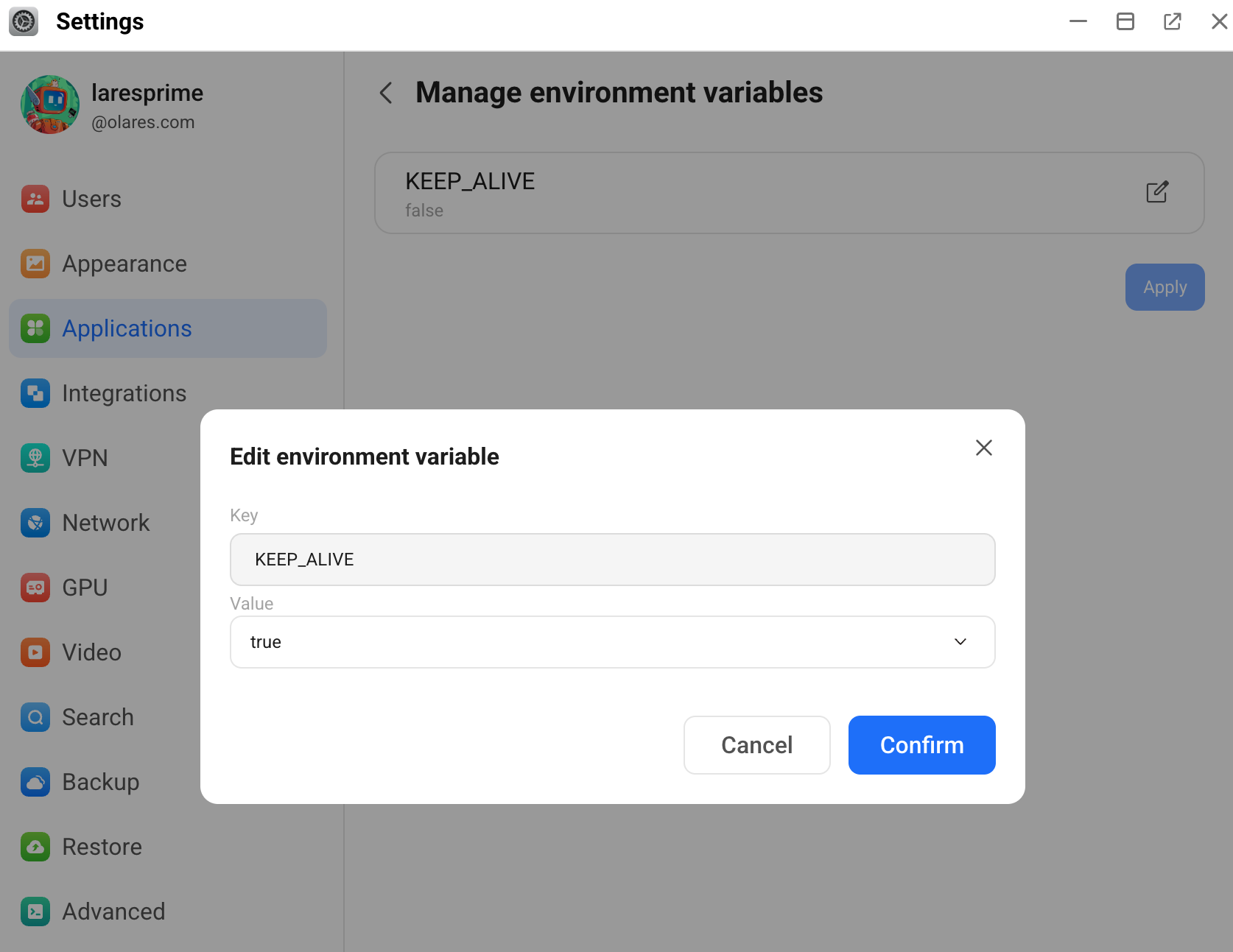
Click Apply.
Method 2: Unify context sizes across apps
Use the same context size for all apps that share the same model to reduce reload times.
Check the current context size of your running models:
In the Ollama terminal, run
ollama ps. TheCONTEXTcolumn shows the context size in use.
For a standalone model app, check the context size using Control Hub:
a. Under the System namespace, find the model app's project (typically named
{model-name}server-shared), and then open its pod terminal.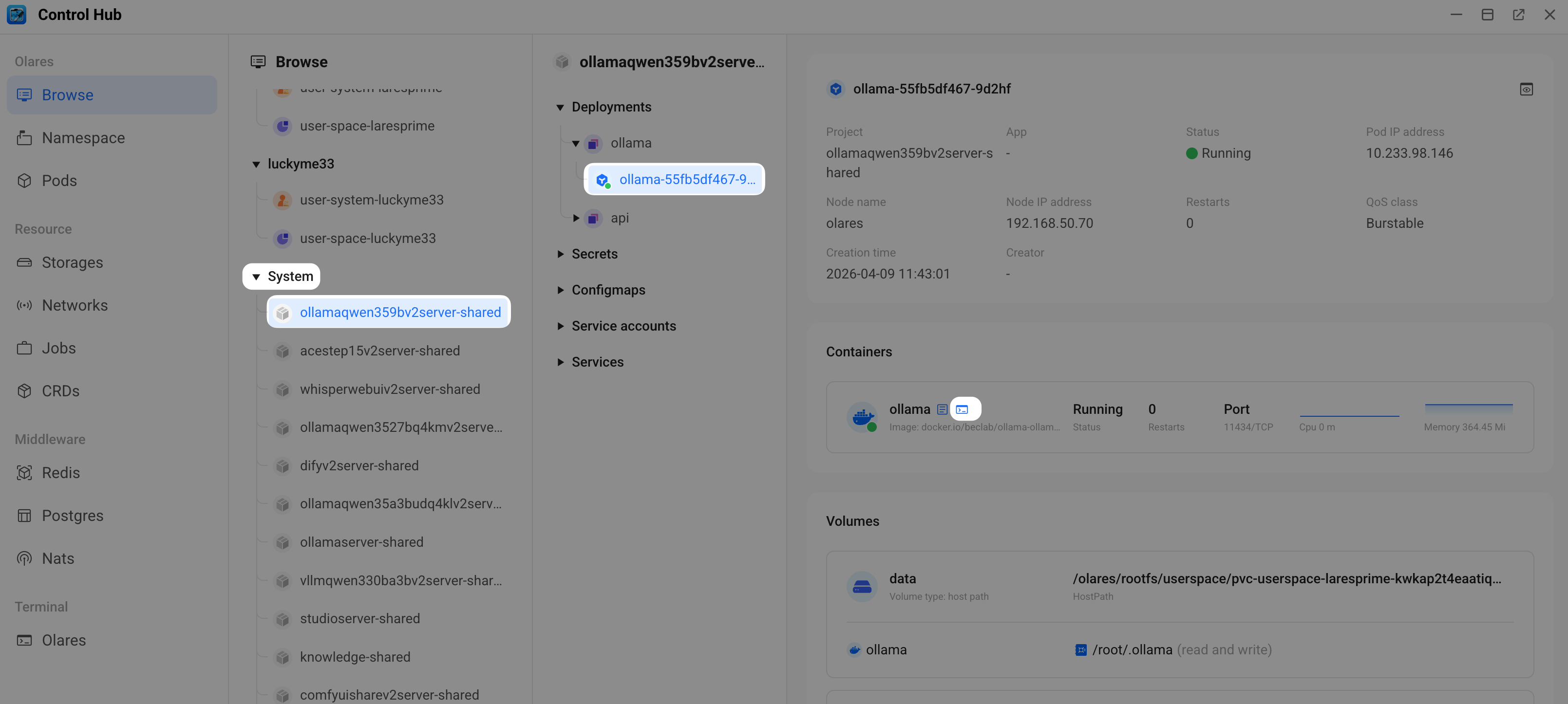
b. Run
ollama run {model-name}, press Ctrl+D, and then runollama ps.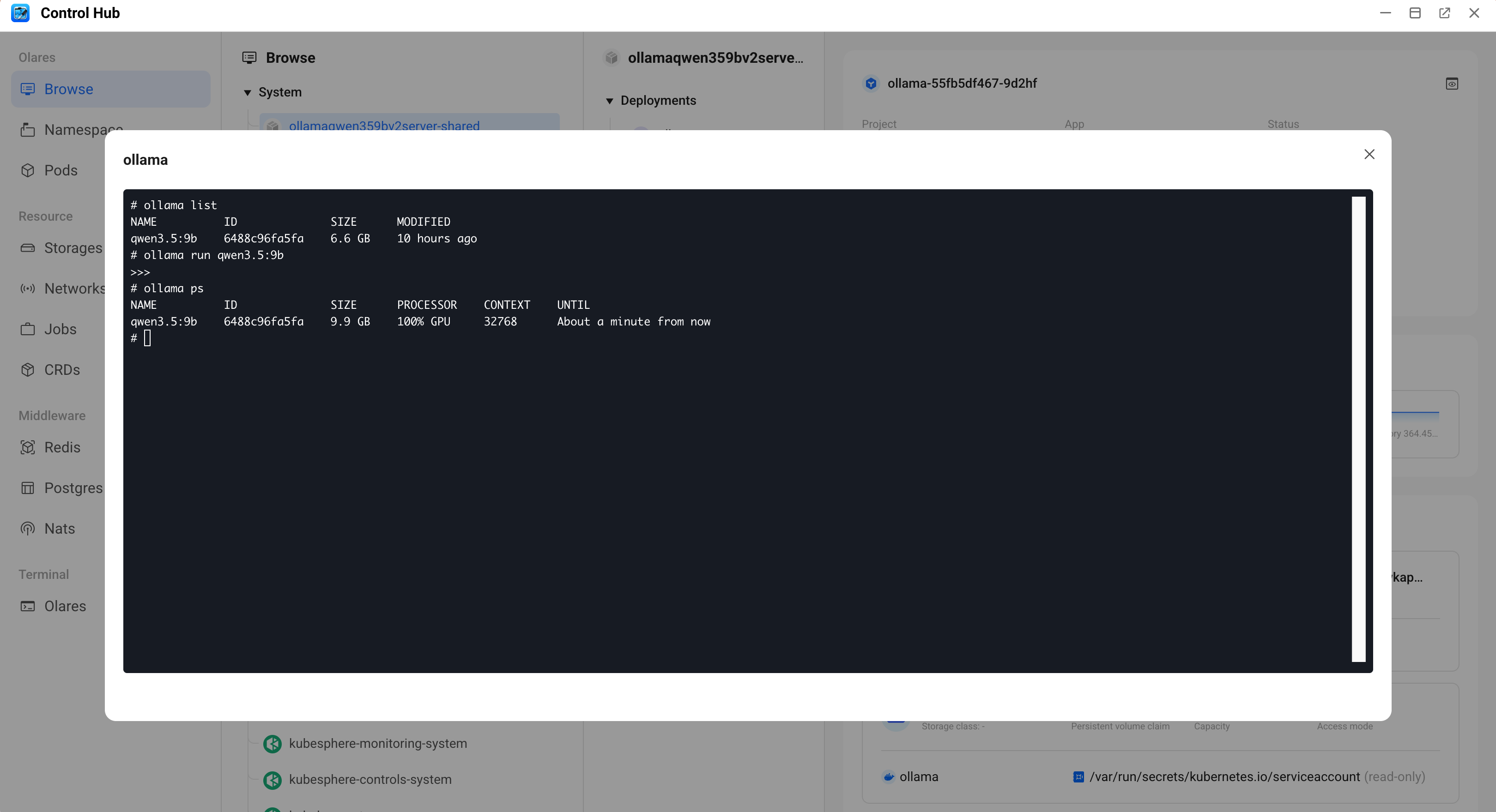
Set all apps to use the same context size.
Clean reinstall OpenClaw
If you want to uninstall OpenClaw and start fresh, simply uninstalling the app is not enough. By default, Olares preserves your application data such as configurations and persona files, so you do not lose your work.
To completely remove OpenClaw and all of its data before reinstalling, follow the steps based on your Olares OS version.