Run a macOS VM on your Olares device
Olares allows you to run macOS as a virtual machine (VM) directly on your device. This enables access to Apple-specific applications and workflows from any computer via a web browser or a VNC client.
INFO
This VM runs on CPU only. GPU acceleration is not available, so it is recommended for applications that don't require high-performance graphics.
Learning objectives
By the end of this tutorial, you will learn how to:
- Install and set up the macOS VM environment on your Olares device.
- Access the macOS VM directly in your web browser or via a VNC app.
Install and configure macOS VM
macOS is available as an app in the Olares Market.
Install the macOS VM app
Open Market and search for "macOS".
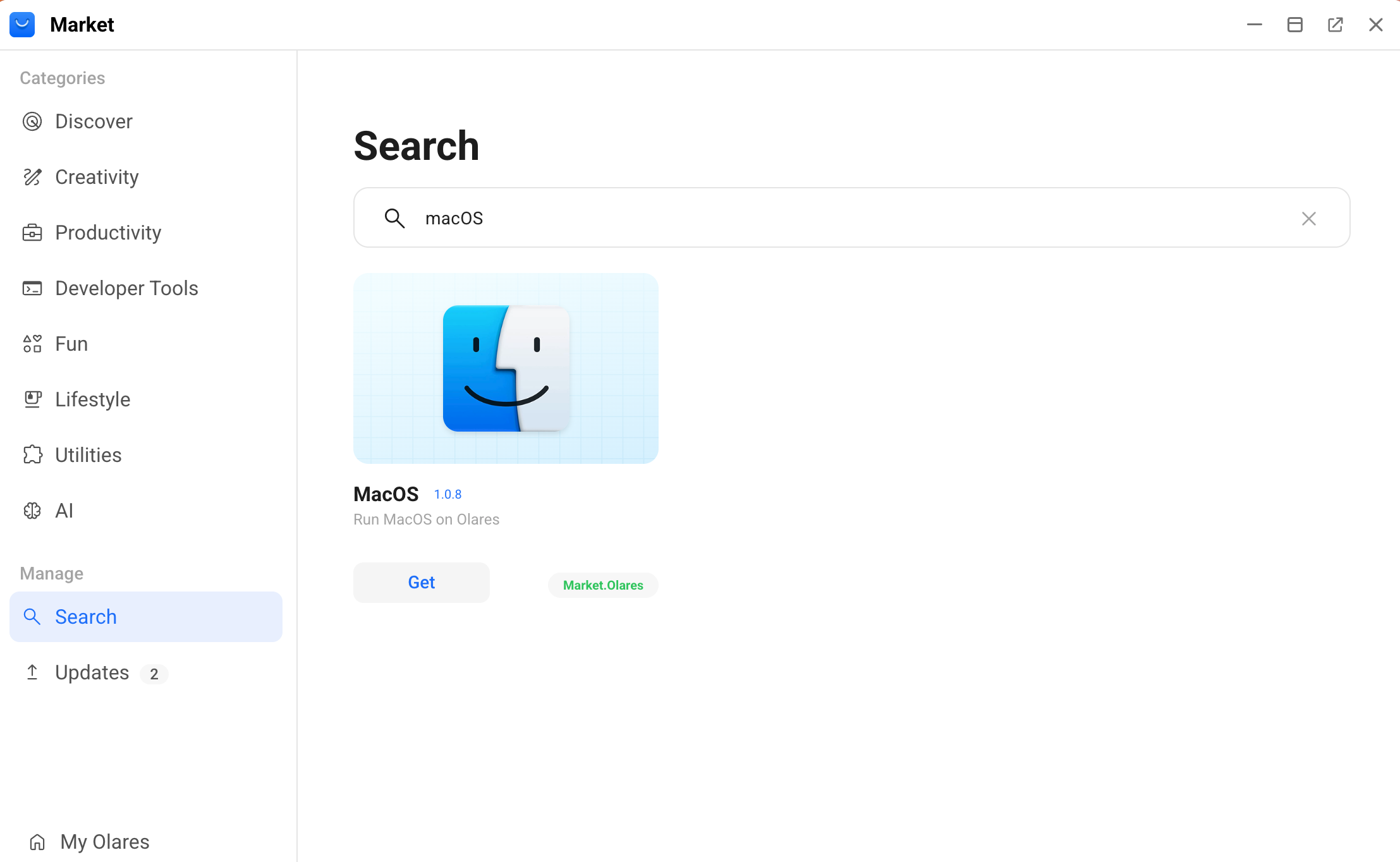
Click Get, and then click Install.
When prompted, set the environment variables:
- VERSION: Select your preferred macOS version from the dropdown list.
- DISK_SIZE: Allocate disk space for macOS.
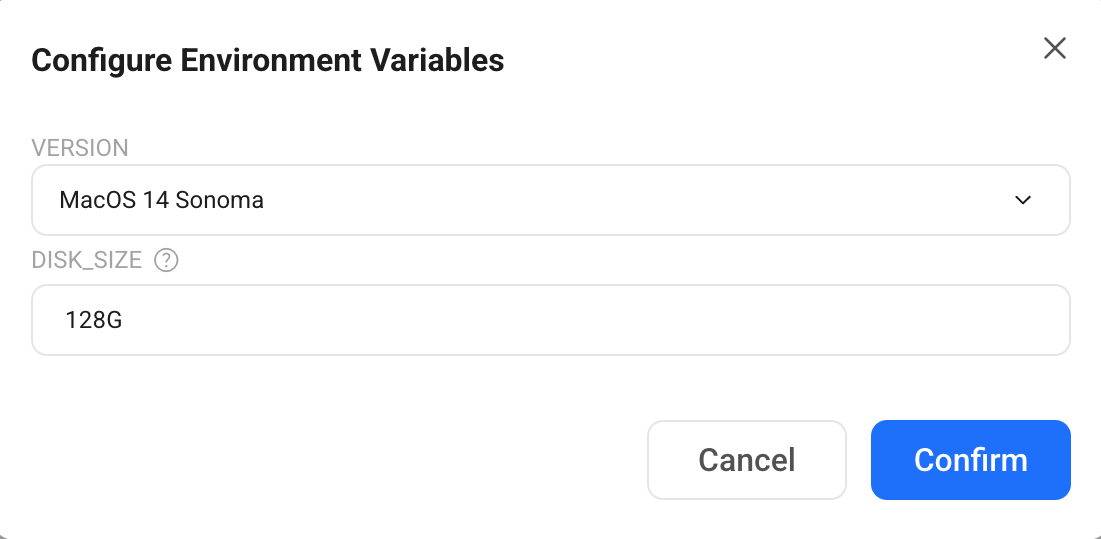
Click Confirm and wait for the installation to finish.
Format the virtual disk
Open the MacOS app from the Launchpad.
First launch
On the first launch, Olares automatically downloads and installs the system image. This might take several minutes depending on your network speed.
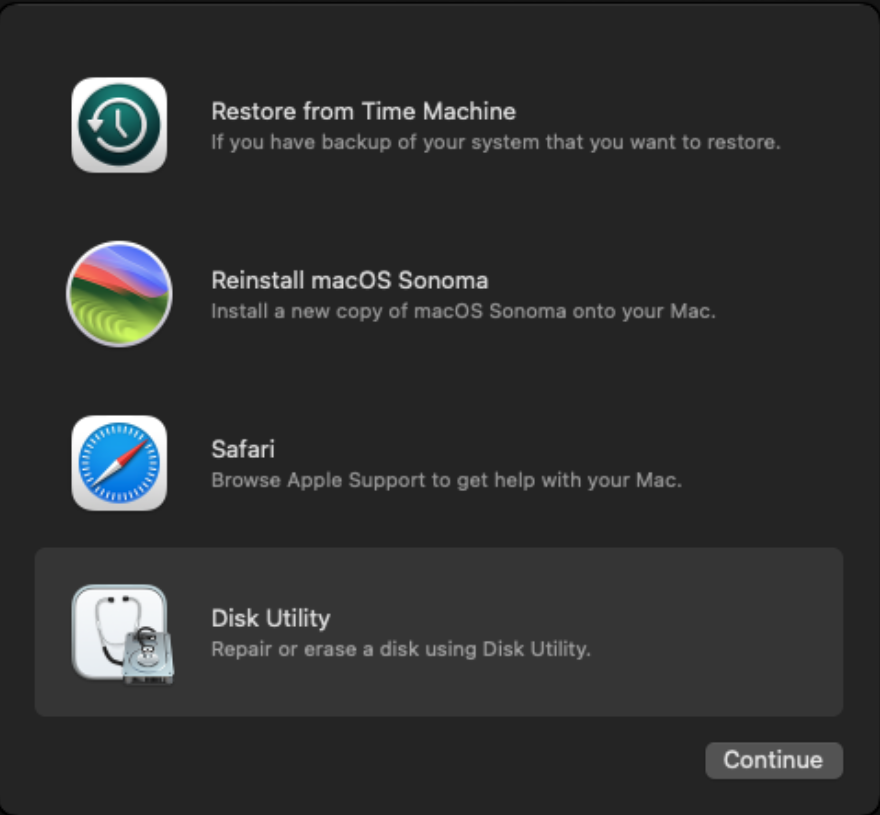
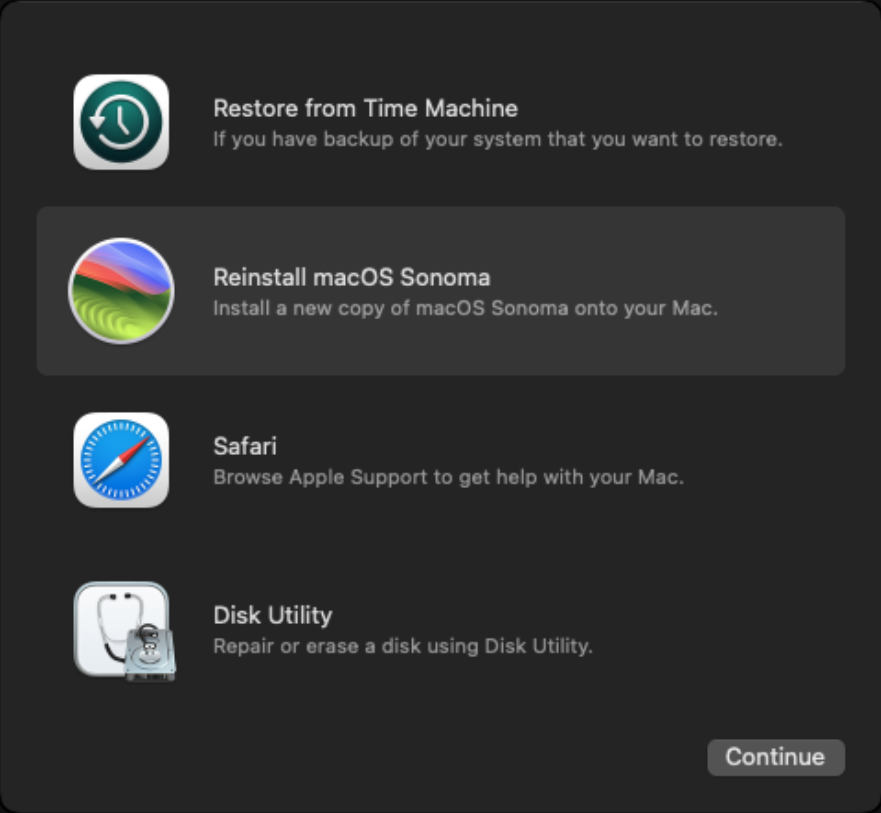
When the Recovery screen appears, select Disk Utility from the main menu, and then click Continue.
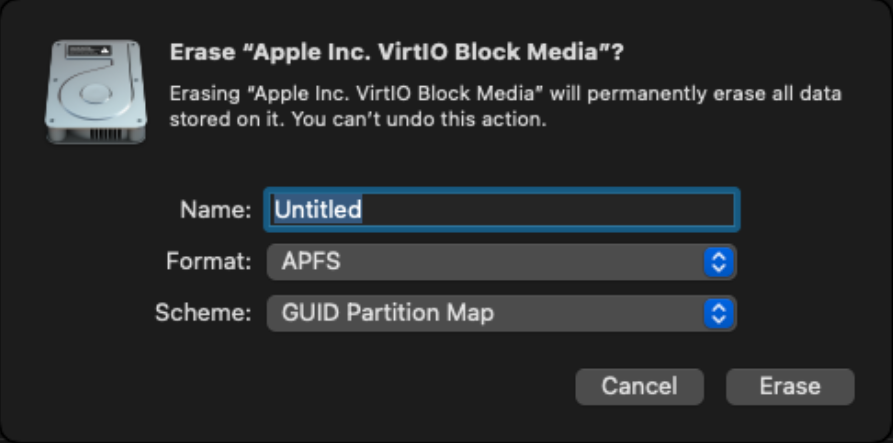
In the left sidebar, select the Apple Inc. VirtIO Block Media with the largest capacity, and then click Erase on the toolbar.
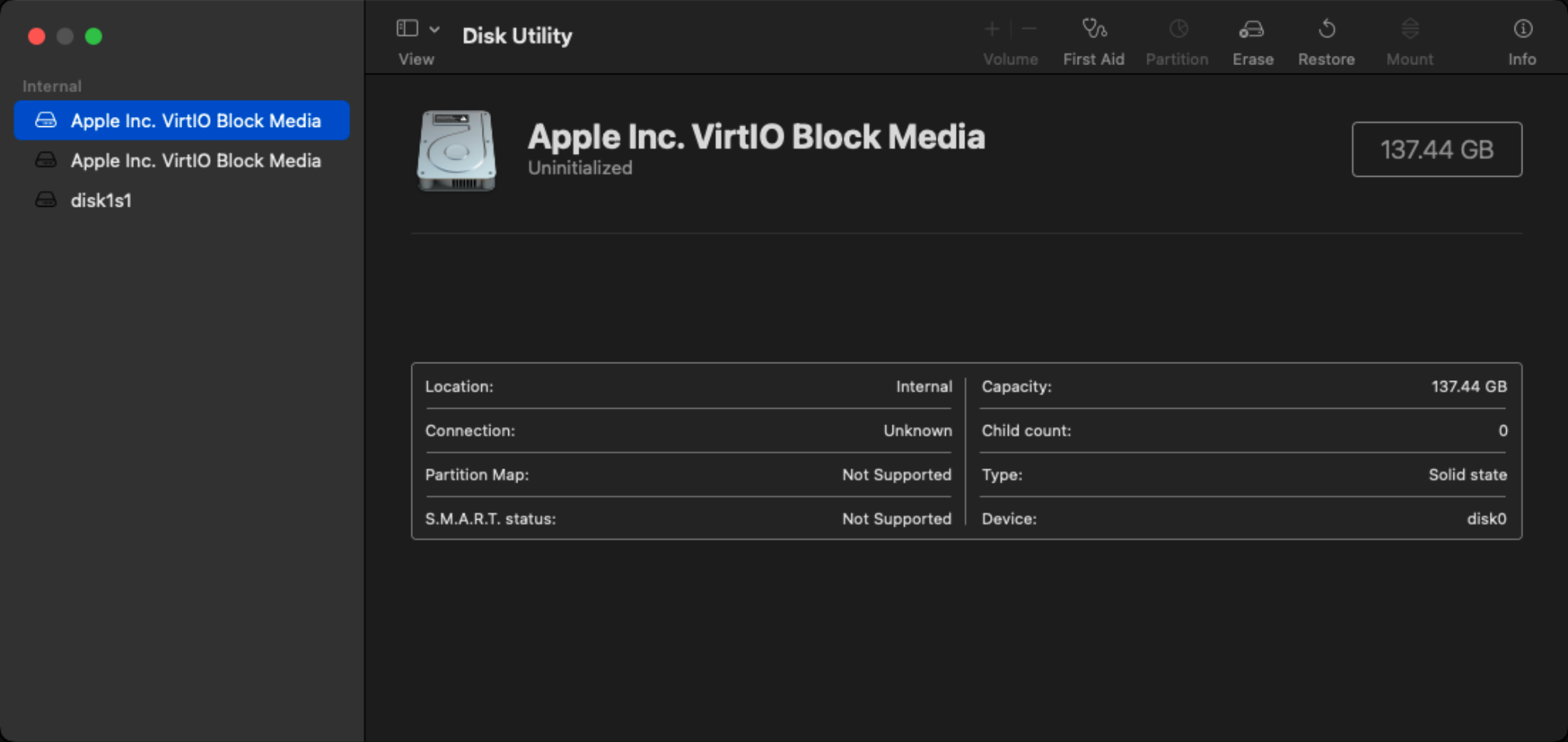
Configure the format:
- Name: Enter a name. For example,
Macintosh HD. - Format: Select APFS.
- Name: Enter a name. For example,
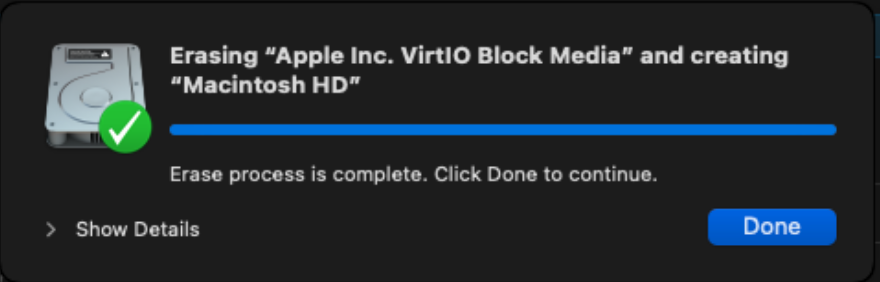
Click Erase, wait for the process to finish, then click Done.
Close the Disk Utility window to return to the main menu.
Install macOS on the virtual disk
From the main menu, select Reinstall macOS, and then click Continue.
Accept the license agreement.
Select the disk you just formatted, and then click Continue.
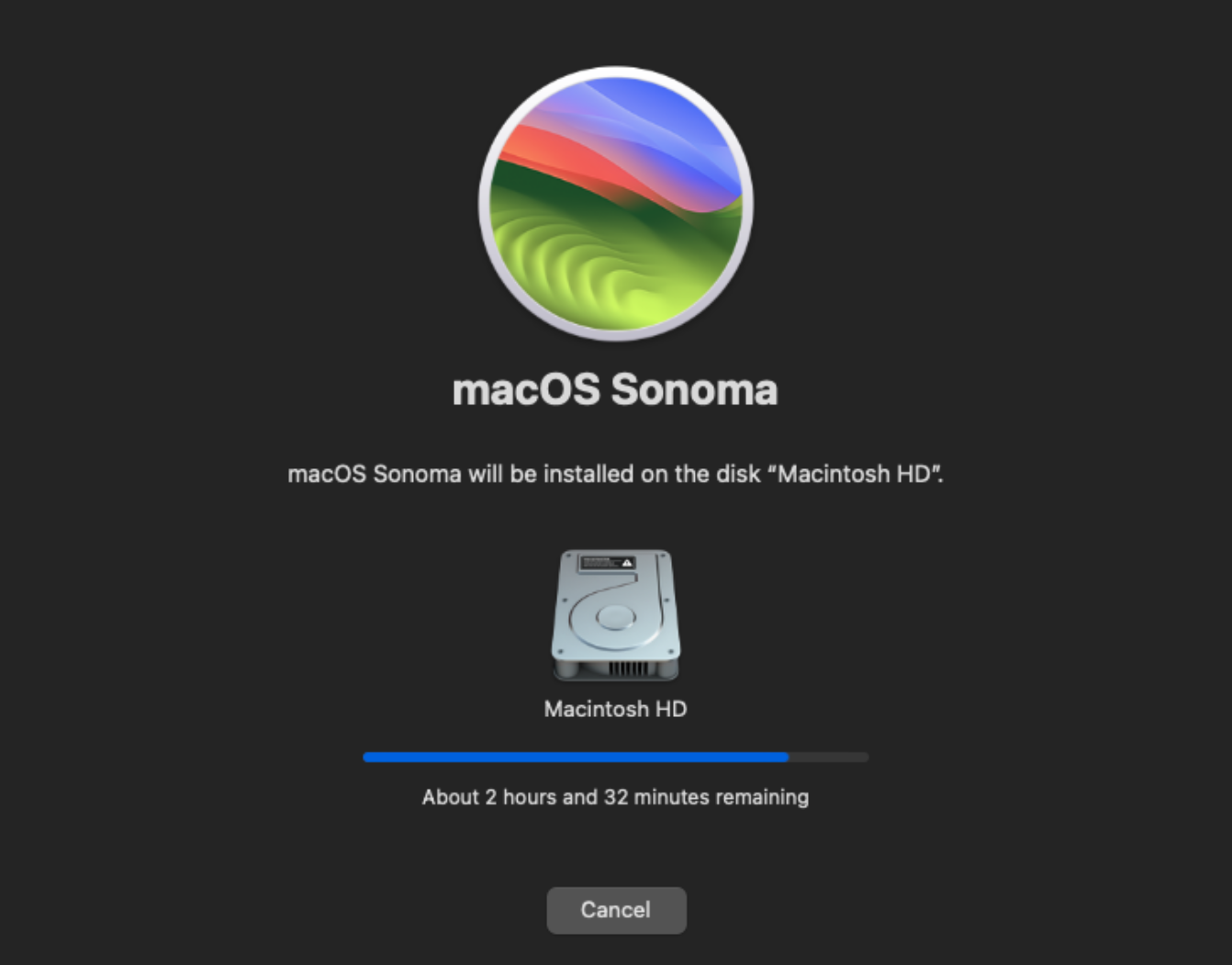
Wait for the installation to finish, which typically takes 20-40 minutes.
Complete initial setup
After the system installation finishes:
Follow the prompts for region, language, and accessibility settings.
When prompted to set up migration assistant, select Not Now in the lower left corner.
When prompted to sign in with your Apple ID, select Set Up Later in the lower left corner.
Set up a username and password for the macOS account. For the remaining setup steps, you can skip or accept the defaults.
Access the macOS VM
Access from browser
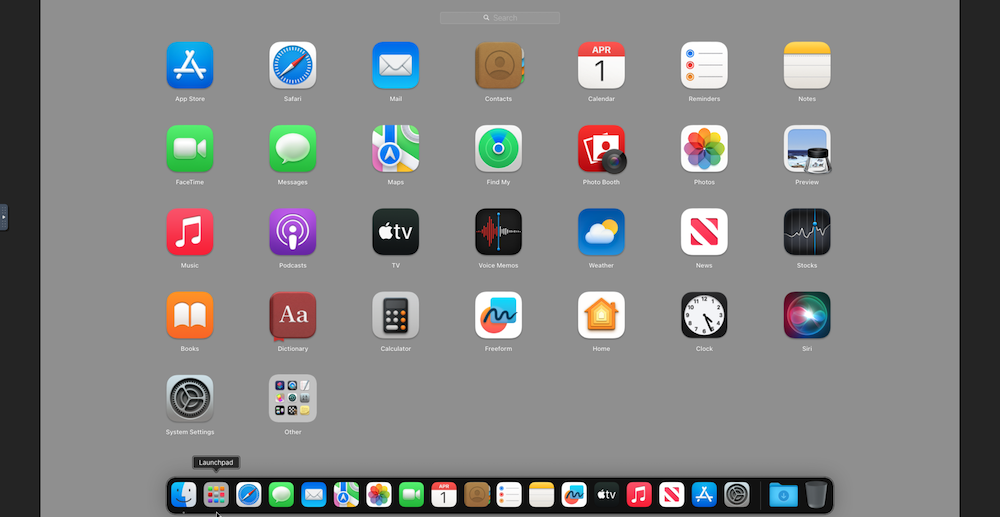
Open the macOS app from the Launchpad to access the VM directly in your browser.
Use this for initial setup, quick access, or troubleshooting.
Access using VNC Viewer
A dedicated VNC client provides better stability, lower latency, and improved keyboard mapping.
Step 1: Obtain connection details
Multiple macOS instances
Each macOS instance uses a unique port. If you have cloned the MacOS app, ensure you check the ACLs section for the specific instance you want to access.
Open Settings, and then go to Applications > MacOS.
Under Entrances, click MacOS, and then note down the endpoint address.
Example:
https://43b9d8ea.alexmiles.olares.com.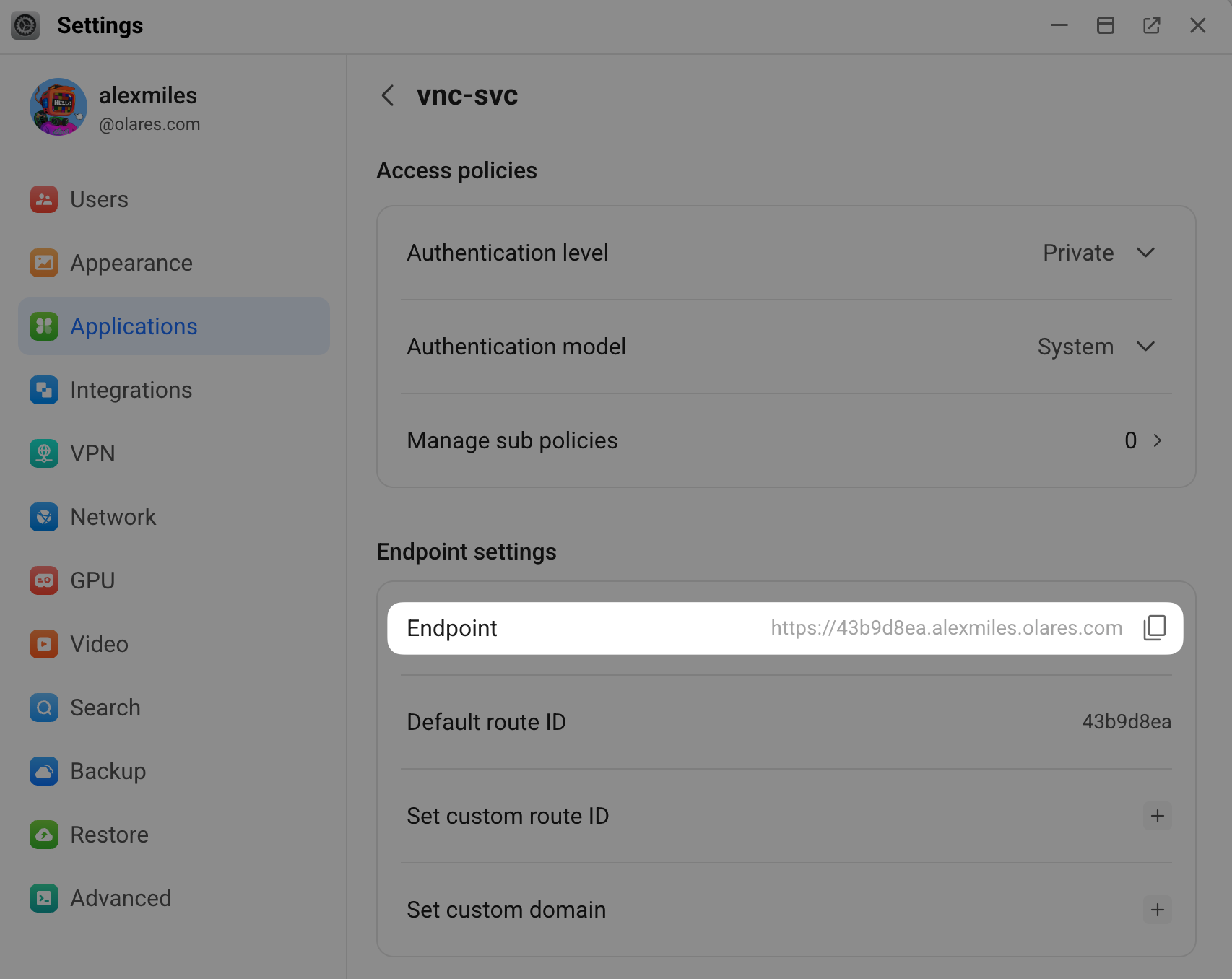
Go back to the previous page, click ACLs, and then note down the port number.
Example:
49238.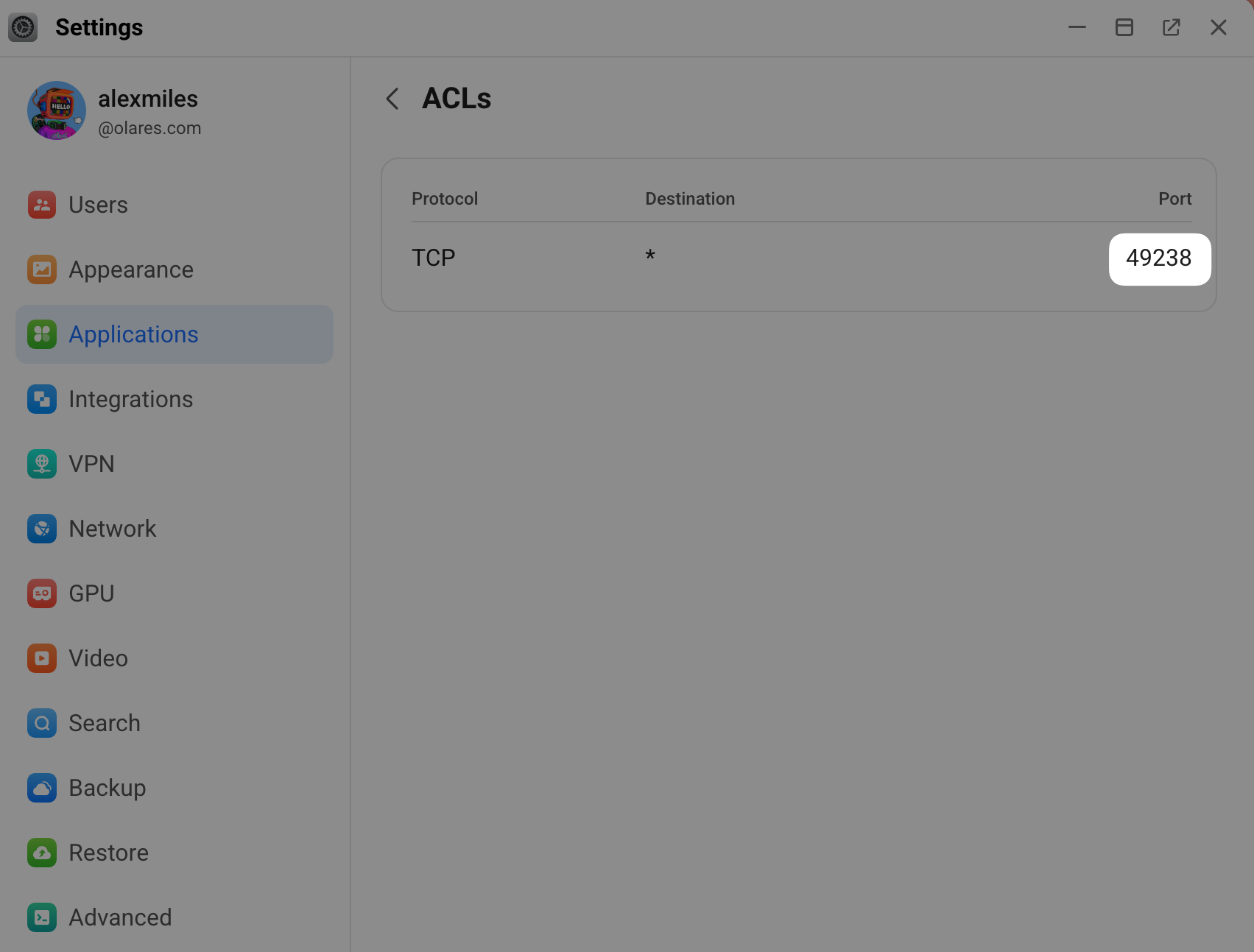
Construct the address for VNC connection by combining the Endpoint (without the
https://prefix) and the Port number, separated by a colon.- Format:
[Endpoint-exclude-https]:[Port] - Example:
43b9d8ea.alexmiles.olares.com:49238
- Format:
Step 2: Enable VPN connection
You must be on the Olares secure network to connect via VNC Viewer.
Open the LarePass desktop client.
Click the avatar, and then enable VPN connection.
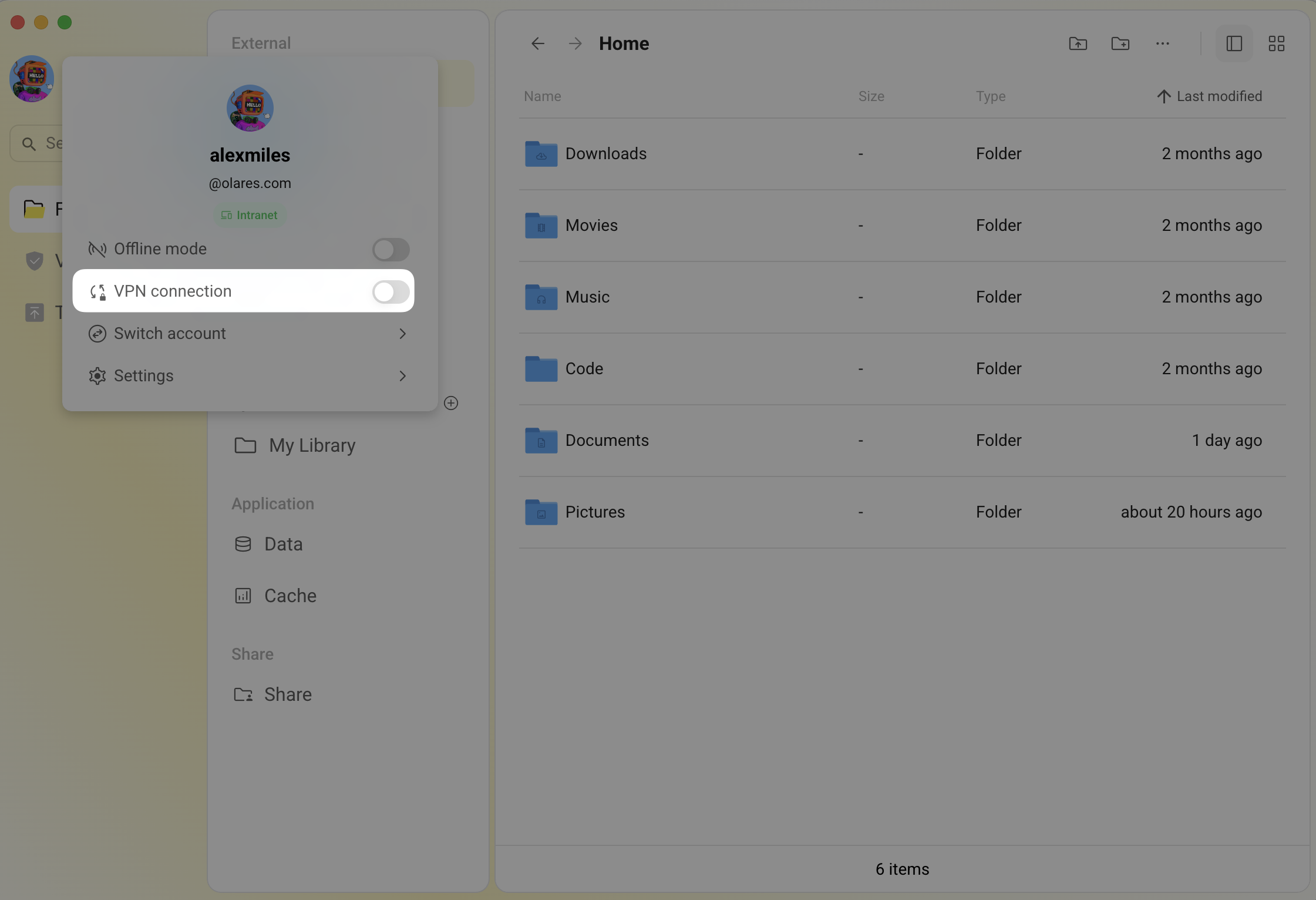
Ensure the status shows P2P or Intranet before proceeding.
Step 3: Connect via VNC Viewer
Step 4: Disconnect from the macOS VM
To disconnect from the macOS VM, close the VNC Viewer window.
The macOS VM continues running on your Olares device and remains ready for you to reconnect.
FAQs
Can I use my Apple ID with this VM?
While you can sign in with an Apple ID during setup, some Apple services might not function correctly in a virtualized environment. For best results, use local accounts or skip Apple ID setup.
What macOS versions are supported?
Currently supported versions:
- macOS 14 Sonoma
- macOS 13 Ventura
- macOS 12 Monterey
- macOS 11 Big Sur
- macOS 10 Catalina
Why does VNC Viewer show "The connection closed unexpectedly"?
This issue usually occurs when the LarePass VPN is disabled.
To address it, open your LarePass desktop client and ensure that the VPN connection status is P2P or Intranet. Then try to connect again.