Import photos from NAS
If you have photos stored on a NAS device, you can mount the NAS shared folder in Olares and import them into Immich as an external library.
INFO
This tutorial uses Synology NAS as the example. The process might differ for other NAS brands.
Prerequisites
- Immich is updated to V1.0.15 or later.
- The Olares device and the NAS are on the same local network.
- Shared folder configurations:
- The shared folder is configured to allow read/write access over the local network (SMB).
- The Hide this shared folder in "My Network Places" option is not selected for the shared folder.
Step 1: Mount the NAS shared folder to Olares
Open Files, click External, and then click Connect to server.
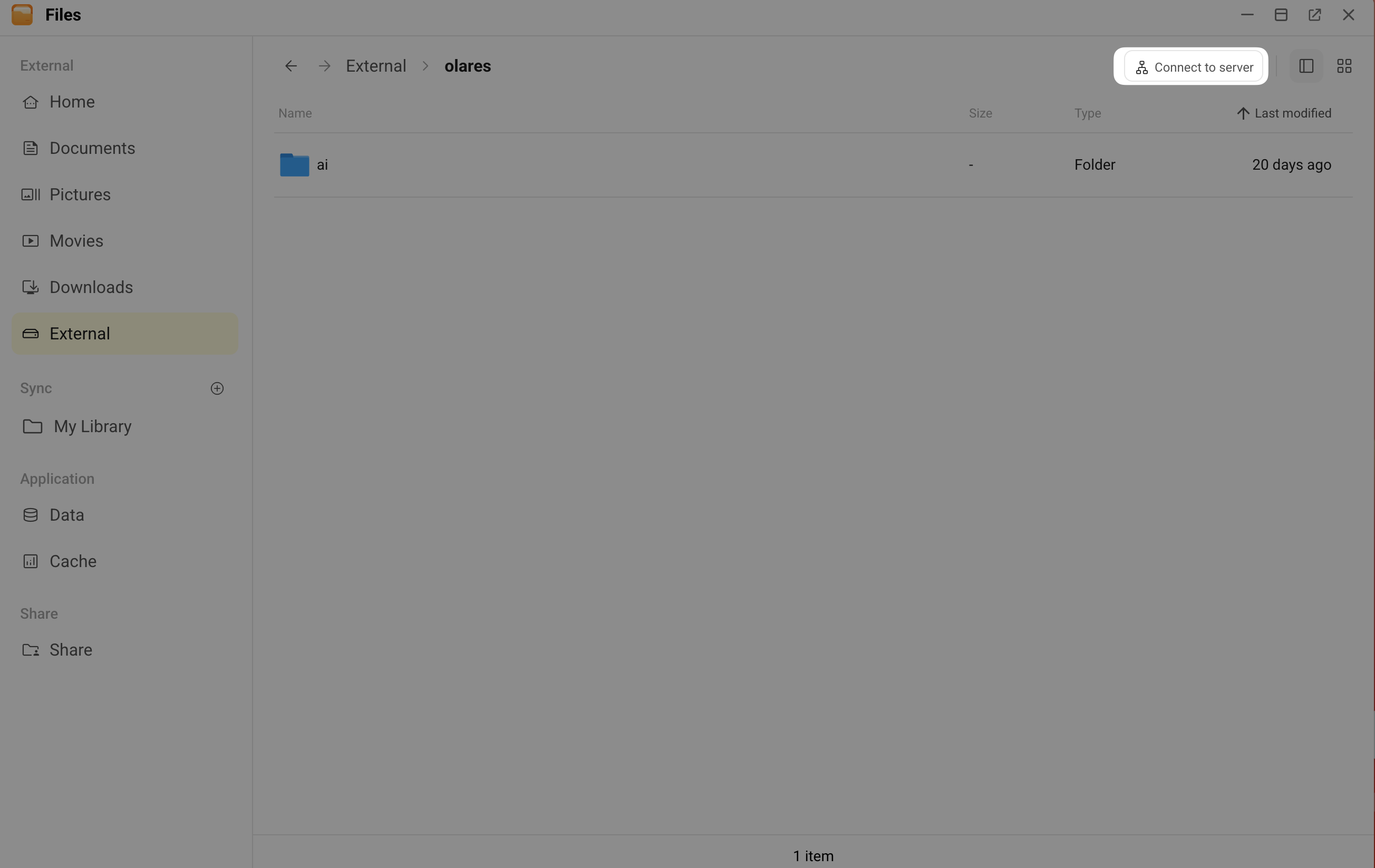
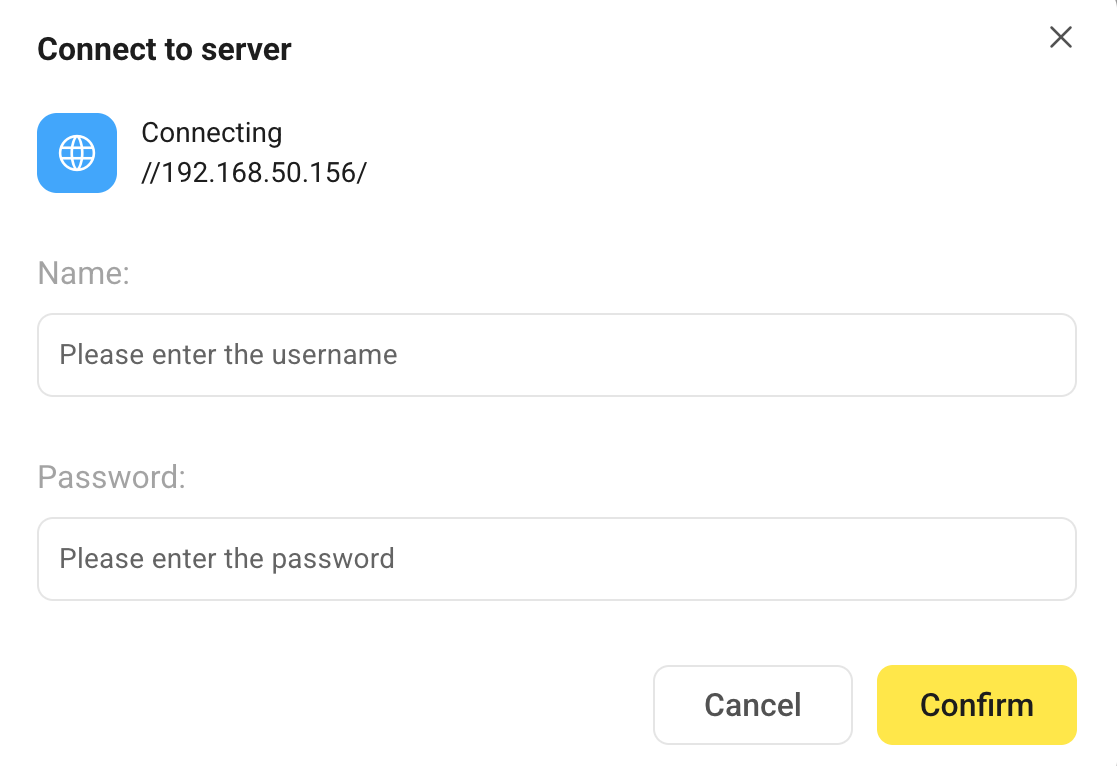
In the Connect to server window:
a. Enter the NAS IP address in SMB format (e.g.,
//192.168.50.156/), and then click Confirm.b. Enter your NAS user name and password, and then click Confirm.
c. Select the folder to mount (
/CZ-testin this case), and then click Confirm.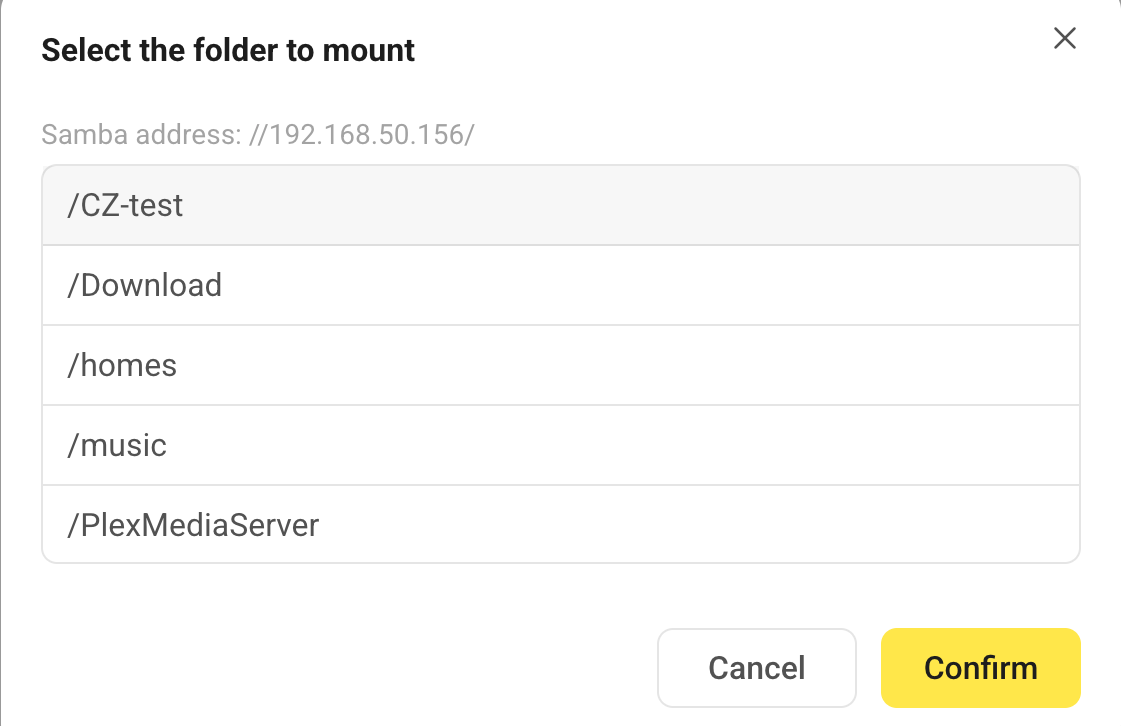
Once connected, the shared folder will appear in the External directory.
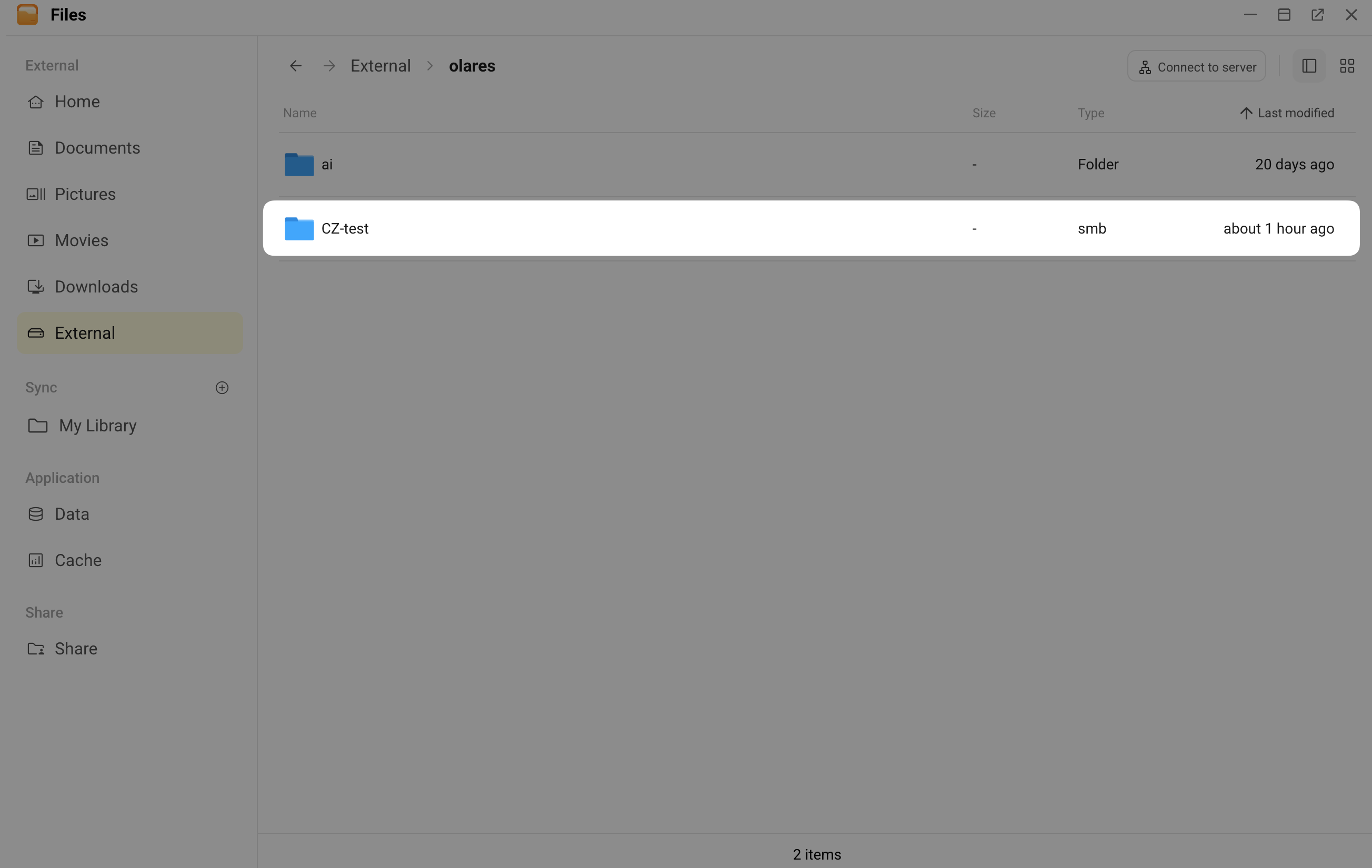
Step 2: Add the folder to an Immich external library
Open Immich, click your user avatar in the upper-right corner, and then select Administration.
Click External Libraries from the left sidebar.
Create a new library or use an existing one.
In the Folders area, click Add.
Enter the import path. The path format is
/external_storage/followed by the directory name you mounted in Files. In this case, it is:text/external_storage/CZ-test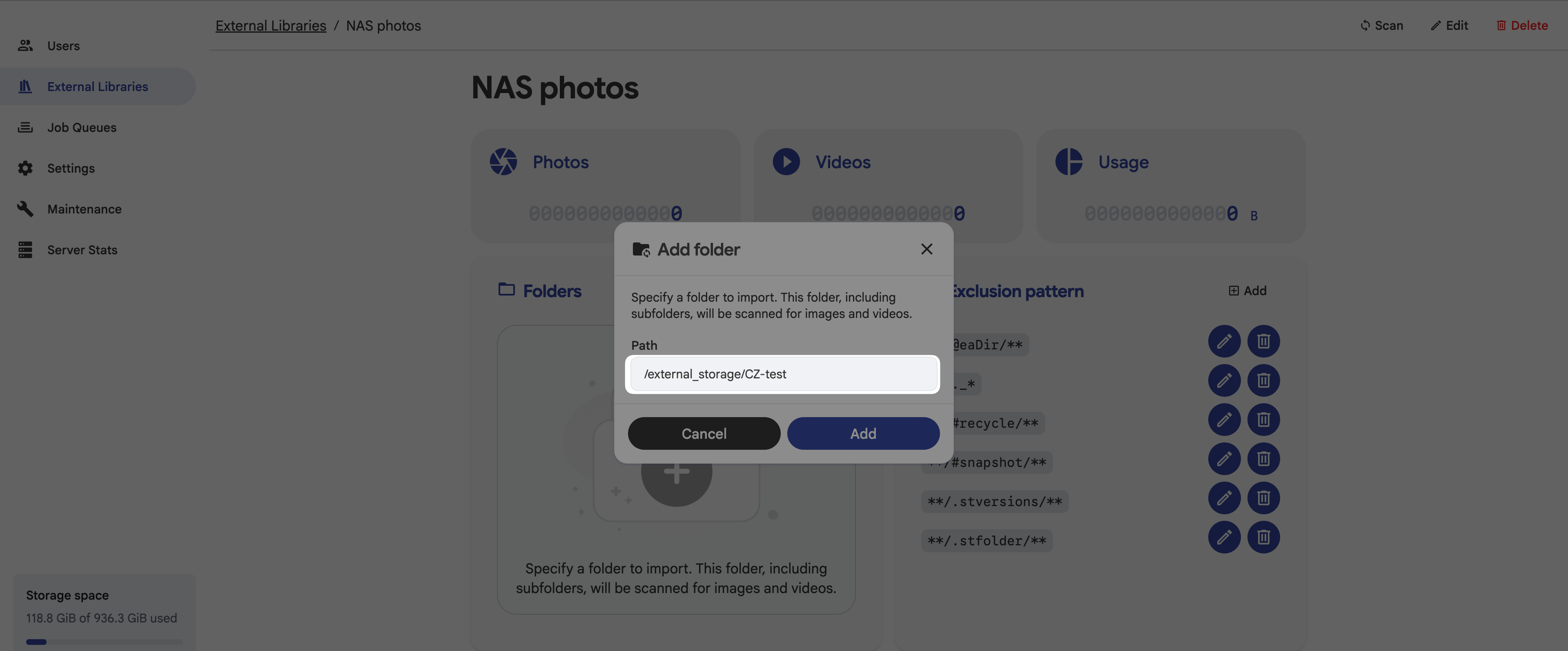
Click Add.
Click Scan in the upper-right corner to start scanning.
Once the scan finishes, photos from the NAS appear in the photos timeline.
Scanning large folders
If the folder contains many files, scanning might take a while and consume significant NAS disk I/O. You can go to Administration > Job Queues and pause some tasks in it to speed up processing.